This is the full developer documentation for Endue AI
# Endue Docs
> Endue gives your AI agents an identity, connects them to the tools you already use, and keeps you in control of what they do.
Endue is a platform for AI agents that do real work. You give an agent an identity and a purpose, connect it to the tools you already use, and it runs — in a conversation, on a schedule, or triggered by an event — while you keep control of every action that leaves your account.
## Get started
[Section titled “Get started”](#get-started)
Endue runs on several surfaces. They all talk to the same agents, conversations, and history, so you can start on one and continue on another. Pick where you want to begin.
* Web
The full Endue workspace in your browser. Build agents, chat with them, connect tools, schedule routines, and review everything they produce — no install.
Open Endue and sign in, then follow the [Quickstart](/docs/get-started/quickstart/) to build your first agent.
This is the recommended place to start, and the surface the rest of these docs show by default.
* Desktop
endue Desktop is a desktop app for macOS: the same endue as the web, in its own window. To let an agent work with files on a computer of yours, install [endue Computer](/docs/build/own-server/) on it.
Setup docs in progress
Desktop install instructions are being written. See [Surfaces](/docs/get-started/surfaces/) for what the desktop app does today.
* Mobile
iOS and Android apps for checking in on agents that are already running: read what they produced, answer a question an agent asked, and approve or reject an action it wants to take.
Setup docs in progress
Mobile install instructions are being written. See [Surfaces](/docs/get-started/surfaces/).
* CLI
A single `endue` binary that is both a local runtime and a command-line client — `endue chat` for an interactive session, `endue run` for one-shot tasks you can pipe into other tools.
Setup docs in progress
The CLI is not yet generally available. See [Surfaces](/docs/get-started/surfaces/) for the commands it exposes.
## What you can do
[Section titled “What you can do”](#what-you-can-do)
Give an agent an identity, not just a prompt
An Endue agent is a durable thing, not a chat window. It has a name and handle, a profile, a character, and a system prompt kept under revision history — so you can change how it behaves and roll back when a change makes it worse.
Agents you build are addressable by handle, and the same agent shows up wherever you work with it.
→ [Build your agent](/docs/get-started/core-concepts/#agent)
Connect the tools you already use
Connect an agent to more than thirty services — Gmail and Google Workspace, Slack, Notion, Linear, GitLab, Shopify, Figma, Datadog and the rest. Once connected, the agent can search, read, create, and send within the accounts you authorized — nothing more.
Each connection is scoped to your account, bound to the agents you choose, and can be revoked at any time.
→ [Available connectors](/docs/connect/available-connectors/)
Teach it skills instead of rewriting prompts
A skill packages a repeatable job — a checklist, a procedure, a set of commands — so you can bind it to an agent and reuse it. An agent can also ask for a skill it is not yet allowed to use, and you decide in the conversation whether to grant it.
Let it remember what matters
Agents can store what they learn about you and your work, and recall it in later conversations. Memory is explicit and inspectable: you can see what an agent remembered and remove anything that should not have been kept.
Put recurring work on a schedule
Turn a task into a routine that runs on a schedule — a morning digest, a weekly report, an overnight check. Routines run whether or not you are in the app, and what they produce lands in your workspace waiting for you.
Get outputs, not walls of text
When an agent produces something worth keeping — a report, a document, a diagram — it becomes an output with its own page and a shareable link. You can hand that link to someone outside your workspace without giving them access to anything else.
→ [Outputs](/docs/capabilities/outputs/)
Stay in control while it runs
You are not locked out once a run starts. Steer it mid-flight with a correction, and approve or reject any action that sends something out of your account or destroys data. Nothing outbound happens without your say-so.
→ [Core concepts: Run](/docs/get-started/core-concepts/#run)
Organize work into projects and spaces
Group related conversations, outputs, and routines into a project so an agent has the right context. Spaces let a team share agents and the work they produce.
## Find the right page
[Section titled “Find the right page”](#find-the-right-page)
| I want to… | Start here |
| ---------------------------------------------------- | ------------------------------------------------------ |
| Build my first agent and talk to it | [Quickstart](/docs/get-started/quickstart/) |
| Understand what an agent, run, or output actually is | [Core concepts](/docs/get-started/core-concepts/) |
| Know why an agent did what it did | [How Endue works](/docs/get-started/how-it-works/) |
| Write a system prompt that actually works | [System prompt and revisions](/docs/build/system-prompt/) |
| Get better results from an agent I already built | [Testing and iterating](/docs/build/iterating/) |
| Connect Gmail, Slack, Notion, or something else | [Available connectors](/docs/connect/available-connectors/) |
| Put a recurring job on a schedule | [Routines](/docs/automate/routines/) |
| Understand what an agent can and cannot reach | [Security and permissions](/docs/account/security/) |
| Work out why something went wrong | [Troubleshooting](/docs/troubleshooting/) |
| Know which app to install | [Surfaces](/docs/get-started/surfaces/) |
| Look up a term I saw in the product | [Glossary](/docs/get-started/glossary/) |
Reading these docs with an agent
Every page is available as plain Markdown, and the whole site is indexed at [`/llms.txt`](/docs/llms.txt) and [`/llms-full.txt`](/docs/llms-full.txt). Point an agent at either one and it can answer questions about Endue from the current docs.
## Next steps
[Section titled “Next steps”](#next-steps)
[Quickstart](/docs/get-started/quickstart/)Build an agent, connect a tool, and get your first real result.
[Core concepts](/docs/get-started/core-concepts/)Agents, conversations, runs, skills, connectors, memory, outputs.
[How Endue works](/docs/get-started/how-it-works/)The loop behind every run, what an agent can see, and why runs pause.
[Build your agent](/docs/build/agent-builder/)Identity, system prompt, model — everything that decides how an agent behaves.
[Connect your tools](/docs/connect/overview/)More than thirty services, and the binding model that keeps access narrow.
## Getting help
[Section titled “Getting help”](#getting-help)
* **Search these docs** — press `Ctrl`/`⌘` + `K` from any page.
* **Look up a term** — the [Glossary](/docs/get-started/glossary/) defines everything you can see in the product.
* **Email us** — .
# Page not found
> That page does not exist, or it moved.
If you followed a link from inside these docs, that is a bug on our side — please tell us. Otherwise, try the search at the top of the page, or start from [Core concepts](/docs/get-started/core-concepts/).
# Bring your own key
> Use your own model-provider credentials for an agent's model calls instead of Endue's allowance.
**Bring your own key** (BYOK) means Endue makes model calls with *your* provider credentials. The provider bills you directly, and those calls do not draw on your Endue allowance.
## When to use it
[Section titled “When to use it”](#when-to-use-it)
* You already have provider credit or negotiated pricing.
* Your organization requires model traffic to run under its own account for billing or audit reasons.
* You want a model that your own account has access to.
If none of those apply, the built-in allowance is simpler — there is nothing to set up and nothing to keep topped up.
## Set it up
[Section titled “Set it up”](#set-it-up)
1. **Create a key** in your model provider’s dashboard. You can register OpenRouter, xAI, and OpenAI keys.
2. **Open Settings → Account → LLM key** in Endue, choose Register on that provider’s row, and paste it. The key is checked once against the provider when you register it.
3. **Check that it works** by running a normal conversation and watching the run complete.
A key is a credential
Anyone who can spend your key can run up a bill against it. Set a spending limit at the provider, and rotate the key if you suspect it has leaked. Rotating means creating a new key at the provider and replacing it in Endue — old and new keys are not interchangeable mid-run.
## Keys you can register
[Section titled “Keys you can register”](#keys-you-can-register)
| Key | Used for | Requests go to |
| ---------- | ----------- | -------------- |
| OpenRouter | Every model | OpenRouter |
| xAI | Grok models | xAI |
| OpenAI | GPT models | OpenAI |
If you register more than one key, the model’s own provider key is used first. Grok models go to your xAI key, GPT models go to your OpenAI key, and other models go to your OpenRouter key. A model with no matching key runs on endue credits.
Some models cannot be requested with an xAI or OpenAI key. This applies to OpenAI’s Codex and Pro lines and to Grok 4.20. These run on your OpenRouter key if you have one, and on endue credits otherwise.
Three things differ when a run uses an xAI or OpenAI key.
* A PDF attached to a Grok model is passed as extracted text. Figures and table layout are not passed.
* GPT models do not show their thinking while they work. The answer is the same.
* Turning audio and video attachments into text goes through OpenRouter. If you registered only an xAI or OpenAI key, audio and video attachments are not passed to the model. Register an OpenRouter key as well and they are.
## What changes and what does not
[Section titled “What changes and what does not”](#what-changes-and-what-does-not)
| Changes | Stays the same |
| ---------------------------------------------------------- | ----------------------------------------------------------------------------------------------------------------------------------- |
| Who pays for model calls | Everything about how agents behave |
| Which models you can reach — your account’s access applies | [Approvals](/docs/work/approvals/), [connectors](/docs/connect/overview/), [memory](/docs/capabilities/memory/), [outputs](/docs/capabilities/outputs/) |
| Where the bill arrives | Endue’s own subscription, which still applies |
BYOK covers model calls. It does not change your Endue plan or make the product free.
## If the key stops working
[Section titled “If the key stops working”](#if-the-key-stops-working)
If the provider rejects the key during a run, or the provider account is out of credit, that run fails at the model step. A notice above the message box names the provider, and its **LLM key settings** button takes you to the setting.
When a key is rejected, endue checks it with the provider once more. If the rejection is confirmed, the key is marked **Rejected** in settings and later runs continue on another key or on endue credits. The notice above the message box says which one was used. Registering a new key or deleting the rejected one clears the notice.
Check, in order: the key is still valid at the provider, the account has credit, and the model you selected is one your account can reach.
## Limits
[Section titled “Limits”](#limits)
* The key is set per account, not per agent.
* A run fails if the key is rejected partway through. It does not switch to another key or to credits mid-run.
* A run that starts on your key calls models only with your keys. If the agent’s fallback model cannot be reached with your keys, the fallback is not used in that run.
* Provider rate limits are yours. A busy [routine](/docs/automate/routines/) can hit them.
* Costs incurred under your own key are visible at the provider, not in Endue’s usage view.
## Related
[Section titled “Related”](#related)
[Plans and usage](/docs/account/plans-and-usage/)What consumes the built-in allowance.
[Choosing a model](/docs/build/models/)The catalog, and what each model costs to run.
[Security and permissions](/docs/account/security/)How credentials are handled.
# Plans and usage
> What consumes your allowance, how the weekly limit works, and where to see how much you have used.
Endue meters the thing that actually costs money: **model usage**. Everything else — agents, conversations, outputs, connectors — is not billed per action.
## What consumes usage
[Section titled “What consumes usage”](#what-consumes-usage)
Every [run](/docs/work/runs/) sends your conversation, the agent’s prompt, and its tool results to a model, and the model answers. Both directions count.
That means usage is driven by:
| Driver | Effect |
| ------------------------------------------------------- | ----------------------------------------------------------------------------- |
| **Which model** | The largest factor by far — prices across the catalog differ by more than 10× |
| **[Reasoning effort](/docs/build/models/#reasoning-effort)** | Higher effort spends more tokens before answering |
| **How many steps a run takes** | Each tool result goes back into the model |
| **Conversation length** | A long thread is re-read on every step |
| **[Routines](/docs/automate/routines/)** | They run whether or not you are watching, on their own schedule |
## The weekly limit
[Section titled “The weekly limit”](#the-weekly-limit)
Your plan carries an allowance measured over a **rolling week**, not a monthly balance you can spend all at once. When the week’s allowance is used up, runs are declined until the window moves on.
Two consequences worth planning around:
* A single heavy day cannot exhaust a month.
* A routine on a short interval with an expensive model is the most common way to hit the limit, because it spends steadily while you are not watching.
Where to see the current numbers
Your allowance and what you have used are on the **Usage** tab of the home screen — the [usage dashboard](/docs/account/usage/). Your plan and payment details are in **Settings → Billing**. Current prices and what each plan includes are on the pricing page in the app — those change, and the app is the authoritative place to read them.
## Keeping usage down
[Section titled “Keeping usage down”](#keeping-usage-down)
In rough order of effect:
1. **Match the model to the job.** A fast, cheap model for routine work, a strong one for the few hard messages. See [Choosing a model](/docs/build/models/).
2. **Pin a model on each routine**, so scheduled work has a predictable cost.
3. **Lower reasoning effort** for work that is not multi-step.
4. **Start new conversations** when the topic changes — long threads are re-sent on every step.
5. **Turn off [built-in tool groups](/docs/capabilities/built-in-tools/)** an agent does not need; every advertised tool is context on every step.
6. **Widen routine intervals.** Hourly is rarely worth four times what four-hourly costs.
## Bring your own key
[Section titled “Bring your own key”](#bring-your-own-key)
If you would rather pay a model provider directly, connect your own key and Endue will use it for that model’s calls. See [Bring your own key](/docs/account/bring-your-own-key/).
## Limits
[Section titled “Limits”](#limits)
* Usage is metered per account, not per agent. The dashboard’s per-agent view is a breakdown of that total, not a separate allowance.
* Runs are declined when the weekly allowance is exhausted. Work in flight is not rolled back, but new runs will not start.
* Figures in the usage view can lag a run by a short period while it is settled.
* Runs made with [your own key](/docs/account/bring-your-own-key/) are not recorded in the usage ledger at all.
## Related
[Section titled “Related”](#related)
[Usage dashboard](/docs/account/usage/)Where the numbers on this page are actually read.
[Choosing a model](/docs/build/models/)The single biggest lever on what you spend.
[Bring your own key](/docs/account/bring-your-own-key/)Pay the provider directly instead.
[Routines](/docs/automate/routines/)Scheduled work — the usage you are least likely to notice.
# Security and permissions
> What an agent can reach, what stops it, how credentials are held, and how to withdraw access.
An Endue agent can only reach what you have given it, and cannot take an irreversible action without you. This page is the whole model in one place.
## What an agent can reach
[Section titled “What an agent can reach”](#what-an-agent-can-reach)
An agent starts with nothing but reasoning, arithmetic, the current time, and public web pages. Everything beyond that is something you added:
| Reach | Comes from | Scope |
| ----------------------- | ----------------------------------------------------------------------------- | ------------------------------------------------------ |
| A service you use | A [connection](/docs/connect/overview/) you authorized **and** bound to this agent | That account, those operations |
| A packaged procedure | A [skill](/docs/capabilities/skills/) bound to this agent | What the skill’s steps do |
| A server you run | A [direct connection](/docs/connect/direct-connections/) bound to this agent | That endpoint. For an HTTP server, only paths under it |
| A computer or a browser | The agent’s [devices](/docs/build/devices/) | Its endue Computer and its endue for Chrome |
| Built-in capabilities | [Tool groups](/docs/capabilities/built-in-tools/) left switched on | Your Endue workspace |
| Facts about you | What it stored in [memory](/docs/capabilities/memory/) | This agent only |
## What it cannot reach
[Section titled “What it cannot reach”](#what-it-cannot-reach)
* **Other agents’ conversations, memory, and bindings.** Agents are isolated from each other.
* **Its own other threads.** A [conversation](/docs/work/conversations/) does not read across to another.
* **Services you have not connected.** There is no generic “call any API” capability. A [direct connection](/docs/connect/direct-connections/) reaches only the server you registered.
* **Operations a connector does not expose.** Each connector has a fixed list — see [Available connectors](/docs/connect/available-connectors/).
* **Anything on your own machine**, unless you install [endue Computer](/docs/build/own-server/) on it for that agent. Even then, the agent works as a dedicated user within the limits you set at install.
## The gate in front of irreversible actions
[Section titled “The gate in front of irreversible actions”](#the-gate-in-front-of-irreversible-actions)
Every connector operation is classified. **Send** (anything that leaves your account and reaches someone else) and **destructive** (anything that deletes or overwrites) stop and show you the exact action with the exact arguments before running.
The gate cannot be switched off
There is no per-agent or per-account setting that lets an agent send or delete without asking. In an unattended run — a [routine](/docs/automate/routines/) or a [channel](/docs/automate/channels/) — such an action is refused rather than performed.
Approving authorizes *that action with those arguments*, once. The next one asks again.
## How credentials are held
[Section titled “How credentials are held”](#how-credentials-are-held)
When you authorize a connector, Endue stores the resulting token — never your password, which you enter at the provider, not in Endue. Stored credentials are encrypted, and they are used only to make the calls the connector’s operations describe.
Model-provider keys you supply under [BYOK](/docs/account/bring-your-own-key/) are handled the same way, and so are the header values of a [direct connection](/docs/connect/direct-connections/). Those are never shown again after you save them, and never passed to the agent.
## Withdrawing access
[Section titled “Withdrawing access”](#withdrawing-access)
| To withdraw | Do this | Effect |
| ----------------------------------------- | --------------------------------------------------------------- | ------------------------------------------------- |
| One agent’s access to a service | Unbind the connection in [Agent Builder](/docs/build/agent-builder/) | Immediate, for that agent |
| All agents’ access | Remove the connection in Endue | Immediate, everywhere |
| Endue’s access entirely | Revoke at the provider as well | Endue can no longer call, even with a stale token |
| A shared [output](/docs/capabilities/outputs/) | Turn link sharing off | The link stops working |
For a clean break, do both the Endue side and the provider side — removing a connection in Endue does not revoke Endue’s registration at the provider.
## Practical advice
[Section titled “Practical advice”](#practical-advice)
* **Bind narrowly.** The agent that drafts your emails does not need your production dashboards.
* **Be careful with channel-facing agents.** Anyone who can reach the bot can talk to the agent, so an agent exposed in a [channel](/docs/automate/channels/) should not hold sensitive connections.
* **Read approval prompts.** They exist so you can catch the wrong recipient, and they name it.
* **Read what you share.** An output written from your mail may quote it; a share link is public to anyone who has it.
* **Review memory occasionally.** Agents write down what they infer, and you can delete what should not be there.
## Related
[Section titled “Related”](#related)
[Approvals](/docs/work/approvals/)The gate itself, and how it behaves unattended.
[Connectors overview](/docs/connect/overview/)Connection versus binding — the core of the access model.
[Troubleshooting connections](/docs/connect/troubleshooting/)Revoking, re-authorizing, and the wrong account.
# Settings
> What is in each settings tab, and the three preferences that are only documented here — theme, interface language, and time zone.
**Settings** is the account-wide panel: how the app looks, what language it speaks, what it tells you about, and everything to do with your account and billing.
## When to use it
[Section titled “When to use it”](#when-to-use-it)
Settings holds the things that are true for all of your agents. Anything that is true for *one* agent — its prompt, its model, its tools — is in [Agent Builder](/docs/build/agent-builder/) instead.
## Getting there
[Section titled “Getting there”](#getting-there)
Open the account panel at the bottom of the left sidebar and choose **Settings**. The panel has a search box at the top: typing a word jumps straight to the section that carries it, which is faster than remembering which tab something is under.
## What is in each tab
[Section titled “What is in each tab”](#what-is-in-each-tab)
| Tab | Sections | Documented in |
| ------------ | ---------------------------------------------------------------------------------------------------------------- | -------------------------------------------------------------------------------------------------------------------------------------------------------------- |
| **Account** | Profile · Sign-in & Security · Plan · LLM Key · API Keys · LLM API · Tool Allowances · Sign out · Delete account | [Security and permissions](/docs/account/security/), [Bring your own key](/docs/account/bring-your-own-key/), [Agent API](/docs/build/agent-api/), [LLM API](/docs/build/llm-api/) |
| **General** | Appearance · Language & Region · Notifications | This page, and [Notifications](/docs/work/inbox/) |
| **Features** | A preview list of feature switches | This page |
| **Billing** | Current plan · Payment · Usage credits · Invoices · Cancel | [Plans and usage](/docs/account/plans-and-usage/) |
## Appearance
[Section titled “Appearance”](#appearance)
**Theme** has three choices: Light, Dark, and System. System follows your operating system, including when it switches at sunset. The choice applies immediately and is remembered in that browser; a browser you have not set it in starts on Dark.
## Language and region
[Section titled “Language and region”](#language-and-region)
**Display language** switches the interface between English and Korean. The change is immediate — the app does not reload.
Two things the switch does not do:
* It does not change what your agents write. An agent answers in the language of the conversation, and its own language is part of its [identity](/docs/build/identity/).
* It does not translate content you or an agent created. Prompts, memories, outputs, and messages stay in the language they were written in.
**Time zone** sets the zone used to display dates and times across the app.
A routine keeps its own time zone
When you create a [routine](/docs/automate/routines/), its schedule records the time zone of the device you created it on, and it keeps that zone afterwards. Changing the account time zone here changes how times are *displayed*; it does not move a routine that is already scheduled.
## Notifications
[Section titled “Notifications”](#notifications)
The third section of **General** decides which events reach you and whether they arrive as browser notifications. It has its own page: [Notifications](/docs/work/inbox/).
## Features
[Section titled “Features”](#features)
The **Features** tab is a preview of switches that are not connected yet. Toggling one does not save, and reopening Settings shows it back where it was. Nothing there turns a capability on or off today.
## Limits
[Section titled “Limits”](#limits)
* Theme is stored per browser. A new device starts on Dark until you choose.
* Interface language covers the console. The [documentation](/) is a separate site with its own language switch, in the footer.
* The time zone list covers a fixed set of zones rather than every zone in the world.
* The Features tab does not persist. Treat it as a preview, not a control.
## Related
[Section titled “Related”](#related)
[Notifications](/docs/work/inbox/)The third section of General, in full.
[Security and permissions](/docs/account/security/)Sign-in, sessions, and what an agent is allowed to do.
[Plans and usage](/docs/account/plans-and-usage/)What the Billing tab is about.
[Identity and profile](/docs/build/identity/)The per-agent settings that are not here.
# Usage dashboard
> Where to read what your agents have spent — total tokens, which models and which agents spent them, how much of your plan allowance is left, and the usage of a single conversation.
The **usage dashboard** is the record of what your agents have spent: tokens, over time, broken down by model and by agent.
## When to use it
[Section titled “When to use it”](#when-to-use-it)
Open it when the token badge on the [Activity](/docs/work/activity/) board is higher than you expected, before changing the model on a [routine](/docs/automate/routines/), or at the start of a week to see where last week went.
For *what* consumes usage and how the allowance works, read [Plans and usage](/docs/account/plans-and-usage/) first. This page is about reading the numbers.
## Getting there
[Section titled “Getting there”](#getting-there)
1. **Open the Usage tab** on the home screen, or select the token badge in the Activity header.
2. **Pick a period.** 7 days, 30 days, or 3 months. The period changes the tiles and the charts; the yearly activity map always covers the current year.
3. **Move between the four tabs** — Overview, Models, Agents, Compute.
## Overview
[Section titled “Overview”](#overview)
The tiles across the top answer “how much, how often, and with what”:
| Tile | Reads |
| ------------------ | -------------------------------------------------------------- |
| **Total Tokens** | Everything sent and received in the period |
| **Requests** | How many model calls that took |
| **Active Days** | Days in the period with any usage |
| **Current Streak** | Consecutive days of usage, with your longest as a hint |
| **Top Model** | The model that accounted for the most tokens |
| **Usage Credits** | This week’s spend in credits. The tile names the ratio it uses |
Below them, **Plan Allowance** is the one to watch: a bar showing how much of the current allowance is gone, and a plain statement when it is exhausted. This is the same number the service checks before it starts a [run](/docs/work/runs/), so when the bar is full, runs stop.
**Daily Activity** is a year-long map, one square per day, darker where you used more. It is the fastest way to spot a routine that started spending every day without you noticing.
## Models and Agents
[Section titled “Models and Agents”](#models-and-agents)
Both tabs have the same shape: a daily chart on top, a breakdown below.
* **Models** — which models the tokens went to. This is the biggest lever on cost, so this is where a decision to switch a model usually starts. See [Choosing a model](/docs/build/models/).
* **Agents** — which agents did the spending, and which models each one used. A routine-heavy agent shows up here long before you notice it anywhere else.
In both, the legend is a filter: turn a series off to read the rest without it, and **Show All** brings them back. Rows the chart does not have room for are collected into an “other” entry rather than dropped.
'Unassigned' is not a bug
The Agents tab has an **Unassigned** row for usage that is not attributable to one agent — account-level calls, including models you call directly through the [LLM API](/docs/build/llm-api/). It is real spend with no agent to hang it on. The Sources tab splits it out.
## Sources
[Section titled “Sources”](#sources)
The **Sources** tab splits the same tokens by where they came from:
* **Agents** — agent runs from web chats, routines, and channels.
* **Agent API** — agents called with an API key through the [Agent API](/docs/build/agent-api/).
* **endue Live** — conversations visitors had with your agent on endue Live. Visitor conversations count as the agent owner’s usage.
* **LLM API** — models called directly with an API key through the [LLM API](/docs/build/llm-api/).
Each row shows its tokens, share, and requests, with the models it used underneath. The legend works as a filter here too. LLM API calls are paid from purchased and promotional credits, while agent, Agent API, and endue Live runs draw on your plan allowance, so this is the tab to open when a credit balance moves and no agent explains it.
## Compute
[Section titled “Compute”](#compute)
Browser sessions, workspace storage, media processing, and output storage are listed here but **not yet measured**. The tab says so on every row.
Read the empty rows as “not instrumented yet”, not as “zero”. Nothing on this tab is a claim that a resource is free.
## One agent in detail
[Section titled “One agent in detail”](#one-agent-in-detail)
Expand a row on the Agents tab to find **Open in Studio** at the end. It opens that agent’s canvas on the Usage tab for the same period, where you can see chats and credits by source and by path (API key or channel connection). See [Analytics](/docs/build/analytics/).
## Usage for one conversation
[Section titled “Usage for one conversation”](#usage-for-one-conversation)
The dashboard is per account. For a single thread, type **`/usage`** in that conversation’s composer: a card shows input and output tokens, how many were cached, the weighted total, credits, and the models involved, with a link into the dashboard.
That card is a local view, not a message — it does not appear in the transcript, and it is gone after a reload.
Two different numbers, both correct
The `/usage` card counts what the conversation has *spent so far*. The [context window](/docs/work/context-window/) panel counts what is *loaded into the model right now*. They are different axes and will not match.
## Limits
[Section titled “Limits”](#limits)
* Usage is metered per account. The per-agent view is a breakdown of the same total, not a separate allowance.
* Figures settle shortly after a run, so the newest run can be missing for a short while.
* Runs made with [your own key](/docs/account/bring-your-own-key/) are not recorded here. A conversation that used only your own key reads as “no usage recorded” — which is accurate for Endue’s ledger and says nothing about what your provider billed you.
* Per-agent and per-source aggregation is not available in every environment. When it is not, the tab says so rather than showing zero.
* The Compute tab is a list of resources, not a measurement.
## Related
[Section titled “Related”](#related)
[Plans and usage](/docs/account/plans-and-usage/)What consumes the allowance, and how the weekly window works.
[Choosing a model](/docs/build/models/)The decision the Models tab exists to inform.
[Bring your own key](/docs/account/bring-your-own-key/)Why some runs never appear here.
[Activity](/docs/work/activity/)The board whose token badge links here.
# Channels
> Reach an agent from Discord, Slack, KakaoTalk, NaverTalk, or WhatsApp — how pairing works, who is allowed to invoke it, and what an agent will not do there.
A **channel** lets people reach an agent from outside Endue. Pair an agent to a messaging platform and it answers there, in the thread, without anyone opening Endue.
## When to use it
[Section titled “When to use it”](#when-to-use-it)
When the people who need the agent are already somewhere else — a team in Slack, a community in Discord, customers messaging your business on KakaoTalk, NaverTalk, or WhatsApp. A channel puts the agent where the question is asked.
This is the opposite direction from the [Slack connector](/docs/connect/slack/), which lets an agent *read and write in* a chat service as part of its own work. The two are independent, and you can use both.
## Available channels
[Section titled “Available channels”](#available-channels)
| Channel | How it connects | How people call the agent |
| ------------- | ----------------------------------------------------------------------------- | --------------------------------------- |
| **Discord** | Paste a bot token — server, endpoint, and allow list are worked out for you | `/ask` in the server |
| **Slack** | Two tokens from your Slack app (Socket Mode — no public endpoint needed) | Mention the app; it replies in a thread |
| **KakaoTalk** | Paste the webhook URL Endue issues into your chatbot builder’s skill server | Message the channel |
| **NaverTalk** | Enter the outbound API key, paste the webhook URL into Partner Center | Message the TalkTalk account |
| **WhatsApp** | Enter the Cloud API access token, register the webhook URL with your Meta app | Message the business number |
| **Telegram** | — | Coming soon |
Two shapes underneath: for Discord and Slack, Endue holds a token and talks *out* to the platform. For KakaoTalk, NaverTalk, and WhatsApp, the platform calls *in* to a webhook URL Endue issues — you paste that URL into the provider’s console. NaverTalk and WhatsApp also need an outbound credential, because replying requires their own authentication.
## Pair a channel
[Section titled “Pair a channel”](#pair-a-channel)
1. **Open Channels** in [Agent Builder](/docs/build/agent-builder/), under the agent’s Pairing section, and pick the provider.
2. **Fill in what that provider needs** — a bot token, two app tokens, or an outbound key. The form names each field.
3. **For inbound providers, copy the webhook URL Endue shows you** and paste it into the provider’s console: the KakaoTalk chatbot builder’s skill server, NaverTalk’s Partner Center, or your Meta app’s webhook settings.
4. **For Discord and Slack, invite the bot to the server or workspace.**
Invite the bot before you expect it to answer
A paired channel whose bot has not been invited looks connected but never responds. If a channel goes quiet after working, check that the bot is still in the server and reconnect the pairing if it was removed.
## Who is allowed to invoke it
[Section titled “Who is allowed to invoke it”](#who-is-allowed-to-invoke-it)
A channel is a door into an agent that has your connections bound to it, so every pairing carries an invocation policy:
| Policy | Who can invoke |
| --------------------------- | ------------------------------------------------------------------ |
| **Only me** | The account that paired the channel, plus anyone on the allow list |
| **Only listed people** | The allow list, and nobody else |
| **Everyone in the channel** | Anyone who can reach the bot in that server or workspace |
Someone who is not allowed gets a short refusal rather than silence, and their request appears in the pairing’s panel — you can add them to the allow list from there, or add an ID by hand.
Open channels are open to everyone present
“Everyone in the channel” means every member of that server or workspace can talk to the agent, using whatever you bound to it. Scope the agent accordingly — a channel-facing agent should not hold your inbox.
## What a channel conversation is
[Section titled “What a channel conversation is”](#what-a-channel-conversation-is)
A conversation started from a channel is a real conversation, with the same history, [memory](/docs/capabilities/memory/), and [outputs](/docs/capabilities/outputs/) as one you start in Endue. You can open it in Endue afterwards and continue there.
The agent knows who spoke. In a channel where several people talk to it, the messages are attributed, so it can answer *“what did I ask you earlier”* correctly for each person.
## What an agent will not do in a channel
[Section titled “What an agent will not do in a channel”](#what-an-agent-will-not-do-in-a-channel)
A channel run has nobody at the [approval](/docs/work/approvals/) gate in the way a chat run does, so treat it as unattended:
* Actions that send outward or delete are refused rather than held.
* A [question](/docs/work/questions/) the agent needs answered has to be answered in the thread; it cannot use the rich choice interface Endue shows.
An agent that answers questions, searches, and summarizes works well over a channel. One whose job is to send things does not.
## Limits
[Section titled “Limits”](#limits)
* Discord, Slack, KakaoTalk, NaverTalk, and WhatsApp today; Telegram is coming.
* One pairing per agent per provider.
* Replies arrive in the channel as the bot, not as you.
* Inbound providers (KakaoTalk, NaverTalk, WhatsApp) reply through the provider’s own send path, so their message formatting is theirs, not Endue’s.
## Related
[Section titled “Related”](#related)
[Slack connector](/docs/connect/slack/)The other direction — an agent reading Slack as part of its work.
[Security and permissions](/docs/account/security/)What to bind to an agent other people can talk to.
[Conversations](/docs/work/conversations/)What a channel thread becomes inside Endue.
# Routines
> Put recurring work on a schedule — how a routine runs, what it produces, and why an unattended run will not send anything.
A **routine** is an instruction an agent carries out on a schedule, whether or not you have Endue open.
## When to use it
[Section titled “When to use it”](#when-to-use-it)
When the same request comes round again: a morning inbox digest, a Monday report, an overnight check for something that should not have changed. If you have asked an agent the same thing three times, it is a routine.
## Create one
[Section titled “Create one”](#create-one)
The simplest way is to ask. In a conversation with the agent, say what should happen and when — *“do this every weekday at 8am”* — and it creates the routine, which you can then review.
1. **Get the task right first.** Run it once by hand. A routine repeats whatever you asked for, including the ambiguity.
2. **Set the schedule.** Routines run on a repeating schedule with a timezone — every weekday at 08:00 in Asia/Seoul, the first of the month, every four hours.
3. **Say where the result goes.** Usually an [output](/docs/capabilities/outputs/), which you will find waiting with a notification pointing at it.
4. **Watch the first few runs.** The gap between what you meant and what the agent does shows up immediately, and is cheapest to fix then.
## What happens on each run
[Section titled “What happens on each run”](#what-happens-on-each-run)
The routine fires, the agent runs the instruction as though you had sent it, and the result lands in your workspace. You get a notification when it finishes, and another if it fails — see [Notifications](/docs/work/inbox/).
A routine that keeps failing is paused, and you are told. That is deliberate: a broken routine that retries every hour for a week is worse than one that stops and says so.
## Nobody is there to approve
[Section titled “Nobody is there to approve”](#nobody-is-there-to-approve)
This is the most important thing to understand about scheduled work.
An unattended run cannot ask you anything. An action that would normally stop for [approval](/docs/work/approvals/) — sending an email, posting to a channel, deleting something — is **refused**, not queued.
Design around it:
| Instead of | Ask for |
| -------------------------- | -------------------------------------------------------------------- |
| “Email me the summary” | “Write the summary as an output” — the notification brings you to it |
| “Post the digest to Slack” | An output you post yourself once you have read it |
| “Reply to anything urgent” | “Draft replies to anything urgent” — drafting is not gated |
The same applies to [questions](/docs/work/questions/): a routine that needs a decision has nobody to ask, so make the instruction specific enough not to need one.
Pin the model on the routine
A routine can use its own model, independent of the agent’s default. That keeps a scheduled job’s cost and behavior stable while you retune the agent.
## Managing routines
[Section titled “Managing routines”](#managing-routines)
Routines are listed per agent, and each has its own page with its schedule, its history, and the runs it produced. You can pause, edit, or cancel one at any time — and agents can list and manage their own routines when you ask them to.
## Limits
[Section titled “Limits”](#limits)
* An unattended run refuses gated actions. There is no “approve in advance”.
* A routine belongs to one agent and carries one instruction.
* Repeated failures pause the routine rather than retrying indefinitely.
* Routines run on Endue’s servers, so they cannot reach anything on your own machine.
## Related
[Section titled “Related”](#related)
[Approvals](/docs/work/approvals/)Why a scheduled run refuses to send.
[Outputs](/docs/capabilities/outputs/)Where scheduled output belongs.
[Notifications](/docs/work/inbox/)How you find out a routine finished, or failed.
# Agent API
> Call an agent over HTTP with a key scoped to it — one request, or a session that keeps its context between calls.
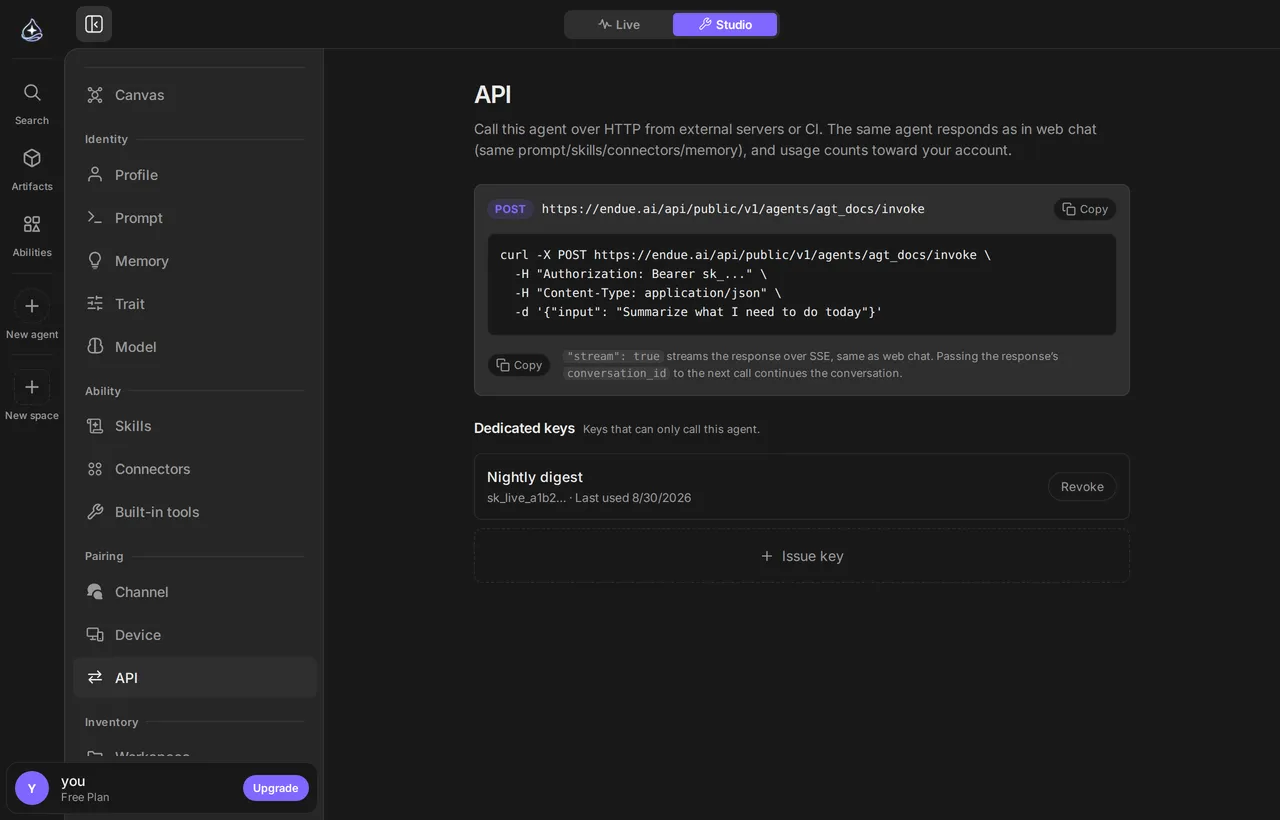
The **API** section issues keys that let something outside Endue call this agent. It is the third way in, beside a [conversation](/docs/work/conversations/) and a [channel](/docs/automate/channels/) — this one is for programs.
## When to use it
[Section titled “When to use it”](#when-to-use-it)
When the caller is code: a script that files a daily summary, a backend that asks an agent to classify something, a job that runs in CI. If the caller is a person, a channel is a better fit — it gives them a thread, questions, and approvals.
## Issue a key
[Section titled “Issue a key”](#issue-a-key)
1. **Open the API section** in [Agent Builder](/docs/build/agent-builder/) and create a key.
2. **Copy it now.** The key is shown once. If you lose it, revoke it and issue another.
3. **Keep it somewhere a program can read and a person cannot** — an environment variable or a secret store, never a repository.
A key created here is **scoped to this agent**: it cannot be used to call your other agents. Account-wide keys, which can, are issued from **Settings → Account** instead. Prefer the narrow one.
[](/docs/_astro/studio-api.BDspvMMe.png)
[Open full size](/docs/_astro/studio-api.BDspvMMe.png)
## Call the agent
[Section titled “Call the agent”](#call-the-agent)
Send the key as `Authorization: Bearer sk_…` (or `X-API-Key`), and post what you want the agent to do:
```http
POST /api/public/v1/agents/{agent_id}/invoke
Authorization: Bearer sk_...
Content-Type: application/json
{ "input": "Summarize yesterday's support tickets" }
```
The response carries the agent’s answer along with a **session id**. Send that id back on the next call and the agent continues in the same context — the same conversation, with its history — instead of starting fresh:
```json
{ "input": "Now group them by product area", "session_id": "..." }
```
Set `"stream": true` to receive the answer as it is produced rather than waiting for the whole run.
A session is a conversation
Sessions are not a separate thing to manage. Each one is a conversation you can open in Endue — under the agent’s API group in the sidebar — to read what the agent was asked and what it answered.
## What an API call does not get
[Section titled “What an API call does not get”](#what-an-api-call-does-not-get)
An API caller is not sitting in front of the conversation, so it is treated as an [unattended run](/docs/automate/routines/#nobody-is-there-to-approve):
* Actions that send outward or delete are **refused**, not queued for someone to approve.
* [Questions](/docs/work/questions/) the agent needs answered have nobody to answer them.
Write the request precisely enough that the agent does not need a decision, and expect drafts rather than sends.
## Limits
[Section titled “Limits”](#limits)
* One run at a time per session. Calling again while a run is in progress on that session is rejected rather than queued.
* Keys are shown once and cannot be recovered — revoke and reissue.
* A key scoped to an agent works only for that agent; the endpoint returns not-found for others.
* Revoking a key takes effect immediately.
## Related
[Section titled “Related”](#related)
[Channels](/docs/automate/channels/)The way in for people rather than programs.
[Approvals](/docs/work/approvals/)Why an API call cannot send email on its own.
[Security and permissions](/docs/account/security/)What a key can reach, and how to withdraw it.
# Agent Builder
> Where you create an agent and tune everything about it — identity, prompt, memory, skills, connectors, built-in tools, channels, and storage.
**Agent Builder** is where an agent is created and everything about it is tuned. Every setting that changes how an agent behaves lives here, grouped into four sections.
## When to use it
[Section titled “When to use it”](#when-to-use-it)
Open Agent Builder when you want to change *what an agent is*, rather than ask it to do something. Creating an agent, rewriting its prompt, giving it a connector, turning a capability off, checking what it remembered — all of that happens here. Day-to-day work happens in a [conversation](/docs/work/conversations/) instead.
## Create an agent
[Section titled “Create an agent”](#create-an-agent)
1. **Start a new agent.**
From your agent list, choose to create a new agent. You are asked for a name; the handle is generated automatically from it. The handle is short and stable — it is how you address the agent later.
2. **Say what it is for, in one sentence.**
Be specific. *“Summarizes my unread email each morning and flags anything that needs a reply”* produces a far better agent than *“email assistant”*. This sentence is the seed of the [system prompt](/docs/build/system-prompt/).
3. **Open Agent Builder and work down the sections.**
A new agent can already reason, calculate, and read public web pages. Everything else you add deliberately.
## The four sections
[Section titled “The four sections”](#the-four-sections)
Agent Builder is organized by what part of the agent you are changing.
| Section | Contains | Page |
| ------------- | ------------------------------------------- | ------------------------------------------------------------------------------------------------------------------------------------------------- |
| **Identity** | Profile, prompt, memory | [Identity and profile](/docs/build/identity/) · [System prompt](/docs/build/system-prompt/) · [Memory](/docs/capabilities/memory/) |
| **Resources** | Skills, connectors, devices, built-in tools | [Skills](/docs/capabilities/skills/) · [Connectors](/docs/connect/overview/) · [Devices](/docs/build/devices/) · [Built-in tools](/docs/capabilities/built-in-tools/) |
| **Pairing** | Channels, Live, API | [Channels](/docs/automate/channels/) · [Agent API](/docs/build/agent-api/) |
| **Inventory** | Workspace, outputs | [Workspace](/docs/build/workspace/) · [Outputs](/docs/capabilities/outputs/) |
The split is worth internalizing: **Identity** is who the agent is, **Resources** are what it can reach, **Pairing** is where it can be reached from, and **Inventory** is what it has produced.
## The anatomy of an agent
[Section titled “The anatomy of an agent”](#the-anatomy-of-an-agent)
Three things determine how an agent behaves, in roughly this order of impact:
**Its system prompt.** The standing instructions it reads before every conversation. This is the single biggest lever, and the one most people under-use. See [System prompt and revisions](/docs/build/system-prompt/).
**What is bound to it.** An agent can only use the skills and connections you bind to it. Binding is per agent, not per account — connecting Gmail once does not hand your inbox to every agent you own.
**Its model.** Which model runs the loop, and how much reasoning effort it spends. See [Choosing a model](/docs/build/models/).
Narrow beats broad
An agent with one job and three tools outperforms one with a vague purpose and twenty. When you find yourself widening an agent’s prompt to cover a second job, build a second agent instead.
## Limits
[Section titled “Limits”](#limits)
* An agent’s handle is generated automatically from its name at creation and cannot be changed afterwards.
* Changes to an agent apply to its **next** run. A run already in flight keeps the configuration it started with — including the prompt revision, the model, and the bound tools.
* Agent Builder configures a single agent. There is no bulk edit across agents.
* Deleting an agent does not delete the [outputs](/docs/capabilities/outputs/) it produced.
## Related
[Section titled “Related”](#related)
[Identity and profile](/docs/build/identity/)Name, handle, profile, and the character that shapes its tone.
[System prompt and revisions](/docs/build/system-prompt/)The biggest lever you have, and how to change it safely.
[Choosing a model](/docs/build/models/)The model catalog, reasoning effort, and when each matters.
[Testing and iterating](/docs/build/iterating/)Change an agent without breaking one that already works.
# Analytics
> See the conversations one agent handled and the credits it used, on the canvas. Split by source (app, API, Live, channel, routine, space) and by path (API key or channel connection). For Live, also see visits and where visitors came from.
**Analytics** is the **Usage** tab of the [canvas](/docs/build/canvas/). The canvas shows what is attached to this agent. The Usage tab adds how many requests came in through each path and what they cost.
## When to use it
[Section titled “When to use it”](#when-to-use-it)
* After you turn on Live, to see how many people visited, how many started a chat and how many credits those chats use.
* To find which API key your integrations call the most.
* To find the day channel or routine usage went up.
To compare every agent at once, use the [usage dashboard](/docs/account/usage/). Analytics looks at one agent.
## Getting there
[Section titled “Getting there”](#getting-there)
1. Open the agent’s **Studio**.
2. Select the **Usage** tab at the top of the canvas. The **Analytics** cell under the agent card takes you to the same view.
3. Pick a **period** at the top right: 7, 30 or 90 days. The period only exists on the Usage tab.
## Figures on the canvas
[Section titled “Figures on the canvas”](#figures-on-the-canvas)
On the Usage tab, the nodes in the left column (Requests come in) show figures.
| Node | What it shows |
| ----------------------------------- | ----------------------------------------------------------------------- |
| **Channel, Live, API** header rows | Chats and credits for that source. The Live row starts with visits |
| **Channel connection**, **API key** | Chats, replies and credits for that one path |
| **Live address** | Visits, chats started and credits for that address |
| **Other requests** | Usage with no path to configure, such as app chats, routines and spaces |
The line into the agent gets thicker with usage. Paths with no usage in the period are drawn as faint dashed lines.
The API header total includes calls made with **account-wide keys**. The canvas only draws keys dedicated to this agent, so the key nodes can add up to less than the header row.
## The chart below
[Section titled “The chart below”](#the-chart-below)
A daily bar chart sits under the canvas. Bars stack by source, and every day in the period gets a slot. Days with no usage are empty.
* The chart header shows the period totals: chats, replies, tokens and credits.
* Choose **Tokens**, **Credits** or **Replies** for the bars. While Live is in focus there is a fourth choice, **Visits**.
* Select a source chip below the chart to hide or show that source.
* If you collapse the chart, it stays collapsed next time.
Chats are not drawn as bars. Adding daily chat counts would count a chat that spans several days more than once. Read the period’s chat count in the chart header.
## Focusing on a path
[Section titled “Focusing on a path”](#focusing-on-a-path)
Select a node on the Usage tab to open the **Analytics** panel on the right. The chart then shows only that path.
* A **source** (the Channel, Live or API header row, or Other requests) keeps only that source’s bars in full color.
* An **API key** or **channel connection** shows that path’s daily values against the day’s total.
The Analytics panel has two tables.
* **Sources**: chats, replies, tokens, credits and share for all six sources. Sources with no usage stay as rows so you can compare.
* **Paths**: calls, tokens and credits by API key and by channel connection. Keys only show their prefix. Select **›** at the end of a row to open that key’s or channel’s settings. The third tab, **Live**, is covered in [Live visits](#live-visits).
The focused path shows as a chip in the chart header and the panel header. Select **×** on the chip to go back to everything.
## Live visits
[Section titled “Live visits”](#live-visits)
With Live on, the Usage tab also counts the people who open your agent’s endue.live page or the chat window embedded on a site. A visit is counted even when the visitor leaves without sending a message, so you can see how many of the people who came went on to chat.
Select the **Live** header row or the Live address under it. Visits then show in three places.
* **On the canvas**: the Live header row reads visits, chats and credits. The Live address reads visits and chats started.
* **In the Analytics panel**: **Paths** opens on its **Live** tab. It has the period totals, a table by site, a table by referrer and the languages visitors use.
* **In the chart**: **Visits** becomes a choice for the bars. Each bar splits into page and embed.
### What is counted
[Section titled “What is counted”](#what-is-counted)
| Figure | What it counts |
| ------------------- | -------------------------------------------------------------------------------------------------------------- |
| **Visits** | Each time the endue.live page or the embedded chat window is shown to a visitor. A reload adds a visit. |
| **Unique visitors** | The same visitor on the same day at the same agent, counted once. The period figure adds up the daily figures. |
| **Chats started** | Visits in which the visitor sent at least one message. |
| **Start rate** | Chats started divided by visits. |
| **Valid chats** | Visits in which the visitor sent two or more messages. |
A day runs from midnight to midnight UTC. A message counts once the agent accepts it. One that is refused, because the visitor is sending too fast or the account is out of credits, is not counted.
**Chats started** and **Chats** are different numbers. Chats started counts visits. Chats counts conversations the agent answered at least once. A visitor who comes back the next day and continues the same conversation adds two chats started and one chat.
The site table has one row for the endue.live page and one for each site the chat window is embedded on. Each row shows **Visits**, **Chats**, **Messages** and **Credits**. Chats, messages and credits add up to the Live row of the **Sources** table.
### Where visitors came from
[Section titled “Where visitors came from”](#where-visitors-came-from)
The referrer table groups visits by where the visitor came from. Each visit goes to the first row that fits, reading from the top.
| Row | A visit lands here when |
| ------------------------------------ | ------------------------------------------------------------------------------------------------------------------------- |
| **Site · example.com** | The visitor opened the chat window embedded on that site. |
| **Campaign · newsletter** | The link had a `utm_source`. Its value becomes the name. |
| **Direct** | The browser sent no referrer. The visitor typed the address, used a bookmark, or came from an app that does not pass one. |
| **endue.live Explore**, **endue.ai** | The visitor came from endue.live or endue.ai. |
| **Search · Google** | The visitor came from a search engine endue recognizes. |
| **Social · X** | The visitor came from a social network or messenger endue recognizes. |
| **Site · blog.example.com** | The visitor came from any other site. Only the host is shown. |
| **Unknown** | A message arrived but the visit itself was never recorded, for example because the browser blocked it. |
The table shows the 20 rows with the most visits and folds the rest into one line.
To tell the links you hand out apart, add `utm_source` to the address, as in `endue.live/@your-agent?utm_source=newsletter`. A value can use letters, digits and `. _ ~ -`, up to 64 characters. A value in any other shape is dropped.
### Visits that are left out
[Section titled “Visits that are left out”](#visits-that-are-left-out)
Two kinds of visits are recorded and kept out of every figure above.
* **Owner**: when you open the Live page from inside endue (the address in the agent’s Live settings, or the button on the agent’s home), that browser is remembered as the owner’s. Its visits count as owner from then on. An embed running on `localhost` counts as owner too.
* **Bots**: crawlers and link previews that do not run scripts are never recorded. Automated browsers and known bots that do run them count as bots.
The last line of the Live tab shows how many were left out, as in **Excluded visits: owner 14 · bots 37**.
Credits work differently. Chats you had yourself while testing used credits, so they stay in the credit figures.
### What a visit record keeps
[Section titled “What a visit record keeps”](#what-a-visit-record-keeps)
This covers visit counting. When a visitor chats, the conversation itself is saved the same way as before.
Kept for each visit:
* The agent, and whether it was the page or an embed. For an embed, the host of the site it is on.
* The referrer as a kind and a name. The name is a host, a search engine or network, or the `utm_source` value.
* `utm_medium` and `utm_campaign`, when the link has them.
* The browser language, the country and the device type (desktop, mobile or tablet).
* The time of the visit and how many messages the visitor sent.
* A visitor key, used only to count unique visitors.
Not kept:
* The visitor’s IP address.
* Cookies. endue writes nothing to a visitor’s browser to count visits.
* The full address of the page the visitor came from. The path and query are dropped and only the host remains.
* The browser’s user agent string.
The visitor key is worked out from the IP address, changes every day and is different for every agent. It cannot connect one person’s visits across days or across agents, which is why unique visitors are counted per day.
Visit records are deleted after 400 days.
## Reading the numbers
[Section titled “Reading the numbers”](#reading-the-numbers)
* **Chats** are conversations this agent answered at least once in the period. Conversations it never answered are not counted.
* **Replies** are the number of times the agent answered.
* **Credits** are the settled cost. One credit is US$1.
* For the same period, the token total matches the Agents tab of the [usage dashboard](/docs/account/usage/).
'Without a charge' does not mean free
Runs on [your own LLM key](/docs/account/bring-your-own-key/) are not billed by endue, so they carry no credits. Those tokens are listed separately as **without a charge** instead of being added as zero credits. Check the cost with that LLM provider.
If you see 'Unlabeled'
Usage recorded before sources were tracked was filled in from the conversation it belongs to. Anything still unknown is grouped as **Unlabeled**. Older API usage is attributed to the key that first created the conversation.
## Who can see it
[Section titled “Who can see it”](#who-can-see-it)
Only the agent’s owner. Other people don’t see the Usage tab or the Analytics cell. When someone else uses this agent, that usage is counted on their account and does not appear here.
## Limits
[Section titled “Limits”](#limits)
* Tool calls (connectors and skills) are not counted yet. That is why the right column of the canvas has no figures.
* Device costs (computer and browser) are not included.
* Usage is recorded when a run finishes. A run in progress shows up after it ends.
* Visits have no history from before visit counting was added. Chats and credits from that time are still shown.
* Unique visitors are told apart by network, one day at a time. Several people on one network count as one visitor.
* For an embed, a visit is the chat window opening. The chat button appearing on your site is not counted, so an embed’s start rate reads higher than the page’s.
* The owner mark belongs to one browser. On another device or browser you count as a visitor until you open the Live page from inside endue there.
* Referrer rows stop at visits and chats started. Chats, messages and credits are split by site only.
## Related
[Section titled “Related”](#related)
[Canvas](/docs/build/canvas/)The Setup tab: what is attached.
[Usage dashboard](/docs/account/usage/)Every agent at once.
[Agent API](/docs/build/agent-api/)Call your agent with an API key.
[Plans and usage](/docs/account/plans-and-usage/)How credits and included usage work.
# Canvas
> A map of one agent — what is bound to it, drawn as a graph you can click into.
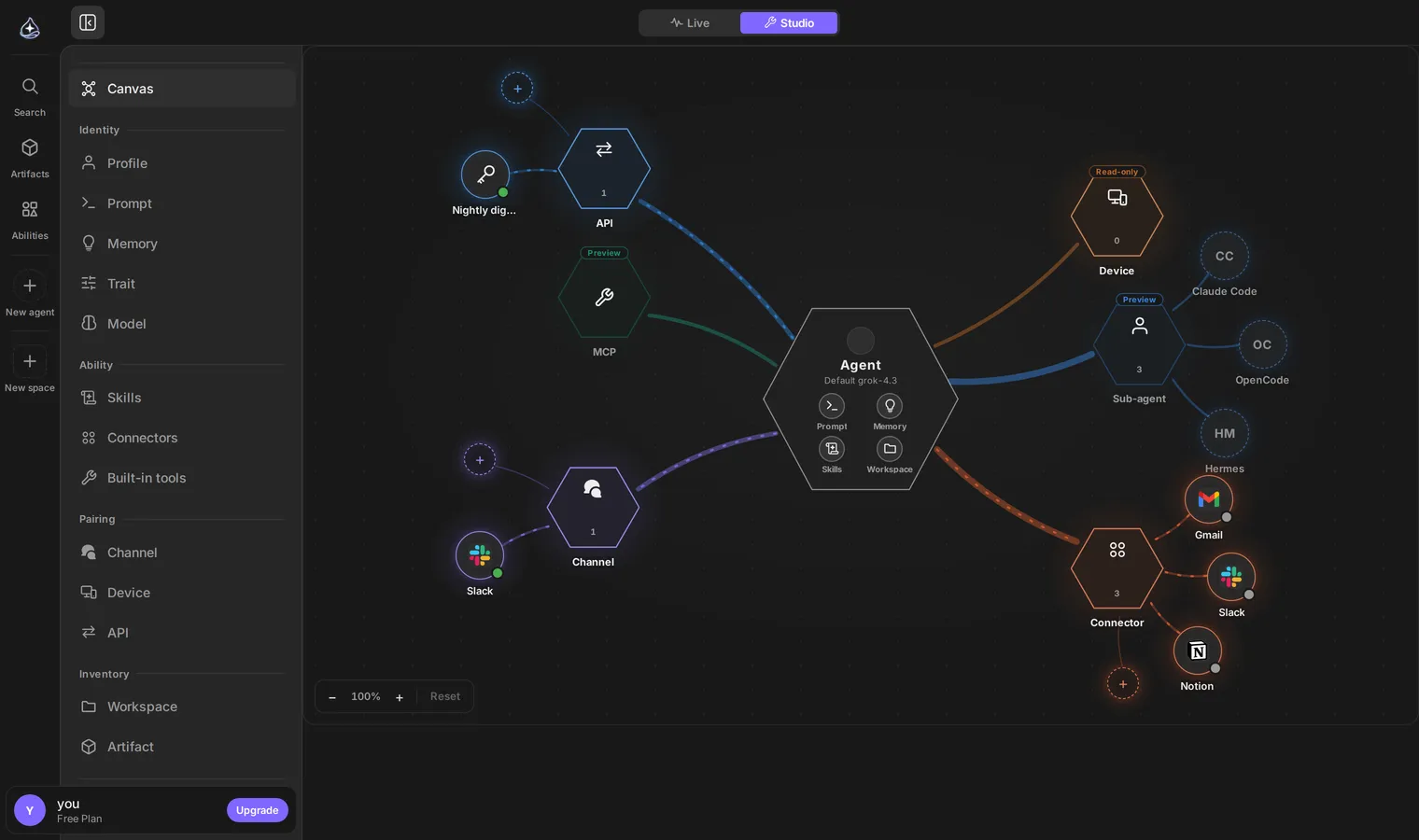
The **canvas** draws an agent and everything attached to it: the skills and connectors it can use, the channels it answers on, the workspace it owns. It is the same configuration as the [Agent Builder](/docs/build/agent-builder/) sections, seen all at once.
[](/docs/_astro/studio-canvas.Bx7olpr0.png)
An axis with nothing on it still appears — the gaps are as visible as the connections.[Open full size](/docs/_astro/studio-canvas.Bx7olpr0.png)
## When to use it
[Section titled “When to use it”](#when-to-use-it)
Open the canvas when you want to know *what this agent actually is* rather than change one setting — before handing it a channel, when a colleague asks what it can reach, or when an agent behaves in a way its prompt does not explain.
Use the sections when you know what you are changing. The canvas is for looking.
## Reading it
[Section titled “Reading it”](#reading-it)
The agent sits in the middle. Around it are the things bound to it, grouped by kind — resources, pairings, inventory. An axis with nothing on it still appears, so the gaps are as visible as the connections.
Selecting a node opens the same panel the corresponding section uses, so you can go from *“what does this agent have”* to changing it without leaving the map.
Some axes are shown before they are configurable
A few nodes exist to show the shape of the model rather than to be edited yet. If a node opens a read-only panel, that axis is not configurable from here.
## Limits
[Section titled “Limits”](#limits)
* The canvas shows one agent. There is no view across all your agents.
* The default **Setup** tab reflects configuration: what the agent *can* reach. To see how much each path was used on the same picture, open the **Usage** tab at the top of the canvas. See [Analytics](/docs/build/analytics/).
* Editing still happens in panels. The canvas is a way in, not a separate editor.
## Related
[Section titled “Related”](#related)
[Analytics](/docs/build/analytics/)The Usage tab: chats and credits by path.
[Agent Builder](/docs/build/agent-builder/)The same configuration, section by section.
[Security and permissions](/docs/account/security/)What being bound actually grants.
# Devices
> The computers and browsers your agents work on, and the apps you use endue on. What each device product is, whose device it is, and how to add, replace, or remove one.
A **device** is a computer or browser an agent works on, or an app you use endue on. Devices are one of the three kinds of [resources](/docs/get-started/glossary/#resources), next to skills and connectors.
## When you need one
[Section titled “When you need one”](#when-you-need-one)
Most of the time you do not set anything up. When a task needs a computer or a browser, the agent prepares one on endue cloud and tells you in the conversation while it does.
Add a device of your own when the work has to happen somewhere you control: a server that can reach your systems, a VM with the tools you already installed, or your own Chrome with the sites you are signed in to.
## The four products
[Section titled “The four products”](#the-four-products)
| Product | What it is | User device | Agent device |
| --------------------- | ------------------------------------------------------------------------------------------------------------------------------ | ------------------------------------------------------------------------------------------------------------------- | ---------------------------------------------------------------------- |
| **endue Computer** | A computer the agent keeps files on and runs programs in. Its file area is the agent’s [workspace](/docs/build/workspace/). | Your own Linux server or VM with endue Computer installed. See [Connect your own server or VM](/docs/build/own-server/). | A computer the agent starts on endue cloud the first time it needs one |
| **endue for Chrome** | A Chrome browser the agent opens pages in and works with | Your own Chrome, with the endue for Chrome extension connected to the agent | A Chrome the agent starts on endue cloud the first time it needs one |
| **endue for Android** | A phone the agent works on. Coming soon: signing in from the app is not available yet. | A phone you registered | — |
| **endue Desktop** | The desktop app you use endue in. It opens the same endue as the web, signed in to the same account. Agents do not work on it. | A computer where you signed in to endue Desktop | — |
## User and agent devices
[Section titled “User and agent devices”](#user-and-agent-devices)
Every device is one of two kinds, and its row says which:
* **User**: a device you signed in to or registered. Your server with endue Computer, your Chrome with the extension, your phone, a computer where you use endue Desktop.
* **Agent**: a device the agent launched on endue cloud for its own connection. It is created automatically the first time the agent needs one. You do not install anything.
An agent uses one endue Computer and one endue for Chrome. Each is either its agent device on endue cloud or a user device of yours. A user endue Computer can serve several agents: each agent gets its own folder and its own service on that server.
## Where to see them
[Section titled “Where to see them”](#where-to-see-them)
**Resources › Devices**, opened from the left sidebar, lists every device on your account, grouped by product. Each row shows:
* **User** or **Agent**
* Where it is: **endue cloud** for an agent device, or the name and operating system of a user device
* The agents that use it
* Its status
* When it was last active
To see only one agent’s devices, open that agent in [Agent Builder](/docs/build/agent-builder/) and go to **Resources › Devices**. That section also has **Connect my server**, which starts the install for that agent.
| Status | Meaning |
| ------------------------------ | ------------------------------------------------------------------------------------------------ |
| **Connected** | Online now. The agent can use it. |
| **Standby · starts when used** | An agent device on endue cloud that is switched off. It starts the next time the agent needs it. |
| **Off** | A user device that is not connected. endue cannot switch it on. Start it on the device itself. |
| **In use** | endue Desktop, used in the last 15 minutes. |
| **Waiting for install** | You created an install command for a server, and the server has not connected yet. |
| **Needs attention** | Preparing the device failed. |
## Choosing a device in the composer
[Section titled “Choosing a device in the composer”](#choosing-a-device-in-the-composer)
The device picker in the composer chooses where the next run works: **Computer** or **Chrome**. The run gets the tools for the device you picked and not the other one.
Each choice shows the agent’s actual device, such as *Agent · endue cloud* or *User · build-server-01*, and its status: **Connected**, **Starts when used**, or **Off**. **Manage devices** opens the agent’s Devices section.
## Connecting your own devices
[Section titled “Connecting your own devices”](#connecting-your-own-devices)
* **endue Computer**: in **Resources › Devices**, select **Install on my device or server** in the endue Computer group, pick an agent, and run the command it gives you on your server. See [Connect your own server or VM](/docs/build/own-server/).
* **endue for Chrome**: install the extension, sign in, and connect an agent from the extension. Your Chrome shows up under that agent once it is connected.
* **endue Desktop**: sign in to the app. The computer shows up in the list on its own.
## Replacing an agent’s endue cloud Computer with your own server
[Section titled “Replacing an agent’s endue cloud Computer with your own server”](#replacing-an-agents-endue-cloud-computer-with-your-own-server)
If the agent already has an endue Computer on endue cloud, installing on your server asks first:
> Delete this agent’s endue cloud Computer and its files, then connect?
**Delete and connect** deletes the cloud device, including every file in the agent’s workspace there, and gives you the install command for your server. **Cancel** changes nothing. Save anything you need from the workspace before you confirm.
Once the agent is on your server, endue does not create a cloud Computer for it again. If your server is off, the agent tells you to start endue Computer on it and carries on without it.
## Removing a device
[Section titled “Removing a device”](#removing-a-device)
Open the menu on a device’s row.
| Device | Menu item | What happens |
| ---------------------------- | -------------------- | ----------------------------------------------------------------------------------------------------------------------------------------------------------------------------------------------------- |
| Agent device on endue cloud | **Delete** | The device and the files on it are deleted. The next time the agent needs one, it gets a new, empty device. |
| Your endue Computer or phone | **Remove** *(agent)* | The agent stops working on that device. What you installed stays: [uninstall it on the server](/docs/build/own-server/#uninstalling) as well. Once no agent is left, **Remove from list** deletes the row. |
| Your Chrome | **Disconnect** | That agent’s connection ends. Connect it again from the extension to use it. |
| endue Desktop | **Remove from list** | You stay signed in. The computer appears again the next time you open endue Desktop on it. |
## Limits
[Section titled “Limits”](#limits)
* One endue Computer and one endue for Chrome per agent.
* endue cannot switch on a user device. If your server or your Chrome is off, the agent tells you and continues without it. Nothing is created on endue cloud in its place.
* Runs started by a [routine](/docs/automate/routines/) or a [channel](/docs/automate/channels/) do not create a device. They use one the agent already has.
* endue Computer on your own machine runs on Linux only for now. endue Desktop runs on macOS for now.
* Your own Chrome does not report its operating system or version, so its row shows neither.
* The **Devices** group in [built-in tools](/docs/capabilities/built-in-tools/) is what prepares devices. Switching it off stops the agent from preparing new ones. Devices already connected keep working.
* Files on an agent’s endue cloud Computer last as long as the device does. Deleting the device deletes them. Keep results you need as [outputs](/docs/capabilities/outputs/).
## Related
[Section titled “Related”](#related)
[Connect your own server or VM](/docs/build/own-server/)Install endue Computer on a Linux server and give it to an agent.
[Workspace](/docs/build/workspace/)The agent's file area on its endue Computer.
[Approvals](/docs/work/approvals/)Which device actions ask you first.
[Security and permissions](/docs/account/security/)What an agent can and cannot reach.
# Identity and profile
> An agent's name, handle, avatar, profile, and character — what each one changes, and which ones the agent itself can see.
An agent’s **identity** is the part of it you address and recognize: its name, its handle, its avatar, and the character that shapes how it writes.
## When to use it
[Section titled “When to use it”](#when-to-use-it)
Set identity when you create an agent, and revisit it when you have more than a handful of agents and can no longer tell them apart at a glance. Identity is not where you change behavior — that is the [system prompt](/docs/build/system-prompt/).
## What each field does
[Section titled “What each field does”](#what-each-field-does)
| Field | Visible where | Changes what |
| ------------- | ------------------------------------------------ | --------------------------------------------- |
| **Name** | Agent lists, conversation headers, notifications | How you recognize it |
| **Handle** | Addressing the agent, mentions | How you refer to it |
| **Avatar** | Everywhere the agent appears | Recognition at a glance |
| **Profile** | Agent Builder, agent detail | A short description of what this agent is for |
| **Character** | The agent’s own context | Tone and manner of its replies |
## Character versus system prompt
[Section titled “Character versus system prompt”](#character-versus-system-prompt)
These two are often confused, and keeping them separate is what makes both useful.
**Character** is *manner* — concise or expansive, formal or direct, how much it hedges. **System prompt** is *job* — what it does, what it must never do, what a good result looks like.
If you put the job in the character field, you will find yourself unable to change tone without rewriting the job. If you put tone rules in the prompt, they compete for attention with the instructions that matter.
The agent sees its own identity
Name, handle, and character are part of what the agent reads at the start of a run. An agent named “Inbox Triage” with a terse character behaves differently from the same prompt under a different identity — usually mildly, occasionally more than you expect.
## Avatars
[Section titled “Avatars”](#avatars)
An agent’s avatar appears in every list, header, and notification that mentions it. Uploading one is the cheapest way to make a workspace with several agents navigable. An agent without an uploaded avatar falls back to a generated one.
## Limits
[Section titled “Limits”](#limits)
* The handle is generated automatically from the name at creation and cannot be changed — other things reference it.
* Identity fields do not grant the agent anything. An agent named “Email Assistant” has no access to email until a [connector](/docs/connect/overview/) is bound to it.
* Character shapes tone, not capability. It cannot make the agent do something its prompt and tools do not allow.
## Related
[Section titled “Related”](#related)
[System prompt and revisions](/docs/build/system-prompt/)Where the agent's actual job is defined.
[Agent Builder](/docs/build/agent-builder/)The four sections, and what belongs in each.
# Testing and iterating
> Change an agent that already works without breaking it — what to change one at a time, how to tell whether it helped, and how to get back.
An agent is tuned by iteration: change one thing, run the same task, compare. Endue keeps prompt [revisions](/docs/build/system-prompt/#revisions-and-rollback) so the “get back” step is always available.
## When to use it
[Section titled “When to use it”](#when-to-use-it)
Whenever an agent is nearly right. The failure mode this page exists to prevent is the common one: three changes at once, the agent gets better in one way and worse in another, and nothing can be attributed to anything.
## A loop that works
[Section titled “A loop that works”](#a-loop-that-works)
1. **Keep a task you re-run.** Two or three real requests you have asked before, whose good answer you can recognize immediately. This is your test set. Without one, “better” is a feeling.
2. **Change one thing.** The prompt, or the model, or a binding — not all three.
3. **Run the same task in a new conversation.** A new [conversation](/docs/work/conversations/) matters: an existing thread carries history that changes the answer independently of your edit.
4. **Compare against what you saw before.** Look at the tool calls, not only the final text — that is where a prompt change usually shows up first.
5. **Keep it or roll back.** If it is worse, restore the previous prompt revision and try a different change.
## What to change, in order
[Section titled “What to change, in order”](#what-to-change-in-order)
Work down this list. The earlier items move results more, per unit of effort.
| Try | When the symptom is |
| --------------------------------------------------------------- | -------------------------------------------------------------------------------- |
| Sharpen “what a good result looks like” in the prompt | The answer is right but not usable — wrong format, wrong depth, buries the point |
| Add a hard rule | It repeats a specific mistake |
| Bind a connector or skill | It guesses at something it should look up |
| Turn off a [built-in tool group](/docs/capabilities/built-in-tools/) | It reaches for a capability that is noise for this agent |
| Raise [reasoning effort](/docs/build/models/#reasoning-effort) | It skips steps in long tasks |
| Change the model | Everything above is right and it still cannot follow the task |
| Split into two agents | The prompt has grown to cover two unrelated jobs |
## Reading a run to diagnose it
[Section titled “Reading a run to diagnose it”](#reading-a-run-to-diagnose-it)
Most “the agent is bad” problems are visible in the [run](/docs/work/runs/) itself.
* **It called no tools.** It thinks it should answer from memory. Usually a prompt problem, sometimes a missing binding.
* **It called the right tool with bad arguments.** It is missing context — say it in the prompt, or store it in [memory](/docs/capabilities/memory/).
* **It called tools in a loop without converging.** The task is underspecified, or the effort setting is too low for its length.
* **It asked you something it should know.** That fact belongs in the prompt or in memory.
Steering is a diagnostic, not just a fix
If [steering](/docs/work/steering/) a run with one sentence reliably rescues it, that sentence belongs in the system prompt. A correction you find yourself sending repeatedly is a prompt bug you have not fixed yet.
## Limits
[Section titled “Limits”](#limits)
* There is no built-in evaluation harness or automated scoring. Comparison is by hand, against tasks you choose.
* There is no draft mode: an agent has one live configuration, and changes take effect on its next run. To try something risky without disturbing an agent you rely on, build a copy and experiment on that.
* Revision history covers the system prompt. Other settings — model, bindings, tool groups — are not versioned, so note what you changed.
## Related
[Section titled “Related”](#related)
[System prompt and revisions](/docs/build/system-prompt/)The lever you will pull most, and how to undo it.
[Runs](/docs/work/runs/)Reading what the agent actually did, step by step.
[Steering a run](/docs/work/steering/)Correcting a run in flight — and what that tells you.
# LLM API
> Call models directly from your own code with an Endue API key, using the OpenAI or Anthropic SDK you already have. Each call is paid from your credits.
The **LLM API** lets your code call a model directly with an Endue API key, in the same request format as the OpenAI and Anthropic APIs, and pays for each call from your credits.
## When to use it
[Section titled “When to use it”](#when-to-use-it)
When you want a model rather than an agent: a completion inside your own app, code that already talks to the OpenAI or Anthropic API, or Claude Code. You change the base URL and the key; the rest of your code stays as it is.
If you want an agent to do the work — with its prompt, memory, tools, and connectors — call it through the [Agent API](/docs/build/agent-api/) instead.
## Make your first call
[Section titled “Make your first call”](#make-your-first-call)
1. **Issue an account-wide key** in **Settings → Account → API Keys**. Copy it when it is shown; it is shown once. A key issued from an agent’s API section is limited to that agent and cannot call models directly.
2. **Keep the key out of your code.** Put it in an environment variable, for example `ENDUE_API_KEY`.
3. **Point your SDK at Endue** with this base URL, and call a model from the [model list](#models-and-prices):
```plaintext
https://platform.endue.ai/api/v1/llm
```
* Python
```python
import os
from openai import OpenAI
client = OpenAI(base_url="https://platform.endue.ai/api/v1/llm", api_key=os.environ["ENDUE_API_KEY"])
res = client.chat.completions.create(
model="openai/gpt-5.4",
messages=[{"role": "user", "content": "Hello"}],
)
print(res.choices[0].message.content)
```
* Node.js
```js
import OpenAI from 'openai';
const client = new OpenAI({ baseURL: 'https://platform.endue.ai/api/v1/llm', apiKey: process.env.ENDUE_API_KEY });
const res = await client.chat.completions.create({
model: 'openai/gpt-5.4',
messages: [{ role: 'user', content: 'Hello' }],
});
console.log(res.choices[0].message.content);
```
* curl
```bash
curl https://platform.endue.ai/api/v1/llm/chat/completions \
-H "Authorization: Bearer $ENDUE_API_KEY" \
-H "Content-Type: application/json" \
-d '{"model":"openai/gpt-5.4","messages":[{"role":"user","content":"Hello"}]}'
```
* Anthropic SDK
```python
import os
import anthropic
client = anthropic.Anthropic(base_url="https://platform.endue.ai/api/v1/llm", api_key=os.environ["ENDUE_API_KEY"])
msg = client.messages.create(
model="claude-sonnet-4-5",
max_tokens=1024,
messages=[{"role": "user", "content": "Hello"}],
)
print(msg.content[0].text)
```
* Claude Code
```bash
export ANTHROPIC_BASE_URL=https://platform.endue.ai/api/v1/llm
export ANTHROPIC_API_KEY=$ENDUE_API_KEY
claude
```
**Settings → Account → LLM API** shows the same base URL and examples, ready to copy.
## Models and prices
[Section titled “Models and prices”](#models-and-prices)
`GET https://platform.endue.ai/api/v1/llm/models` lists every model you can call, with its context length and its price. No key is needed to read it.
* **Model ids** look like `openai/gpt-5.4` or `x-ai/grok-4.6` — provider, then model.
* **Prices** are in credits per token, as decimal strings: `prompt` for input, `completion` for output, and `input_cache_read` where the model discounts cached input. One credit is one US dollar.
* Some models charge more for very long prompts. Those prices are listed under `overrides`, with the prompt length they start at.
The same models are browsable on the [models page](/models).
## Streaming
[Section titled “Streaming”](#streaming)
Set `"stream": true`. You receive the answer as server-sent events in the OpenAI chunk format, ending with `data: [DONE]`. The last chunk before `[DONE]` carries `usage`, including what the call cost.
## How a call is paid for
[Section titled “How a call is paid for”](#how-a-call-is-paid-for)
1. **Before the model runs**, Endue sets aside enough of your credits to cover the most the call could cost: your prompt plus `max_tokens` of output. If your balance is lower than that, the model is not called and you get a `402`.
2. **When the call finishes**, you are charged what it actually cost, and the rest of what was set aside is returned to your balance.
3. **The response tells you the charge.** `usage.cost` is the credits taken for this call, and the `X-Endue-Request-Id` header identifies the call if you need to ask about it.
If you leave out `max_tokens` and your balance cannot cover the model’s full output length, the call goes ahead with `max_tokens` lowered to what your balance covers — as long as that is at least 1,024 tokens. Below that, you get a `402`.
LLM API calls are paid from **purchased and promotional credits** only. Your plan’s allowance is for agents and is not used here. Calls show up on the [usage dashboard](/docs/account/usage/#sources) under the **Sources** tab, as **LLM API**.
## Anthropic format and Claude Code
[Section titled “Anthropic format and Claude Code”](#anthropic-format-and-claude-code)
The same base URL also accepts the Anthropic Messages format. The Anthropic SDK and Claude Code add `/v1/messages` to the base URL themselves, so the setup is the two lines in the tabs above.
* Send the key as `x-api-key` or as `Authorization: Bearer`.
* Claude model names work as you would write them for Anthropic — `claude-sonnet-4-5`, or with a date such as `claude-sonnet-4-5-20250929` — as long as that model is on the model list. Any id from the model list works too, including non-Claude models.
* Streaming uses Anthropic’s event format, and errors use Anthropic’s error shape.
* `/v1/messages/count_tokens` returns an estimate of the input tokens. It is not billed, and it is an approximation rather than an exact tokenizer count.
## Errors
[Section titled “Errors”](#errors)
Errors use the shape of the format you called: OpenAI’s `{"error": {…}}` or Anthropic’s `{"type": "error", "error": {…}}`.
| Status | What happened | What to do |
| ------ | ---------------------------------------------------------------------------------------------------------- | ----------------------------------------------- |
| `400` | The request is malformed, `n` is more than 1, or the model rejected the input | Fix the request; the message says what is wrong |
| `401` | The key is missing, revoked, or wrong | Check the key and how you send it |
| `402` | Your credit balance cannot cover the call (`insufficient_credits`, or `billing_error` in Anthropic format) | Buy credits, or lower `max_tokens` |
| `403` | The key is limited to one agent | Issue an account-wide key |
| `404` | The model is not on the model list | Pick an id from `/models` |
| `429` | Too many requests | Wait for the number of seconds in `Retry-After` |
| `502` | The model provider failed | Retry |
| `503` | Billing or the model list is briefly unavailable. The model was not called and nothing was charged | Retry shortly |
## Limits
[Section titled “Limits”](#limits)
* Only the models on the model list can be called.
* Two formats are supported: OpenAI Chat Completions and Anthropic Messages. There are no embeddings, image, audio, or Responses endpoints.
* `n` must be 1.
* Fields outside the standard request are ignored — for example a fallback list of other models, provider routing, or plugins. In the Anthropic format, server tools such as web search are refused, and `top_k` is ignored.
* The plan allowance is not used; calls need purchased or promotional credits.
* A key limited to one agent cannot call models.
* Up to 100 calls per minute, counted per key and per account. A request body can be up to 8 MB.
* `count_tokens` is an estimate.
## Related
[Section titled “Related”](#related)
[Agent API](/docs/build/agent-api/)Call an agent, with its prompt, memory, and tools, instead of a bare model.
[Usage dashboard](/docs/account/usage/)See LLM API spend next to your agents' in the Sources tab.
[Choosing a model](/docs/build/models/)How the models differ, and what they cost relative to each other.
[Security and permissions](/docs/account/security/)What a key can reach, and how to withdraw it.
# Choosing a model
> Pick the model an agent runs on, set how much reasoning effort it spends, and override both for a single message.
Every [run](/docs/work/runs/) is driven by a model. Endue offers a catalog from several providers, and you choose which one an agent uses — as its default, or for one message.
## When to use it
[Section titled “When to use it”](#when-to-use-it)
Change the model when the agent’s *reasoning* is the problem: it misses steps in a long task, or it is slow and expensive for work that is genuinely simple. If the agent is doing the wrong job rather than doing the job badly, fix the [system prompt](/docs/build/system-prompt/) first — a bigger model follows a vague instruction just as faithfully.
## The catalog
[Section titled “The catalog”](#the-catalog)
The model picker lists what is available, with the details that actually decide the choice: context window, input and output price per million tokens, what the model accepts (text, images, files), and whether it supports tool calling.
**Tool calling is the one to check.** An Endue agent works by calling tools. A model that does not support tool calling can answer from what it already knows, but it cannot search your email, write an output, or use a connector. Those models are labeled in the picker.
## Reasoning effort
[Section titled “Reasoning effort”](#reasoning-effort)
Some models expose a **reasoning effort** setting — how much thinking they do before answering. Higher effort costs more tokens and takes longer; it pays off on multi-step work where a wrong early decision wastes the rest of the run.
A rough guide:
| Work | Effort |
| ---------------------------------------------------------------------------- | ------ |
| Reformatting, extraction, classification, short answers | Low |
| Everyday multi-step tasks with a handful of tool calls | Medium |
| Long chains where an early mistake compounds — research, planning, debugging | High |
[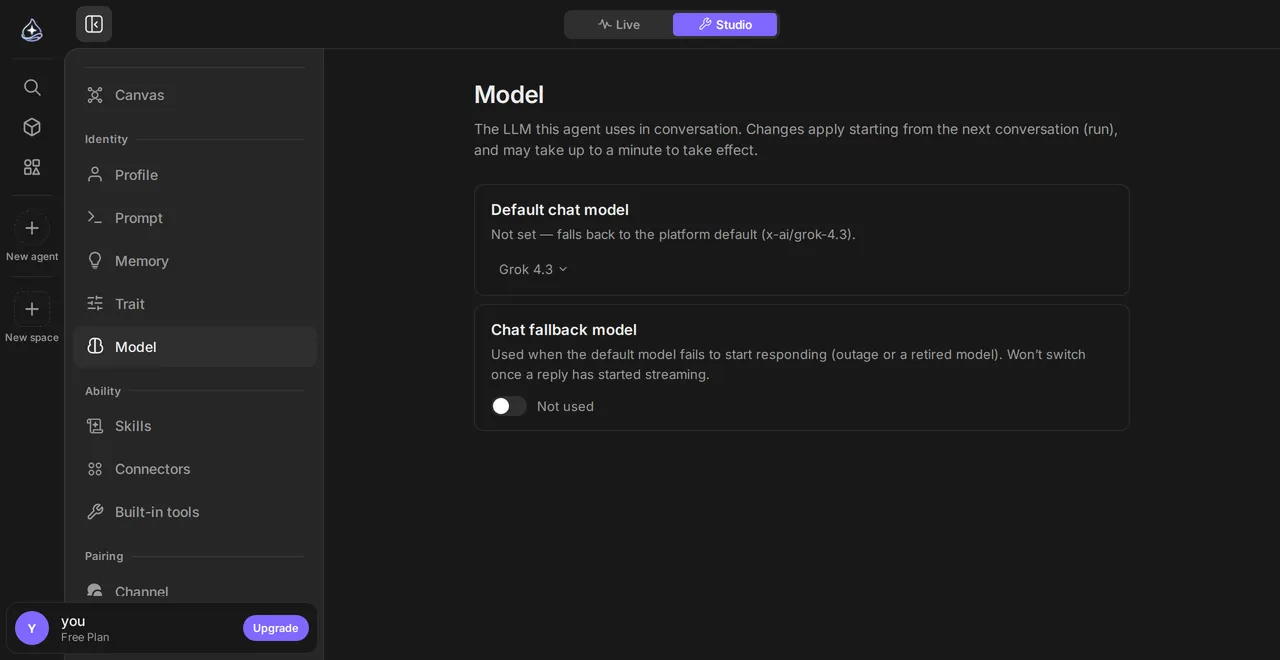](/docs/_astro/studio-model.iwYKzThY.png)
[Open full size](/docs/_astro/studio-model.iwYKzThY.png)
## Per-agent, per-message, per-routine
[Section titled “Per-agent, per-message, per-routine”](#per-agent-per-message-per-routine)
Three places set a model, each overriding the one above it:
* **The agent’s default**, in [Agent Builder](/docs/build/agent-builder/) — what it uses unless told otherwise.
* **A single message**, from the composer — useful for one hard question inside a cheap agent’s conversation. Instead of switching by hand each time, you can let the agent [pick a model for each request](#picking-a-model-for-each-request).
* **A [routine](/docs/automate/routines/)**, which can pin its own model so a scheduled job does not change cost when you retune the agent.
Cheaper agent, occasional escalation
Setting a fast model as the agent default and reaching for a stronger one on the few messages that need it usually costs less than running everything on the strongest model — and the agent feels quicker for the routine 90%.
## Picking a model for each request
[Section titled “Picking a model for each request”](#picking-a-model-for-each-request)
Turn on **Automatic selection** for an agent and you stop choosing a model message by message. When a message arrives, a decision model rates how hard the request is on three levels, and you decide which model handles each level.
You set it in the model section of [Agent Builder](/docs/build/agent-builder/).
| Level | Model used |
| -------------------------------------------------------------------------- | -------------------------------------- |
| Light requests — a greeting, a short fact, a one-line rewrite | The model you chose for light requests |
| Standard requests — explanations, summaries, routine writing and code | The agent’s default model |
| Hard requests — multi-step analysis, long or precise writing, complex code | The model you chose for hard requests |
You can fill in one of the two slots and leave the other empty. An empty level uses the default model.
There are three modes.
* **Off** — nothing is rated.
* **Observe** — messages are rated but the model does not change. Each reply shows “Auto would use” with a model name, so you can see how requests would split before turning it on.
* **On** — the rating picks the model. The model selector in the composer starts on **Auto**, and each reply shows “Auto” with the model that answered.
Before saving, type a sentence into **Try it** to see which level it reads as and which model it goes to.
The default model answers in these cases.
* The rating is unclear. Below the confidence threshold you set, nothing is picked.
* The rating does not come back in time. A reply does not wait on the rating.
* The picked model is not available on your plan or within your remaining limit.
A message with an attachment, and a message that directly follows a hard request, is never moved down to the light model. “Keep going” looks light on its own, but the task it continues is not.
Choosing a model in the composer keeps that conversation on the chosen model. Choose **Auto** again to release it. A conversation in a project that has its own default model follows the project’s model.
Messages are sent out to be rated
With Observe or On, messages the agent receives (the current message and the start of the previous one) go through OpenRouter to TypeSafe in the United States. They are used only to rate difficulty. The screen asks you to confirm this when you switch from Off.
## Cost
[Section titled “Cost”](#cost)
Model usage is what consumes your plan’s allowance, and prices differ by more than an order of magnitude across the catalog. The picker shows input and output price for each model. See [Plans and usage](/docs/account/plans-and-usage/) for how usage is measured and where to watch it, and [Bring your own key](/docs/account/bring-your-own-key/) if you want to pay the provider directly instead.
## Limits
[Section titled “Limits”](#limits)
* Not every model supports every capability. Tool calling, image input, and reasoning effort vary by model, and the picker is the source of truth.
* Changing the model does not change the agent’s prompt, memory, or bindings.
* A run in flight keeps the model it started with. Switching models applies to the next run.
* Automatic selection applies only to messages a person sends. [Routines](/docs/automate/routines/) and voice conversations are not rated and run on their set model.
* Context windows differ. A very long conversation that fits one model may not fit another.
## Related
[Section titled “Related”](#related)
[Plans and usage](/docs/account/plans-and-usage/)What consumes usage, and where to see how much you have used.
[Bring your own key](/docs/account/bring-your-own-key/)Use your own model credentials instead of Endue's.
[How Endue works](/docs/get-started/how-it-works/)The loop the model is driving, and why the choice matters.
# Connect your own server or VM
> Install endue Computer on a Linux server or VM you control, so an agent keeps its files and runs its programs there instead of on endue cloud.
You can give an agent your own Linux server or VM as its **endue Computer**. You run one install command on the machine, and the agent’s files and programs live there from then on.
## When to use it
[Section titled “When to use it”](#when-to-use-it)
Use your own server when the work needs something only that machine has: access to your internal network, tools and data already installed, more CPU or disk than the default, or a machine in a region you chose. Any Linux machine you control works, such as a VPS at Vultr, an EC2 instance on AWS, or a server on premises.
If none of that applies, you do not need this page. An agent gets an endue Computer on endue cloud automatically the first time it needs one. See [Devices](/docs/build/devices/).
## What you need
[Section titled “What you need”](#what-you-need)
* Linux on x86\_64 or aarch64. The program is a single static binary, so the distribution does not matter.
* systemd.
* Root access through `sudo`.
* Outbound internet access. endue Computer connects out to endue over a secure WebSocket, so you do not open any inbound port.
## Install
[Section titled “Install”](#install)
1. **Open Resources › Devices** from the left sidebar and select **Install on my device or server** in the endue Computer group.
From one agent’s page in [Agent Builder](/docs/build/agent-builder/), **Resources › Devices › Connect my server** does the same for that agent.
2. **Pick the agent** and, optionally, a device name for the list (for example `build-server-01`). Select **Create install command**.
If the agent already has an endue Computer on endue cloud, you are asked whether to delete it and its files first. Cancel and nothing changes. See [Replacing an agent’s endue cloud Computer](/docs/build/devices/#replacing-an-agents-endue-cloud-computer-with-your-own-server).
3. **Copy the command and run it on your server.** It looks like this:
```sh
curl -fsSL https://download.endue.ai/computer/install.sh | sudo sh -s -- \
--endpoint --token --instance
```
The command contains a connection token for this agent. It is shown once. If you close the window before copying it, create a new command.
4. **Wait for Connected.** The dialog and the device list change to **Connected** a few seconds after the command finishes.
Commands run without asking
On your server, the agent writes files and runs programs without asking for approval each time. What limits it is what you set at install: the dedicated user, the list of programs it may run, network access, and the profile below. Use a server or VM dedicated to the agent, and keep `--allow-exec` to what it needs.
## What the installer does
[Section titled “What the installer does”](#what-the-installer-does)
1. Detects the architecture, downloads endue Computer, and checks its SHA-256 checksum. If the checksum does not match, it installs nothing.
2. Checks which [profile](#profiles) your kernel supports.
3. Creates a system user named `endue` that cannot log in.
4. For the agent, creates:
| Path | Owner and mode | Holds |
| ---------------------------------------------- | -------------- | ------------------------------------------------------------------ |
| `/etc/endue-computer/.env` | root, `0600` | The connection address, the token, and the settings you chose |
| `/var/lib/endue-computer//workspace` | `endue` | The agent’s [workspace](/docs/build/workspace/): the folder it works in |
| `/var/lib/endue-computer//state` | `endue` | Checkpoints and saved files, outside the workspace |
5. Enables and starts a systemd service for the agent, `endue-computer@`, and reports whether it connected.
## Choosing what the agent can do
[Section titled “Choosing what the agent can do”](#choosing-what-the-agent-can-do)
Add options to the end of the install command:
```sh
curl -fsSL https://download.endue.ai/computer/install.sh | sudo sh -s -- \
--endpoint --token --instance \
--allow-exec git,python3 --no-network
```
| Option | Default | Effect |
| ------------------------------------ | ------------------------------------ | ----------------------------------------------------------------------------------------------------------------------------------------------------- |
| `--allow-exec ` | `git,node,npm,npx,python3,pip3,curl` | The programs the agent may run, comma-separated, without paths. `--allow-exec ""` turns off running programs entirely. |
| `--no-network` | Network allowed | Programs the agent runs cannot use the network. |
| `--no-delete` | Deleting allowed | The agent cannot delete files in its workspace. Tools such as git and npm delete lock and temporary files, so with the `sandboxed` profile they fail. |
| `--profile auto\|sandboxed\|managed` | `auto` | Which [profile](#profiles) to use. |
A program on the list that is not installed on the server is reported at install time. The agent gets “not installed” if it tries to run it.
An allowed program is not a limit on what that program does. Allowing `node` or `python3` lets the agent run any code those can run, inside the profile’s boundary.
## Profiles
[Section titled “Profiles”](#profiles)
| Profile | Needs | What programs the agent runs cannot do |
| ----------- | --------------------------------------------------------------------------------- | ---------------------------------------------------------------------------------------------------------------------------------------------------------------------------------------------------------------------------- |
| `sandboxed` | Linux 6.12 or later (Landlock ABI 6) | Read or write files outside the workspace folder. Everything under `managed` also applies. |
| `managed` | Any other kernel, such as Ubuntu 22.04 (5.15) or the Ubuntu 24.04 GA kernel (6.8) | Become root or gain privileges. systemd hides `/home`, `/root`, and other agents’ folders, and makes the rest of the system read-only. There is no filesystem sandbox: programs can read any file the `endue` user can read. |
`auto` picks `sandboxed` when the kernel supports it and falls back to `managed` with a notice. If you ask for `sandboxed` on a kernel that does not support it, the installer stops without installing. Use `managed` only on a server or VM dedicated to the agent.
## Adding another agent to the same server
[Section titled “Adding another agent to the same server”](#adding-another-agent-to-the-same-server)
One server can serve several agents. In **Resources › Devices**, open the menu on the server’s row and select **Add agent**, pick the agent, and run the new command on the same server.
Each agent gets its own service, settings file, and folders. The program and the `endue` user are shared. With the `managed` profile, systemd is what keeps each agent out of the others’ folders.
## Starting, stopping, and logs
[Section titled “Starting, stopping, and logs”](#starting-stopping-and-logs)
Replace `` with the value after `--instance` in your command.
```sh
sudo systemctl status endue-computer@ # is it running
sudo systemctl start endue-computer@ # start it
sudo systemctl stop endue-computer@ # stop it
sudo journalctl -u endue-computer@ -f # follow the log
```
While the service is stopped, the device shows **Off** and the agent tells you to start it. endue does not create a cloud Computer in its place.
## Reinstalling
[Section titled “Reinstalling”](#reinstalling)
Running an install command again with the same `--instance` replaces the settings, including the token, and restarts the service.
You cannot create a new command while the agent’s server is connected. Stop the service on the server first, then create the command again.
## Uninstalling
[Section titled “Uninstalling”](#uninstalling)
```sh
curl -fsSL https://download.endue.ai/computer/install.sh | sudo sh -s -- \
--uninstall --instance
```
This stops and disables the agent’s service and deletes its settings file. The workspace and state folders stay unless you add `--purge`. Without `--instance`, every agent on the server is removed. When no agent is left, the program and the service definition are removed too.
Uninstalling on the server does not remove the device from endue, and removing it in endue does not uninstall it from the server. Do both: here, and **Remove** on the agent in the device’s row menu. See [Removing a device](/docs/build/devices/#removing-a-device).
## Limits
[Section titled “Limits”](#limits)
* Linux only, on x86\_64 or aarch64. macOS and Windows versions are not available yet.
* One endue Computer per agent. An agent on your server cannot also have one on endue cloud, and an agent already on another server has to be removed there first.
* endue cannot start your server or the service. If either is down, the agent works without it.
* The agent can use tools on the server only while the service is connected. Programs it started in the background stop when the service stops.
* Without systemd, for example in some containers, add `--no-systemd`. The installer puts the files in place and prints the command to start endue Computer yourself. The systemd protections above do not apply then.
* If the service fails to start with `status=226/NAMESPACE`, the machine cannot create mount namespaces, which happens in some LXC and OpenVZ containers. Use a full VM, or `--no-systemd`.
## Related
[Section titled “Related”](#related)
[Devices](/docs/build/devices/)Every device product, user and agent devices, and how to remove one.
[Workspace](/docs/build/workspace/)The folder the agent works in, and how to look inside it.
[Security and permissions](/docs/account/security/)What an agent can and cannot reach.
# System prompt and revisions
> Write the standing instructions an agent reads before every conversation, keep every version, and roll back when a change makes the agent worse.
The **system prompt** is the standing instruction an agent reads before every conversation: what it does, how it should decide, what it must never do. Every version you save is kept, so changing it is reversible.
## When to use it
[Section titled “When to use it”](#when-to-use-it)
Reach for the prompt when the agent’s *behavior* is wrong — it does the wrong thing, in the wrong format, or asks you things it should already know. Reach for a [connector](/docs/connect/overview/) or a [skill](/docs/capabilities/skills/) when it lacks a *capability*. Prompting cannot substitute for access.
## Write one
[Section titled “Write one”](#write-one)
1. **Open the prompt section in [Agent Builder](/docs/build/agent-builder/).**
You see the current text and the history of previous revisions.
2. **State the job in one paragraph.**
Who the agent works for, what it is responsible for, and what falls outside that. An agent that knows its boundaries asks fewer pointless questions.
3. **Say what a good result looks like.**
This is the part most prompts skip, and the part that changes results most. The agent chooses its own steps; what it cannot guess is your standard for “done”.
*“Summarize my unread email”* leaves everything to chance. *“Summarize my unread email, grouped by sender; for anything asking me a direct question, quote the question verbatim so I can answer without opening it”* does not.
4. **List the hard rules.**
Things that must always or never happen — never email anyone outside the company, always cite the source document, never guess at a number.
5. **Save it as a new revision.**
The previous text is not overwritten; it becomes a revision you can return to.
[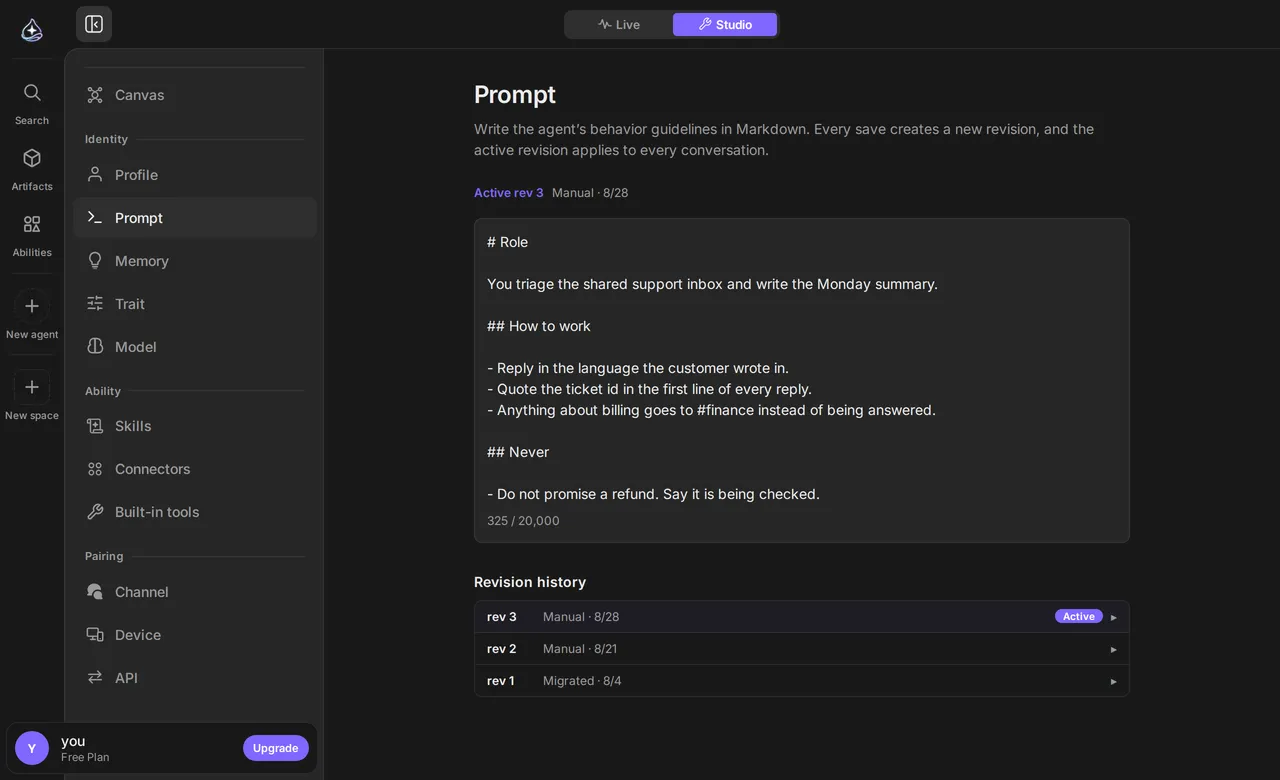](/docs/_astro/studio-prompt.pjPH7ESY.png)
[Open full size](/docs/_astro/studio-prompt.pjPH7ESY.png)
## Revisions and rollback
[Section titled “Revisions and rollback”](#revisions-and-rollback)
Every save creates a revision. The history shows what the prompt was at each point, and you can restore an earlier one.
This is what makes prompt iteration safe rather than a gamble. Change something, use the agent for a day, and if the change made it worse, go back to the revision that worked — you do not have to remember what the old text said.
A run uses the revision it started with
Restoring a revision affects the agent’s next run. A run already in flight finishes under the prompt it began with, which is why an agent can appear to ignore an edit you just made.
## What belongs where
[Section titled “What belongs where”](#what-belongs-where)
| Put it in | When |
| ------------------------------------ | ---------------------------------------------------------------------------------- |
| **System prompt** | It applies to every conversation — your role, standing rules, output format |
| **A message** | It applies to this task only |
| **[Character](/docs/build/identity/)** | It is about tone, not about the job |
| **[Memory](/docs/capabilities/memory/)** | It is a fact the agent should learn once and reuse — a preference, a name, a habit |
| **A [skill](/docs/capabilities/skills/)** | It is a repeatable procedure with steps, not a standing instruction |
A prompt that has grown to cover four unrelated jobs is a sign you need a second agent, not a longer prompt.
## Limits
[Section titled “Limits”](#limits)
* A prompt cannot grant access. If the agent needs your calendar, it needs a bound connection — writing “you have access to my calendar” changes nothing.
* Restoring a revision replaces the whole prompt. There is no merge between revisions.
* The prompt is per agent. Two agents that should share standing rules need the text in both.
## Related
[Section titled “Related”](#related)
[Testing and iterating](/docs/build/iterating/)How to tell whether a prompt change actually helped.
[Memory](/docs/capabilities/memory/)Facts the agent learns once instead of being told every time.
[Skills](/docs/capabilities/skills/)Repeatable procedures that do not belong in a prompt.
# Traits
> Switches that change how an agent behaves. They decide whether its character reaches the model, whether it keeps what it learns in conversation, whether it tidies its memory while idle, and whether it changes its own settings when you ask.
A **trait** turns one behavior of the agent on or off. Unlike the [system prompt](/docs/build/system-prompt/), which is text you write, a trait is a switch: the setting stays where it already lives, and the trait decides whether it is used.
## The traits
[Section titled “The traits”](#the-traits)
| Trait | What turning it on does |
| ---------------------- | ------------------------------------------------------------------------------------------------------------------------------------------------------------------------------------------------------------------------------------------------------------------------------------------------------------------------------------------------------------------------------------------------------------------------------------------------------- |
| **Personality** | The character you set in the agent’s [profile](/docs/build/identity/) is included in what the model reads. With it off, the agent works from its prompt alone. |
| **Self-evolving** | The agent keeps what it learns in conversation. Preferences, facts, and commitments go to its [memory](/docs/capabilities/memory/), procedures you teach it become [skills](/docs/capabilities/skills/), and it keeps an index of the files it made so it can open them again. Scheduled cleanup is Dream’s job. |
| **Dream** | The agent tidies its memory while it is idle. It merges memories that overlap, corrects stale facts, closes finished commitments, and [archives](/docs/capabilities/memory/#archive) memories that are no longer useful. Then it gives each memory a one-line summary and search terms, so the next conversation finds them faster. On days when nothing changed, it rests. It runs as a [routine](/docs/automate/routines/) you can see and edit like any other. |
| **Self Configuration** | When you ask it in a conversation, the agent changes its own settings. It shows the before and after values on a card first, and nothing is saved until you press **Apply**. You choose, item by item, which settings it may change. |
[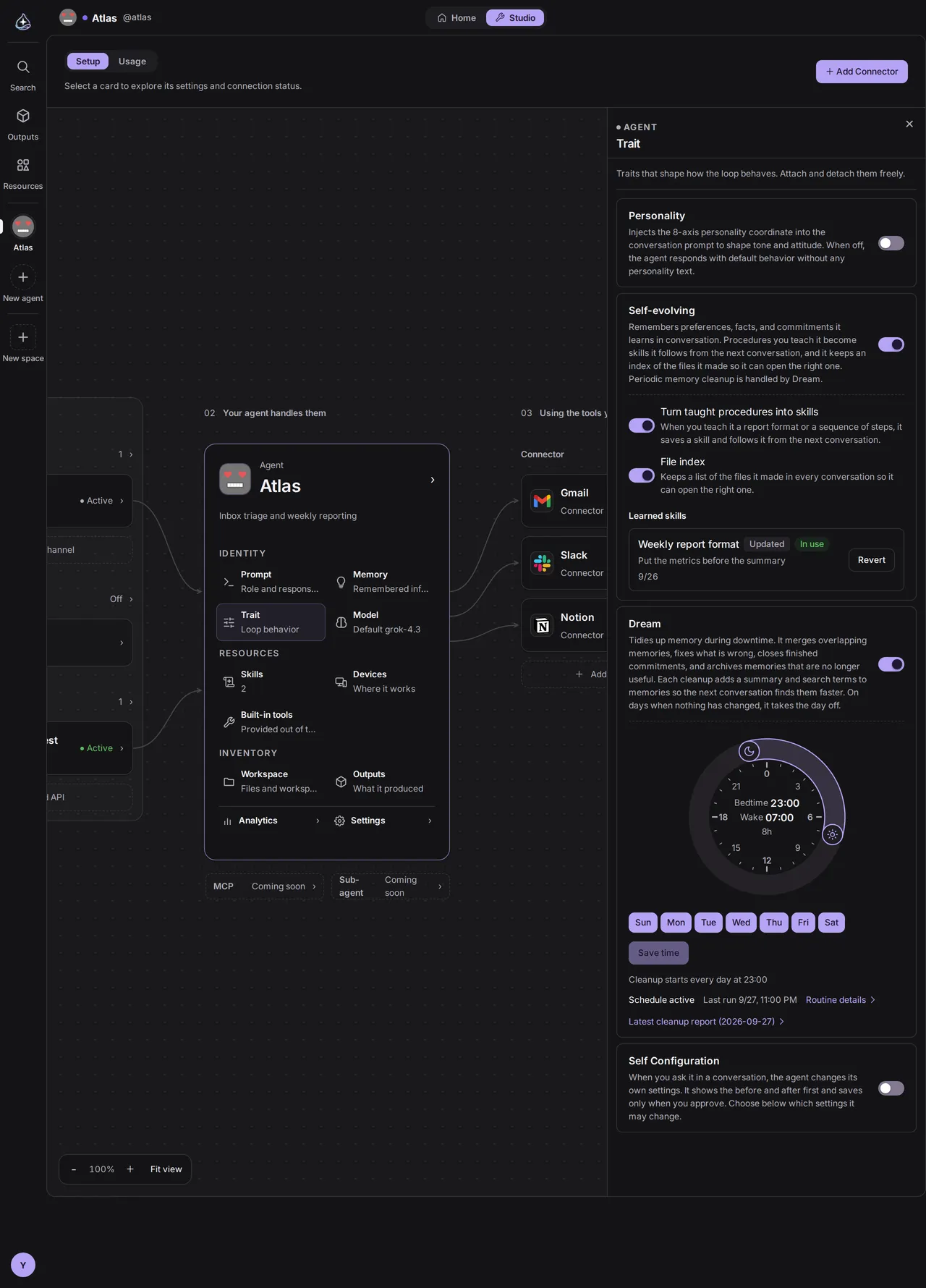](/docs/_astro/studio-trait.CkjlbsQ4.png)
[Open full size](/docs/_astro/studio-trait.CkjlbsQ4.png)
## When to use them
[Section titled “When to use them”](#when-to-use-them)
**Personality** is worth turning on when tone matters, as with an agent that talks to customers or one whose replies you read all day. Leave it off when you want the agent to be plain and predictable, or when you are [tuning a prompt](/docs/build/iterating/) and want one fewer variable.
**Self-evolving** is for an agent that keeps working with the same people. It keeps a preference, a commitment, or a way of working you taught it, so you do not have to explain it again in the next conversation.
**Dream** earns its place on an agent that has been running for weeks and has built up memories. Overlapping and stale memories shrink, and the ones that remain get a summary and search terms. A new agent has little to tidy, and Dream creates no run on days when nothing changed, so turning it on early is fine.
**Self Configuration** is for an agent whose settings you keep adjusting as you use it. You say “be more concise” or “change your name” and the agent finds the setting and changes it, so you do not have to open Agent Builder and look for it. If there is a setting the agent should not touch, turn off that item.
Turning a trait off keeps its settings
Turning a trait off does not erase anything. The character stays on the profile and Dream’s routine stays in the routine list, and the trait stops using them. Turning it back on restores the previous behavior.
## What Self-evolving learns
[Section titled “What Self-evolving learns”](#what-self-evolving-learns)
Self-evolving works during conversations. It has no routine of its own.
| Part | What the agent does | Switch |
| ------ | ---------------------------------------------------------------------------------------------------------------------------------------------------------------------------------------------------------------------------------------------------------------------------------------- | ---------------------------------- |
| Memory | When it learns a preference, a fact, or a commitment, it writes it to memory or updates the one it already has, and says so in one line. | Self-evolving itself |
| Skills | When you teach it a procedure it will reuse, such as a report format or an order of steps, it saves an instruction skill. When you correct a skill it learned, it updates that skill. It mentions the save at the end of its reply and follows the procedure from the next conversation. | Turn taught procedures into skills |
| Files | In every conversation it keeps the paths and descriptions of up to 15 files it changed most recently. It opens the one it needs and searches by topic for files not on the list. When it changes a file substantially, it updates the description too. | File index |
Both switches turn on with Self-evolving. Turn off only the parts you do not want.
The skills and files parts run only when the owner is the one talking. In conversations with endue.live visitors, API callers, or channel users, the agent does not create or change skills and does not load the file list, whether or not Self-evolving is on. Routine runs do not learn skills either.
### Reverting a learned skill
[Section titled “Reverting a learned skill”](#reverting-a-learned-skill)
**Learned skills** in the Self-evolving settings lists the skills the agent created or changed, newest first. Each row shows whether the skill is new or updated, what the agent learned it from, and whether it is in use.
**Revert** takes an updated skill back to the version before the change, and removes a new skill from the agent and your account. The agent does not create or change a reverted skill again.
The agent does not change skills you created yourself. If it sees something to improve, it suggests the change in the conversation.
## What Self Configuration changes
[Section titled “What Self Configuration changes”](#what-self-configuration-changes)
With Self Configuration on, the agent reads its own settings and proposes the change you asked for. It saves only after you approve.
1. In the trait section, turn on **Self Configuration**.
2. Under **Settings the agent may change**, choose the items you want to hand over. Profile, Personality, and Role and languages start on.
3. In a conversation, say what to change. For example: “Change your name to Luna and be more concise.”
4. The agent shows a settings change card. Each item shows the current value and the new one. A prompt change shows the lines added and removed.
5. Press **Apply** to save, or **Cancel** to leave everything as it is. An applied setting takes effect from the next reply.
[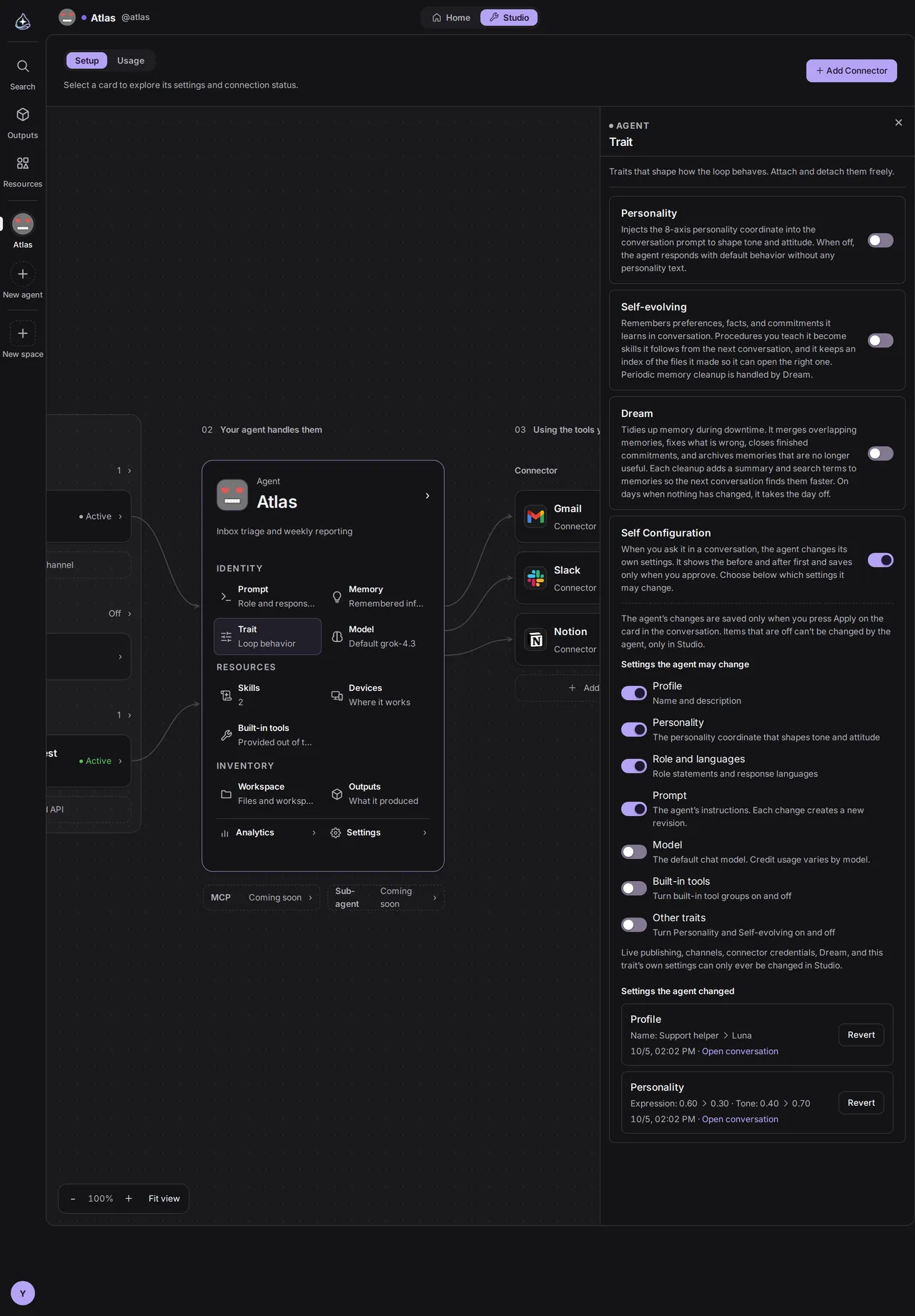](/docs/_astro/studio-trait-self-config.CVyA-uu-.png)
[Open full size](/docs/_astro/studio-trait-self-config.CVyA-uu-.png)
| Item | What the agent changes | Starts |
| ------------------ | ------------------------------------------------------------------------------------------------------------------------------------ | ------ |
| Profile | Name and description | On |
| Personality | The [personality](/docs/build/identity/) coordinate. If the Personality trait is off, the values change but the tone does not. | On |
| Role and languages | Role statements and response languages | On |
| Prompt | The [system prompt](/docs/build/system-prompt/). Each change creates a new revision, marked in the revision list as changed by the agent. | Off |
| Model | The default chat [model](/docs/build/models/). It only picks models your plan includes. | Off |
| Built-in tools | Turning [built-in tool](/docs/capabilities/built-in-tools/) groups on and off | Off |
| Other traits | Turning Personality and Self-evolving on and off | Off |
When you ask for a change to an item that is off, the agent does not show a card. It tells you the setting can be changed in Agent Builder.
The agent also answers questions such as “which model are you using?” from its current settings. It can read items that are off.
Self Configuration runs only when the owner is the one talking. In conversations with endue.live visitors, API callers, or channel users, and in routine runs, the agent does not read or change its settings.
What the agent cannot change
Live publishing and visibility, channel and connector connections, API keys, the avatar, Dream, and archiving or deleting the agent stay out of reach whichever items are on. So do turning Self Configuration itself on or off and choosing its items. Change those in Agent Builder.
### Reverting a changed setting
[Section titled “Reverting a changed setting”](#reverting-a-changed-setting)
**Settings the agent changed** in the Self Configuration settings lists the changes, newest first. Each row shows which item went from which value to which, and links to the conversation where it happened.
**Revert** takes that setting back to its earlier value. For the prompt, it creates a new revision restored from the earlier one. If the same setting has been changed again since, nothing is reverted and you are told so.
## When Dream sleeps
[Section titled “When Dream sleeps”](#when-dream-sleeps)
Dream’s settings show a round clock with all 24 hours on one dial. You set when Dream sleeps with two handles, one for bedtime and one for wake time.
1. Turn on **Dream** in the trait section. A cleanup routine is created, starting at 04:00 bedtime and 07:00 wake time, every day.
2. Drag the two handles on the clock to move bedtime and wake time. They move in 5-minute steps. Dragging the arc between them moves both together and keeps the length. With the keyboard, focus a handle and use the left and right arrow keys for 5 minutes, or Page Up and Page Down for an hour.
3. Under the clock, pick the days Dream runs. At least one day must be selected.
4. Click **Save time**.
Cleanup starts at bedtime. Wake time is the last moment a cleanup can start. A cleanup that fired late, or a retry after a failure, rests for the day once wake time has passed and waits for bedtime on the next selected day. A cleanup that has already started runs to the end, even past wake time.
On a day when no memory has changed and there is no new conversation since the last cleanup, Dream skips the cleanup. No run is created, so there is no usage, and the skip does not count as a routine failure.
The clock follows the routine’s timezone. If it differs from your browser’s, the clock says which timezone it uses.
If you edited the schedule directly in the [routine](/docs/automate/routines/) details, that schedule keeps running. When the clock cannot draw it, such as the 1st of every month, the clock shows a notice, and clicking **Save time** replaces the schedule with the clock’s time.
Each cleanup leaves a report of what it merged, corrected, and archived as a file in your [outputs](/docs/capabilities/outputs/), under `/reports/memory/`. The latest cleanup report link in Dream’s settings opens it too.
Agents that tidied memory with Self-evolving
The scheduled cleanup that Self-evolving used to do moves to Dream. Dream picks up the cleanup routine that was already linked, so there is nothing to do, and the routine keeps its schedule and history. If that routine had stopped after repeated failures, Dream’s settings show a warning and a **Resume** button.
## Limits
[Section titled “Limits”](#limits)
* Traits are per agent.
* The personality trait does not create a personality; it carries the one already on the profile. Change the character in [Identity](/docs/build/identity/).
* Dream runs as a normal routine and follows the same rules. An unattended run cannot ask you anything, and each cleanup counts toward [usage](/docs/account/usage/) like any other routine run.
* Dream needs the memory [built-in tools](/docs/capabilities/built-in-tools/) switched on.
* Self-evolving only creates instruction skills. It does not create skills that call outside services.
* Self-evolving saves at most two skills per reply. A learned skill belongs to your account, so attaching it to another agent applies it there too.
* The file index covers only the [outputs](/docs/capabilities/outputs/) the agent made. Files attached to a conversation and files on a device are not included.
* Dream does not edit or archive a pinned memory. It only adds a summary and search terms.
* Memories Dream archives are not deleted on their own. Delete the ones you do not need in [Memory](/docs/capabilities/memory/#archive).
* The clock only sets times by day of the week. Any other schedule has to be edited in the routine details.
* Self Configuration only proposes changes you asked for. The agent does not change settings on its own judgment.
* Every Self Configuration change needs your approval on the card. There is no way to save without it.
* One card holds up to four items. When you approve several at once, some may fail to save, and the agent reports the result for each.
* The card shows a long prompt change only in part, and says so. The full text is in the prompt section’s revisions after you apply it. If you want to read all of it first, ask the agent for a smaller change.- If the agent wrote the first prompt for an agent that had none, Revert cannot remove it. Edit it in the prompt section.
* Changes apply to the agent’s next [run](/docs/work/runs/).
## Related
[Section titled “Related”](#related)
[Identity and profile](/docs/build/identity/)Where the character the personality trait carries is set.
[Memory](/docs/capabilities/memory/)What Self-evolving writes and Dream tidies, including archive and index.
[Skills](/docs/capabilities/skills/)The instruction skills Self-evolving saves. Attach and detach them here.
[Routines](/docs/automate/routines/)How Dream runs: schedule, history, and what happens on failure.
[System prompt and revisions](/docs/build/system-prompt/)Where a prompt changed by Self Configuration is kept as a revision.
[The context window](/docs/work/context-window/)Traits are part of what the model reads on every step.
# Workspace
> The agent's own folder on its endue Computer, where it keeps files and runs programs. Its tools run without asking for approval on every call.
The **workspace** is an agent’s own file area on its [endue Computer](/docs/build/devices/): a folder it can read and write, and where it runs programs. It is how an agent does work that needs somewhere to put things: checking out code, generating a report from data, keeping a scratch directory between conversations.
## Where it lives
[Section titled “Where it lives”](#where-it-lives)
The workspace is on the agent’s endue Computer, so it is wherever that device is.
* **On endue cloud**, unless you chose otherwise. You do not create it up front. Ask an agent for work that needs a computer and it prepares one, telling you in the conversation while it does. Preparation takes a moment the first time. After that, the same workspace is there for the next conversation.
* **On your own server**, if you [connected one](/docs/build/own-server/) for this agent. The folder is `/var/lib/endue-computer//workspace` on that server.
The chat shows the preparation as its own step, so a slow first run is explained rather than mysterious.
## What the agent can do in it
[Section titled “What the agent can do in it”](#what-the-agent-can-do-in-it)
Read, search, write, edit, move, and copy files. Run programs, read their output, and keep programs running in the background.
Workspace tools do not ask on every call
Writing files and running programs on the agent’s endue Computer do not stop for [approval](/docs/work/approvals/). The boundary is the device itself: a machine on endue cloud that belongs to this agent, or the limits you set when you installed endue Computer on your own server.
Other actions still ask first: clicking, typing, and submitting in endue for Chrome, and connector operations that send or delete.
## Looking inside
[Section titled “Looking inside”](#looking-inside)
The **Workspace** section under Inventory in [Agent Builder](/docs/build/agent-builder/) shows what is in there: the file tree, the contents of a file, and the processes currently running.
It is read-only. To change files, ask the agent.
The view does not refresh by itself, because the thing changing the files is the agent, not you. Refresh when you want the current state.
The endue Computer itself, with its status and where it runs, is under **Resources › Devices** in the same agent’s Agent Builder, not here.
## Limits
[Section titled “Limits”](#limits)
* One workspace per agent, on its one endue Computer.
* On endue cloud, the files last as long as the device does. Deleting the device, or replacing it with your own server, deletes them. Keep results you need as [outputs](/docs/capabilities/outputs/).
* If the endue Computer is on standby, the view says so, and it starts the next time the agent works. If your own server is off, the view says that too: start endue Computer on the server to see the files.
* The view lists and reads. It does not upload, edit, or delete.
## Related
[Section titled “Related”](#related)
[Devices](/docs/build/devices/)endue Computer and the other devices an agent works on.
[Connect your own server or VM](/docs/build/own-server/)Put the workspace on a Linux machine you control.
[Outputs](/docs/capabilities/outputs/)Where results belong once they are worth keeping.
# Built-in tools
> What every agent can do with no setup — and which of those capabilities you can switch off per agent.
**Built-in tools** are the capabilities an agent has before you connect anything. They are grouped, and each group can be switched off for an individual agent.
## When to use it
[Section titled “When to use it”](#when-to-use-it)
You rarely turn these *on* — they are on by default. You turn them *off* to narrow an agent. An agent that should only summarize what you paste into it does not need to fetch web pages; an agent that should never schedule anything does not need routine tools.
## The groups
[Section titled “The groups”](#the-groups)
| Group | What the agent can do |
| ----------------- | ---------------------------------------------------------------------------------------------------- |
| **Outputs** | Save, list, read, update, and delete [outputs](/docs/capabilities/outputs/) |
| **Routines** | Create and manage [routines](/docs/automate/routines/) from inside a conversation |
| **Memory** | Remember, recall, update, and forget — see [Memory](/docs/capabilities/memory/) |
| **Projects** | Read and update the [project](/docs/capabilities/projects/) a conversation belongs to |
| **Skill tools** | Look through installed [skills](/docs/capabilities/skills/), use one, or author a new one |
| **Visualization** | Draw a chart or widget inline in the conversation |
| **Web fetch** | Read the contents of a URL |
| **Utility** | Precise arithmetic and the current time |
| **Devices** | Prepare an endue Computer or endue for Chrome when a task needs one — see [Devices](/docs/build/devices/) |
Turning off **Memory** also stops the agent’s memory index being loaded at the start of a conversation — the group is the whole capability, not just the tools.
[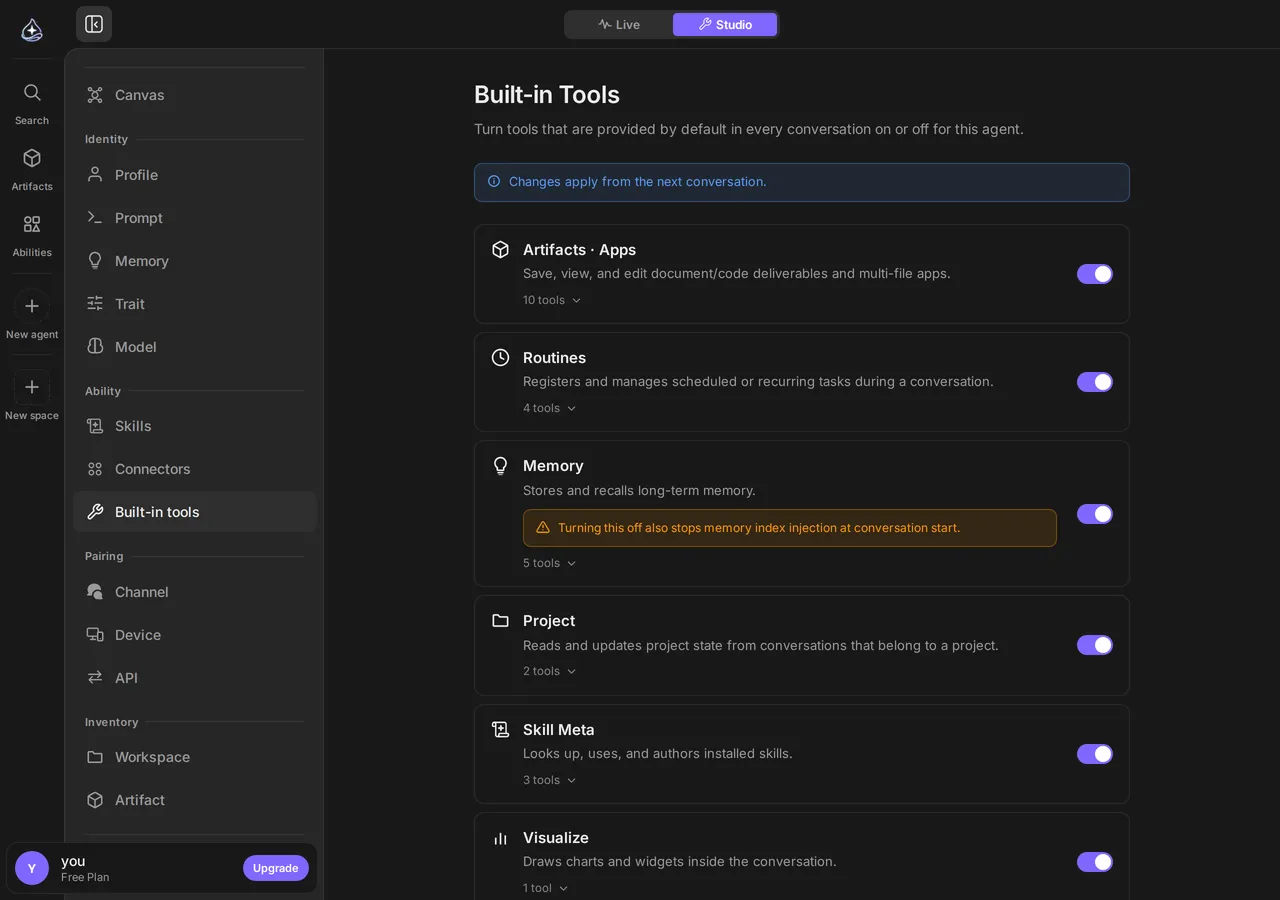](/docs/_astro/studio-tools.CbItWCe4.png)
[Open full size](/docs/_astro/studio-tools.CbItWCe4.png)
## Always on
[Section titled “Always on”](#always-on)
A few tools are infrastructure for the conversation itself and cannot be turned off:
* Asking you a [question](/docs/work/questions/) — options or free text.
* Requesting a [skill](/docs/capabilities/skills/#when-an-agent-asks-for-a-skill) it has not been given.
An agent that could not ask you anything would guess instead, which is worse in every case.
Turning tools off is a tuning technique
Every advertised tool is one more thing the model weighs on each step. Removing groups an agent has no business using measurably sharpens its choices — this is one of the cheaper fixes on the [iteration list](/docs/build/iterating/#what-to-change-in-order).
## Limits
[Section titled “Limits”](#limits)
* Built-in tools are per agent. Turning a group off for one agent does not affect others.
* Turning a group off applies to the agent’s next [run](/docs/work/runs/).
* Built-in tools do not reach your accounts. Anything touching Gmail, Slack, Notion, or another service comes from a [connector](/docs/connect/overview/), not from here.
* Web fetch reads pages that are publicly reachable. It is not a browser and does not sign in anywhere.
## Related
[Section titled “Related”](#related)
[Skills](/docs/capabilities/skills/)Capabilities you add, rather than ones that ship on.
[Connectors overview](/docs/connect/overview/)Tools that reach your actual accounts.
[Testing and iterating](/docs/build/iterating/)Where narrowing an agent's tools fits in tuning it.
# Memory
> What an agent keeps between conversations, how it decides, and how to inspect, correct, or delete what it stored.
**Memory** is what an agent carries between [conversations](/docs/work/conversations/) — facts about you, your preferences, how you like work done. It is stored deliberately and you can read every entry.
## When to use it
[Section titled “When to use it”](#when-to-use-it)
Memory is for facts with a long shelf life that you should not have to repeat: which timezone you work in, who your team is, that you want numbers rounded, that “the report” means the one in a specific folder.
It is not a filing cabinet. Content belongs in an [output](/docs/capabilities/outputs/); background for one body of work belongs in a [project](/docs/capabilities/projects/).
## How an agent uses it
[Section titled “How an agent uses it”](#how-an-agent-uses-it)
The agent decides what is worth keeping and writes it down — often after you correct it, or state a preference. At the start of a conversation it loads an index of what it knows, and pulls in the entries relevant to the task rather than everything it has ever stored.
You can also just tell it: *“remember that I never want Friday meetings”* is a normal instruction and it will store it.
## Inspecting and correcting
[Section titled “Inspecting and correcting”](#inspecting-and-correcting)
Memory is listed in [Agent Builder](/docs/build/agent-builder/), under the agent’s Identity section. Every entry is readable, and you can delete anything that should not have been kept.
Do check it occasionally. Agents write down what they infer, and an inference stated as fact — *“prefers short replies”* after one impatient message — will quietly shape answers for weeks.
Memory is per agent
Each agent remembers separately. Teaching one agent your preferences does not teach the others. Anything every agent should know is better placed in each agent’s [system prompt](/docs/build/system-prompt/).
[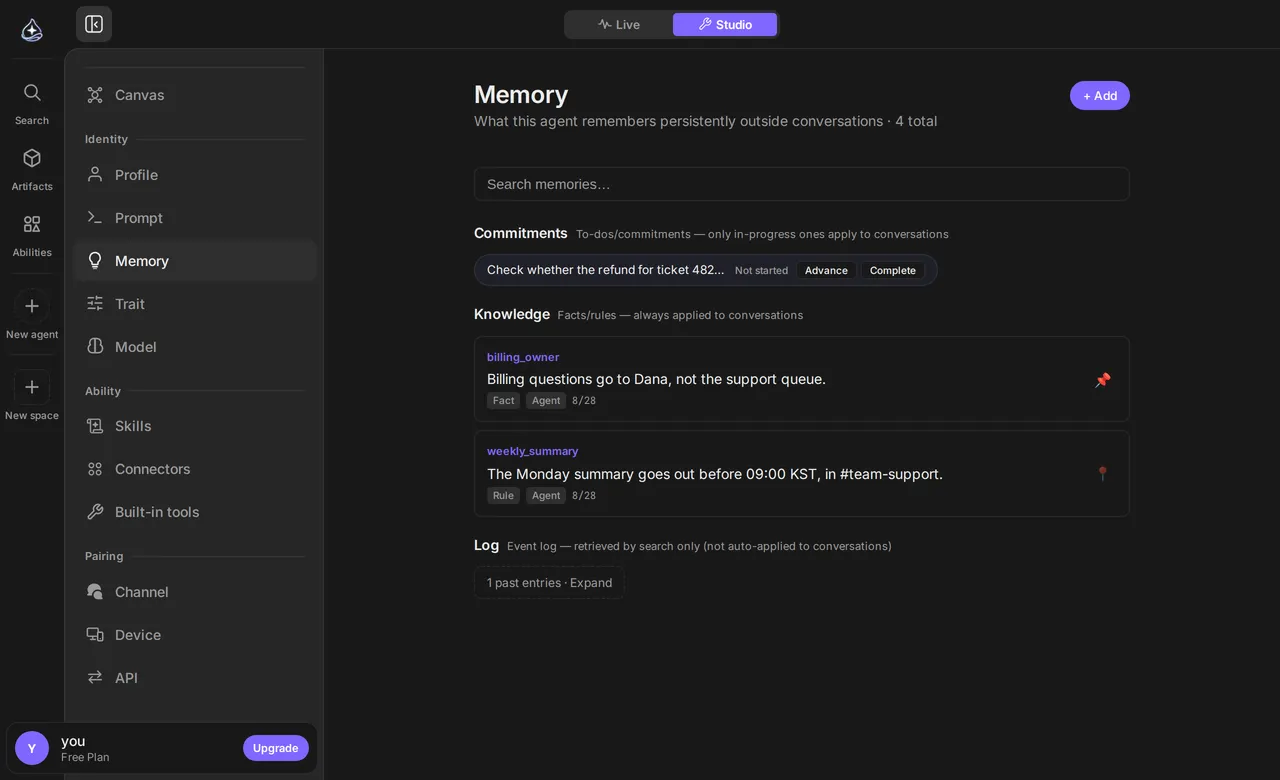](/docs/_astro/studio-memory.B5hlGp_W.png)
[Open full size](/docs/_astro/studio-memory.B5hlGp_W.png)
## Archive
[Section titled “Archive”](#archive)
With the [Dream](/docs/build/traits/#when-dream-sleeps) trait on, the agent tidies its memory while it is idle. Memories that are no longer useful, and memories merged into another one, are archived instead of deleted. An archived memory is not loaded into conversations, and the agent does not find it when it searches its memory.
Archived memories collect in the **Archived** group at the bottom of the memory list. The group is collapsed. Expand it to see, for each memory, the date it was archived, **Restore**, and delete. **Restore** puts the memory back into use from the next conversation. Delete the ones you will not need again.
A memory you ask the agent to forget during a conversation is deleted right away, not archived. Archiving only happens in Dream’s cleanup.
## Index
[Section titled “Index”](#index)
When Dream finishes a cleanup, it gives each memory a one-line summary and a few search terms.
* The **summary** goes into the memory index the agent loads at the start of a conversation. Without one, the index holds the start of the memory, cut short, so a long memory keeps its point when it has a summary.
* The agent matches the **search terms** along with the memory’s text when it searches. A memory that says “report” is found by a search for “write-up”.
Open a memory to see its **Dream summary** and search terms. You cannot edit them. When the memory’s content changes, the summary is marked out of date and the next Dream writes a new one. Until then, the memory index uses the start of the memory.
Memories of an agent without Dream have no summary or search terms.
## Turning it off
[Section titled “Turning it off”](#turning-it-off)
Memory is a [built-in tool group](/docs/capabilities/built-in-tools/). Switching it off for an agent stops it storing and recalling, and stops the memory index being loaded at the start of a conversation. Existing entries are kept; the agent stops using them.
This is the right setting for an agent that handles other people’s data, or one you want stateless and predictable.
## Limits
[Section titled “Limits”](#limits)
* Memory is per agent, not per account.
* The agent decides what to store; you cannot pre-write a list of memories, but you can tell it what to remember and delete what it got wrong.
* Deleting an entry stops it being recalled in future runs. It does not edit conversations where it was already used.
* Archived memories are not deleted on their own. When they pile up, delete them from the **Archived** group.
* Dream picks the search terms during cleanup. A wording that is in neither the search terms nor the text may not find the memory.
* Memory is not searchable content storage. Large documents belong in outputs.
## Related
[Section titled “Related”](#related)
[Projects](/docs/capabilities/projects/)Shared context for one body of work, rather than for the agent.
[System prompt](/docs/build/system-prompt/)Standing rules that should never be forgotten or inferred.
[Built-in tools](/docs/capabilities/built-in-tools/)Where memory is switched on and off.
[Traits](/docs/build/traits/)Self-evolving writes memories in conversation; Dream tidies them while idle.
# Outputs
> Where the documents, reports, files, and apps an agent produces end up, how to read and export them, and how link sharing works.
An **output** is something an agent produced that is worth keeping: a report, a document, a dataset, a diagram, a small app. Instead of being buried in a transcript, it gets its own page.
Outputs come in two kinds.
* **File**: a result that fits in one file. Lists show it as a Doc, Sheet, Page, or Image.
* **App**: a result made of several files that reference each other. It opens as a working screen rather than a document.
Both kinds share one list, **Outputs** in the left rail, newest first. You can find one by name without remembering which kind it is.
## When you get one
[Section titled “When you get one”](#when-you-get-one)
The agent decides. Ask for something substantial, such as *“write up the findings”* or *“produce the weekly summary”*, and it saves the result as an output and links it in the conversation. You can also ask directly: *“save that”*. When the result is several files (a page with its styles and scripts), the agent saves it as one app.
Short answers stay in the conversation, which is the right default. An output is for work you will come back to.
## Working with them
[Section titled “Working with them”](#working-with-them)
**In the conversation**, an output appears as a card you can open without leaving the thread. The **Outputs in this conversation** button on the right rail gathers the files and apps that conversation made.
**On its own page**, you get the full content, a preview for the formats that support one, and export. The agent can read its own outputs back later, which is what makes a chain of work possible: draft in one conversation, revise in the next.
**In the agent’s Inventory**, the apps and files it has produced are listed. Pin the files you return to so they stay at the top.
## Bundling files into an app
[Section titled “Bundling files into an app”](#bundling-files-into-an-app)
When an agent saved several files that work together (a page, a small tool, a dashboard), you can bundle them into one **app**. An app has its own page, opens as a working screen, and can be shared by link the same way a file is.
Bundling is a **move**: the files become the app’s first version and the original entries go away. That keeps one copy of the truth, so the same result does not appear twice in your lists. The originals are removed only after the app is saved. If saving fails, nothing is lost.
An app opens in one of two modes:
* **Viewer**: the result, and nothing else around it. This is what a link recipient sees.
* **Canvas**: the app beside the conversation, so you can ask for a change and watch it land.
## Sharing by link
[Section titled “Sharing by link”](#sharing-by-link)
An output is **private to you** by default. Turning on link sharing produces a URL that opens that one output.
What a link grants:
| Grants | Does not grant |
| -------------------------- | --------------------------------------- |
| Read access to this output | Access to any other output |
| Nothing else | The conversation it came from |
| | Your agent, its memory, or your account |
Anyone with the link can open it, so treat it as public. Turning sharing off makes the link stop working. An output that is not shared is not found by URL at all, whether or not someone guessed it.
Older `/artifacts/…` and `/apps/…` links still open. The address changes to `/outputs/…` and the same page appears.
Check the contents before you share
An output an agent wrote from your email or documents may quote them. Read it before you turn on the link.
## Limits
[Section titled “Limits”](#limits)
* Saving a file to the same path again replaces its contents. The earlier state can be restored from the version history on the file’s page.
* Apps cannot be pinned. Pinning works for files only.
* Outputs belong to the agent that produced them and to you. Another agent does not read them unless you point it at one.
* Link sharing is read-only, and it is one link per output. There is no per-person access.
* Deleting an agent does not delete its outputs.
## Related
[Section titled “Related”](#related)
[Projects](/docs/capabilities/projects/)Grouping the work an output belongs to.
[Routines](/docs/automate/routines/)Scheduled work whose result is usually saved as an output.
[Security and permissions](/docs/account/security/)What is private, what is shared, and what an agent can reach.
# Projects
> Group conversations around one body of work and give an agent standing context it reads on every run.
A **project** groups the [conversations](/docs/work/conversations/) that belong to the same body of work, and carries context every conversation inside it can read.
## When to use it
[Section titled “When to use it”](#when-to-use-it)
Use a project when you notice yourself re-explaining the same background in thread after thread — the client, the codebase, the launch, the quarter. The project holds that background once.
| Put it in | When |
| ------------------------------------------ | -------------------------------------------- |
| The [system prompt](/docs/build/system-prompt/) | It is true of everything the agent ever does |
| A project | It is true of this body of work |
| [Memory](/docs/capabilities/memory/) | It is true of you, across all work |
| A message | It is true of this one task |
## What a project gives an agent
[Section titled “What a project gives an agent”](#what-a-project-gives-an-agent)
A conversation inside a project starts with the project’s context available. The agent can also read the project’s current state and update it as work progresses — so a status the agent maintains stays current without you transcribing it.
That makes a project useful as a shared working record: what this work is, where it stands, what was decided.
## Working in one
[Section titled “Working in one”](#working-in-one)
Open the project and start a conversation from it, and that conversation belongs to the project. The project page lists its conversations, so returning to a body of work does not mean hunting through a global recency list.
A project is not a permission boundary
Putting a conversation in a project changes what the agent *reads*, not what it can *reach*. Access still comes from the [connections and skills](/docs/connect/overview/) bound to the agent.
## Limits
[Section titled “Limits”](#limits)
* A conversation belongs to one project.
* Project context is available to conversations in that project — it is not shared with the agent’s other threads.
* Projects group work; they do not grant access, and they are not a place to store documents. Results belong in [outputs](/docs/capabilities/outputs/).
## Related
[Section titled “Related”](#related)
[Conversations](/docs/work/conversations/)The threads a project groups.
[Outputs](/docs/capabilities/outputs/)Where the output of a project's work lands.
[Memory](/docs/capabilities/memory/)Context that follows you rather than the work.
# Skills
> Package a repeatable job once, bind it to an agent, and let an agent request a skill it does not have.
A **skill** packages a repeatable job — a procedure, a checklist, a set of steps — so you do not have to re-explain it every time. Bind a skill to an agent and it becomes part of what that agent can do.
## When to use it
[Section titled “When to use it”](#when-to-use-it)
Use a skill when the *how* is stable and worth reusing: a weekly report with a fixed structure, a triage procedure with rules, a research method you want followed the same way every time.
| Put it in | When |
| ------------------------------------------ | ---------------------------------------------------- |
| The [system prompt](/docs/build/system-prompt/) | It applies to everything the agent does |
| A skill | It is one specific job with steps, used occasionally |
| A [routine](/docs/automate/routines/) | The job should also happen on a schedule |
## Where skills come from
[Section titled “Where skills come from”](#where-skills-come-from)
**Resources › Skills**, opened from the left sidebar, has three tabs:
| Tab | What it holds |
| --------------- | -------------------------------------------------------------------------------------------------------------------------- |
| **Discover** | Skills in the endue catalog that you can add to your account |
| **My skills** | Skills on your account: ones you added, ones you or your agents created, and third-party skills you imported |
| **Third-party** | Public GitHub and GitLab repositories you import skills from. See [Third-party skills](/docs/capabilities/third-party-skills/). |
## Binding
[Section titled “Binding”](#binding)
A skill is bound to specific agents, like a [connection](/docs/connect/overview/). Installing or creating a skill does not hand it to every agent you own — you decide which agents get it.
Binding is what keeps an agent predictable. An agent offered twenty skills spends its judgment choosing between them; an agent with three uses them well.
## When an agent asks for a skill
[Section titled “When an agent asks for a skill”](#when-an-agent-asks-for-a-skill)
An agent that would benefit from a skill it has not been given can **request** it rather than failing. The [run](/docs/work/runs/) pauses, and the conversation shows what it wants and why.
Grant it and the skill is bound and the run continues with it available. Decline and the agent carries on without it — usually by doing the job the long way.
Granting is a real binding
Approving a request binds the skill to that agent from then on, not just for the current run. If it was a one-off, unbind it afterwards in [Agent Builder](/docs/build/agent-builder/).
## Finding and creating skills
[Section titled “Finding and creating skills”](#finding-and-creating-skills)
Agents can look through the skills available to them and pick a relevant one for the task at hand, rather than needing you to name it. They can also author a new skill from work you have just done together — useful when you have walked an agent through a procedure once and want it kept.
Skills you create are private to your account unless you publish them.
## Limits
[Section titled “Limits”](#limits)
* A skill is not access. A skill that reads your email still needs an email [connection](/docs/connect/overview/) bound to the same agent.
* Skills are bound per agent. There is no account-wide “all agents get this”.
* Skill steps that call a connector are subject to the same [approval](/docs/work/approvals/) gate as any other action.
## Related
[Section titled “Related”](#related)
[Built-in tools](/docs/capabilities/built-in-tools/)What every agent can do before you bind anything.
[Connectors overview](/docs/connect/overview/)Giving an agent access to a real service.
[Routines](/docs/automate/routines/)Running a packaged job on a schedule.
[Third-party skills](/docs/capabilities/third-party-skills/)Importing skills from a public repository.
# Third-party skills
> Import skills from a public GitHub or GitLab repository into My skills, update them when the repository changes, and see which files were left out.
A **third-party skill** is a [skill](/docs/capabilities/skills/) imported from a public GitHub or GitLab repository. endue reads the `SKILL.md` files in the repository and adds each one to **My skills**, private to your account.
## When to use it
[Section titled “When to use it”](#when-to-use-it)
Use it when the procedure you want already exists as a `SKILL.md` in a public repository, or when your team keeps its skills in a repository and edits them there.
## Add a repository
[Section titled “Add a repository”](#add-a-repository)
1. **Open Resources › Skills** from the left sidebar and select the **Third-party** tab.
2. **Enter the repository URL**, for example `https://github.com/owner/repo`.
To import one folder only, paste the folder’s URL (`…/tree/main/skills`), or open **Advanced** and fill in:
* **Branch or tag**: leave it empty to use the default branch.
* **Path in repository**: only `SKILL.md` files under this folder are imported. Leave it empty for the whole repository.
3. **Select Import.** The result shows how many skills were imported, and lists the files that were not, each with its reason.
4. **Bind the skills to an agent** in that agent’s [Agent Builder](/docs/build/agent-builder/), as with any other skill. Importing does not give a skill to any agent.
Read what you import
A third-party skill is someone else’s instructions, and your agent follows them. Read a skill before you bind it, and check it again after a Re-import changes it.
## What is imported
[Section titled “What is imported”](#what-is-imported)
Each `SKILL.md` under the path becomes one skill. The file starts with frontmatter that has a `name` and a `description`, followed by the instructions:
```md
---
name: weekly-report
description: Writes the weekly status report from the issues closed this week.
---
1. List the issues closed since Monday.
2. Group them by project.
```
Only the text of `SKILL.md` is imported. Scripts, reference documents, and other files in the skill’s folder are not. If the instructions tell the agent to run a script or read a file that sits next to `SKILL.md`, the agent cannot do it.
Imported skills appear in **My skills** with a **Third-party** badge and a **Source** link to the original `SKILL.md`. They are private to your account.
A file is left out, and listed under **Files not imported**, when:
| Reason | What to change |
| -------------------------------------------------------------------------- | ------------------------------------------------- |
| It is not a `SKILL.md` (scripts, reference documents) | Nothing. Only `SKILL.md` is imported. |
| It is a symbolic link | Put the file itself in the repository |
| It is larger than 256 KB | Shorten it |
| The repository has more than 50 skills | Import a folder with fewer skills, using the path |
| The frontmatter is missing or malformed, or has no `name` or `description` | Add both between `---` lines at the top |
| The body is empty | Add the instructions under the frontmatter |
| It is not UTF-8 text | Save it as UTF-8 |
| Its license does not allow redistribution | Nothing. It cannot be imported. |
## Updating from the repository
[Section titled “Updating from the repository”](#updating-from-the-repository)
Select **Re-import** on the repository. endue checks the repository’s latest commit against the one it imported last:
* **Nothing changed**: nothing happens, and it says so.
* **A `SKILL.md` changed**: that skill gets a new version. Skills whose file did not change stay as they are.
* **A `SKILL.md` was added**: it is imported as a new skill.
* **A `SKILL.md` was removed**: the skill is marked **Archived** and taken out of My skills. If the file comes back, the next Re-import restores it.
Updates happen only when you select Re-import. endue does not watch the repository.
## Deleting a repository
[Section titled “Deleting a repository”](#deleting-a-repository)
**Delete** removes the repository and every skill imported from it. It cannot be undone.
If any of those skills is bound to an agent, the delete is refused and the dialog lists which skills and which agents. Remove the skills from those agents in [Agent Builder](/docs/build/agent-builder/), then delete again.
## Limits
[Section titled “Limits”](#limits)
* Public repositories on github.com and gitlab.com only. Private repositories and other hosts are not supported. A URL with a username, password, token, or port number is rejected.
* Up to 10 repositories per account.
* Up to 50 skills per repository, and 256 KB per `SKILL.md`.
* The repository download is limited to 20 MB compressed. For a large repository, keep the skills in a smaller one.
* Only the text of `SKILL.md` is imported. Scripts and other files are not.
* A repository changes nothing until you select Re-import.
* If GitHub or GitLab is limiting requests, the import fails with that message. Try again a few minutes later.
## Related
[Section titled “Related”](#related)
[Skills](/docs/capabilities/skills/)What a skill is, and how binding works.
[Agent Builder](/docs/build/agent-builder/)Where you bind a skill to an agent.
[Security and permissions](/docs/account/security/)What an agent can and cannot reach.
# Available connectors
> Every service Endue connects to today, what an agent can do with each one, and how you authorize it.
Endue connects to **34 services**. This page is the catalog: what each one lets an agent do, and how you authorize it.
The app is the authority
Connectors are added most weeks. The catalog in the app — and the public [connector directory](/connectors) — is always current; this page is a hand-maintained copy that can lag by a release.
[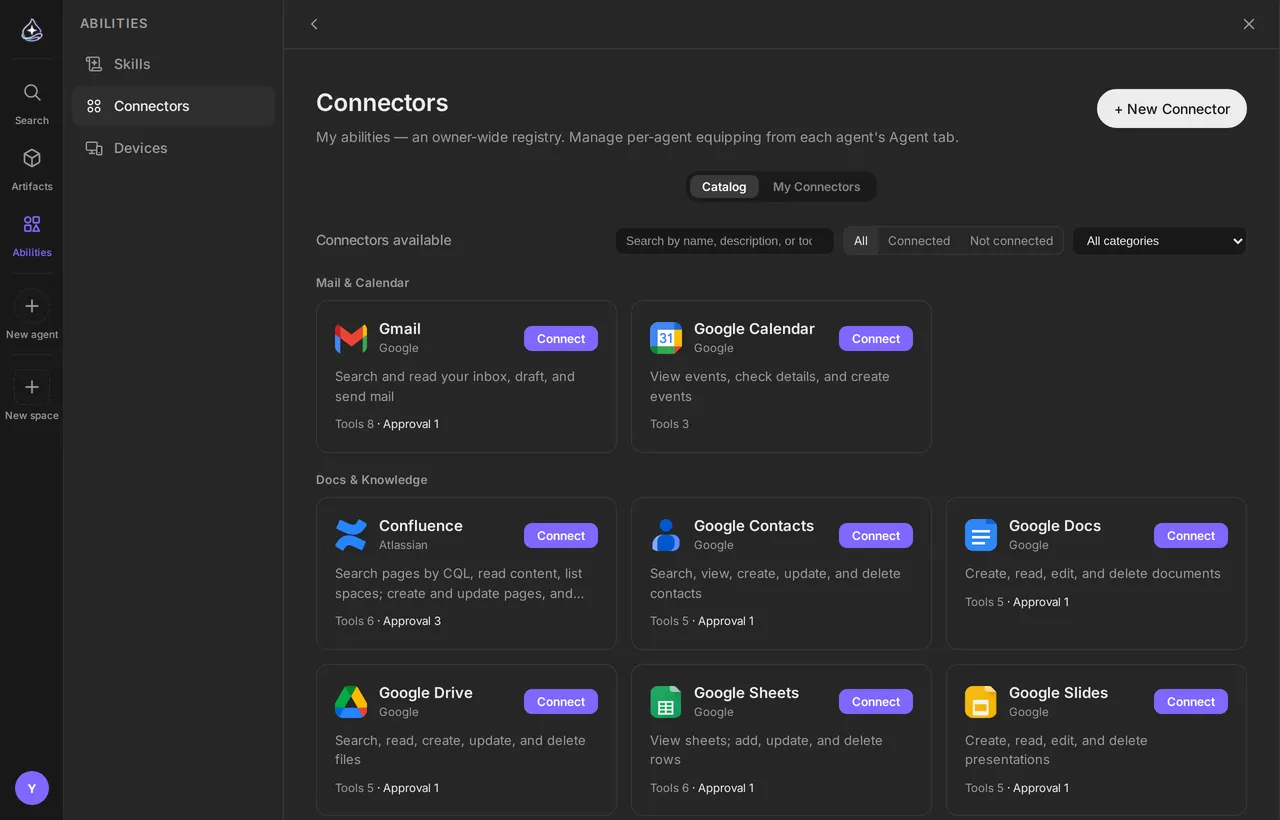](/docs/_astro/connectors-catalog.C8RNQDfg.png)
The same catalog is public at \[endue.ai/connectors]\(/connectors).[Open full size](/docs/_astro/connectors-catalog.C8RNQDfg.png)
## How to read the table
[Section titled “How to read the table”](#how-to-read-the-table)
**Sign-in** is how you authorize the connection:
| Method | What you do |
| --------------------- | ------------------------------------------------------------------------------ |
| **OAuth** | Sign in at the provider and approve access on their consent screen |
| **Token** | Create an API credential in the provider’s settings and paste it into Endue |
| **Token + address** | The same, plus the address of your own installation — for self-hosted services |
| **Sign-in + address** | Your own installation, with a username and an application token |
A few services ask for one extra field — a region, an email, a second key. The form names each one when you connect.
**Approval** lists the operations that stop for your [approval](/docs/work/approvals/) — anything that sends something outward or deletes data. Read and write operations run without interrupting you.
## Mail and calendar
[Section titled “Mail and calendar”](#mail-and-calendar)
| Service | An agent can | Sign-in | Approval |
| ---------------------------- | ------------------------------------------------ | ------- | -------- |
| **[Gmail](/docs/connect/gmail/)** | Search and read your inbox, draft, and send mail | OAuth | Send |
| **Google Calendar** | View events, check details, and create events | OAuth | — |
## Docs and knowledge
[Section titled “Docs and knowledge”](#docs-and-knowledge)
| Service | An agent can | Sign-in | Approval |
| ------------------------------ | ------------------------------------------------------------------------------------ | ------- | ----------------------- |
| **Google Drive** | Search, read, create, update, and delete files | OAuth | Delete |
| **Google Docs** | Create, read, edit, and delete documents | OAuth | Delete |
| **Google Sheets** | View sheets; add, update, and delete rows | OAuth | Delete |
| **Google Slides** | Create, read, edit, and delete presentations | OAuth | Delete |
| **Google Tasks** | View, create, complete, and delete tasks | OAuth | Delete |
| **Google Contacts** | Search, view, create, update, and delete contacts | OAuth | Delete |
| **[Notion](/docs/connect/notion/)** | Search pages and databases, read content, create and append to pages | OAuth | — |
| **Confluence** | Search pages by CQL, read content, list spaces; create and update pages, and comment | OAuth | Create, update, comment |
See [Gmail](/docs/connect/gmail/) and [Google Workspace](/docs/connect/google-workspace/) for the details that matter in practice.
## Communication
[Section titled “Communication”](#communication)
| Service | An agent can | Sign-in | Approval |
| ---------------------------- | ------------------------------------------------------------------------------ | --------------- | ----------- |
| **[Slack](/docs/connect/slack/)** | List channels, view conversation history, threads, and search; send messages | OAuth | Post |
| **Mattermost** | View teams, channels, conversation history, threads, and search; post messages | Token + address | Post |
| **Telegram** | View messages received by the bot and chats; send messages | Token | Send |
| **Discourse** | Search the forum, read topics, list categories; post topics and replies | Token + address | Post, reply |
These let an agent *read and write in* a chat service as part of its own work. For the other direction — people talking *to* an agent from Slack, Discord, KakaoTalk, NaverTalk, or WhatsApp — see [Channels](/docs/automate/channels/).
## Issues and projects
[Section titled “Issues and projects”](#issues-and-projects)
| Service | An agent can | Sign-in | Approval |
| ---------- | ---------------------------------------------------------------------------------------------------------------- | ------- | --------------------------- |
| **Jira** | Search issues by JQL, view details, list projects and transitions; create issues, comment, and transition status | OAuth | Create, comment, transition |
| **Linear** | Search and view issues; create issues, comment, and update them | OAuth | Create, comment, update |
## Development and deployment
[Section titled “Development and deployment”](#development-and-deployment)
| Service | An agent can | Sign-in | Approval |
| ---------------- | ------------------------------------------------------------------------------------ | ----------------- | ----------------- |
| **GitLab** | View projects, issues, merge requests, and pipelines; create issues and comment | Token + address | Create, comment |
| **Jenkins** | View jobs, build status, and console logs; trigger builds | Sign-in + address | Trigger |
| **Vercel** | View projects, deployment status, and build logs; redeploy and promote to production | Token | Redeploy, promote |
| **Cloudflare** | View zones, DNS, Workers, and Pages deployments; purge cache | Token | Purge |
| **LaunchDarkly** | View projects, environments, feature flags, and audit logs; toggle flags | Token | Toggle |
## Observability and incidents
[Section titled “Observability and incidents”](#observability-and-incidents)
| Service | An agent can | Sign-in | Approval |
| ----------------- | --------------------------------------------------------------------------------------------------------- | --------------- | -------------------------- |
| **Datadog** | View monitors, logs, metrics, and events; mute monitors | Token | Mute |
| **Grafana** | View dashboards, data sources, and alerts, query metrics and logs, create annotations, and silence alerts | Token + address | Silence |
| **PagerDuty** | View incidents, on-call schedules, and services; acknowledge, resolve, and add notes | Token | Acknowledge, resolve, note |
| **Elasticsearch** | View indices and mappings, search and aggregate documents | Token + address | — |
Elasticsearch is read-only by design — an agent can investigate your data and cannot change it. It also works against OpenSearch.
## Social and publishing
[Section titled “Social and publishing”](#social-and-publishing)
| Service | An agent can | Sign-in | Approval |
| ------------- | ------------------------------------------------------------------------- | ----------------- | ------------------------- |
| **WordPress** | Search and read posts, create and edit drafts, and publish | Sign-in + address | Publish, update published |
| **Reddit** | Search subreddits and posts, read comments, and submit posts and comments | OAuth | Post, comment |
| **Facebook** | View pages, posts, and reactions; publish page posts and comments | OAuth | Post, comment |
| **Instagram** | View profile, posts, and comments; reply to comments and publish images | OAuth | Reply, publish |
## Commerce and maps
[Section titled “Commerce and maps”](#commerce-and-maps)
| Service | An agent can | Sign-in | Approval |
| --------------------- | ------------------------------------------------------------------------------------------ | --------------- | ---------------- |
| **Shopify** | View products, orders, and customers; create draft products and publish them | Token + address | Publish |
| **Naver Smart Store** | View products, orders, and customer inquiries; mark orders as shipped and answer inquiries | Token | Answer, dispatch |
| **Naver Map** | Convert between addresses and coordinates, and look up driving routes | Token | — |
Commerce connectors create drafts by default
A product an agent creates in Shopify is a draft. Making it visible to shoppers is a separate, gated action.
## Design
[Section titled “Design”](#design)
| Service | An agent can | Sign-in | Approval |
| --------- | --------------------------------------------------------------------------------------------- | ------- | -------- |
| **Figma** | View file structure and nodes, export images, view and post comments | OAuth | Comment |
| **Canva** | Search designs, view details, browse folders, export files, create designs, and upload assets | OAuth | — |
## Channel-only connections
[Section titled “Channel-only connections”](#channel-only-connections)
Two entries in the catalog give an agent no tools at all. They exist so a messaging platform can reach *in*:
| Entry | What it is for |
| ----------------- | ---------------------------------------------------------------------------------------------------------------- |
| **Kakao Builder** | Receives messages from the KakaoTalk chatbot builder skill webhook and replies through the one-time callback URL |
| **NaverTalk Bot** | Receives messages from the TalkTalk event webhook and replies through the Send API |
Both are set up as [channels](/docs/automate/channels/), not as connectors bound to an agent.
## Limits
[Section titled “Limits”](#limits)
* This list is what exists today. A service that is not here cannot be reached by an agent, and there is no generic “call any API” connector.
* Each connector exposes a fixed set of operations — the ones summarized above. An agent cannot use parts of a provider’s API that Endue does not expose.
* Self-hosted services (**Token + address**, **Sign-in + address**) must be reachable from the internet.
* What an agent can actually do is the intersection of these operations and the permissions you granted at the provider.
## Related
[Section titled “Related”](#related)
[Connectors overview](/docs/connect/overview/)Connection versus binding, authorizing, and revoking.
[Approvals](/docs/work/approvals/)What the approval column means when an agent gets there.
[Troubleshooting connections](/docs/connect/troubleshooting/)When a connector stops working.
# Direct connections
> Connect an MCP server or HTTP API you run to your agents with its endpoint and headers. Every call asks for approval unless you always allow it.
A **direct connection** links your agents to a server you run: a remote MCP server or an HTTP API. You give endue its endpoint and the headers it needs, and the agents you attach it to can call it.
## When to use it
[Section titled “When to use it”](#when-to-use-it)
Use a direct connection for a service with no connector in the catalog: an internal API, your own MCP server, a tool your team built. If the service is in [Available connectors](/docs/connect/available-connectors/), use that connector instead. Its operations are already classified, so only sending and deleting ask you first.
## MCP server or HTTP server
[Section titled “MCP server or HTTP server”](#mcp-server-or-http-server)
| | MCP server | HTTP server |
| ----------------------- | -------------------------------------------------------------------- | ---------------------------------------------------------------------------------------- |
| **Endpoint** | The server’s MCP endpoint, using the Streamable HTTP transport | A base URL |
| **What the agent gets** | Each tool the server lists, with the server’s names and descriptions | One request tool that sends GET, POST, PUT, PATCH, or DELETE to paths under the base URL |
| **Description** | Optional. Helps you recognize the server in the list. | Required. The agent reads it to know which paths and methods to use. |
## Add a direct connection
[Section titled “Add a direct connection”](#add-a-direct-connection)
1. **Open Resources › Connectors** from the left sidebar, select the **Direct** tab, then **Add direct connection**.
2. **Choose the type**: **MCP server** or **HTTP server**. It cannot be changed after you save.
3. **Fill in the fields.**
* **Name**: shown in lists and in the conversation.
* **Endpoint URL**: an `https://` address on the public internet. For an HTTP server this is the base URL, and the agent can reach only paths under it.
* **Headers**: one row per header the server needs, such as `Authorization` with `Bearer …`.
* **Description**: for an HTTP server, write what the agent needs to know: the paths, the methods, and an example. For instance: *GET items?q=term finds items. POST items with `{"title": "…"}` creates one.*
4. **Select Check connection.** Nothing is saved yet.
* For an MCP server, you see the server’s name, the MCP protocol version, the tools it offers, and any tools the agent cannot use, with the reason.
* For an HTTP server, endue sends one GET request to the base URL, or to **Path to check** under it if you fill that in, and shows the status code and the start of the response.
5. **Select Save.** For an MCP server the tool list is fetched as part of saving. If the server cannot be reached, nothing is saved.
6. **Attach it to an agent.** In that agent’s [Agent Builder](/docs/build/agent-builder/), open **Resources › Connectors** and pick it like any other connection. It shows a **Direct** badge and its host.
## Headers
[Section titled “Headers”](#headers)
Header values, such as tokens, are stored encrypted. Once saved they are not shown again, not even to you, and they never reach the agent or the conversation: endue adds them to each request itself, and the agent cannot add headers of its own.
When you edit a connection, leave a value empty to keep it or type a new one to replace it. Because saved values are not sent back to your browser, **Check connection** on an existing connection needs every header value typed again.
`Host`, `Content-Length`, `Connection`, and headers starting with `Proxy-`, `CF-`, `X-Forwarded-`, or `Mcp-` are managed by the connection and cannot be set.
## Approvals
[Section titled “Approvals”](#approvals)
Every call to a direct connection **asks for your [approval](/docs/work/approvals/)** by default. endue does not know what a tool on your server does, and it does not take the server’s own description of a tool as a reason to skip the question.
To let calls go ahead without asking, select **Edit** on the connection in the **Direct** tab and turn on **Always allow**:
* **MCP server**: per tool.
* **HTTP server**: per method, for example GET.
Runs that nobody is watching, such as [routines](/docs/automate/routines/) and [channels](/docs/automate/channels/), can use only what you set to Always allow. Other calls in those runs are refused.
Always allow is your decision alone
Turn it on only for calls you are happy to have run with no one checking, such as read-only lookups. A tool that changes data on your server should keep asking.
## Network rules
[Section titled “Network rules”](#network-rules)
endue calls your server from its own infrastructure, not from your computer. The server has to be reachable from the internet:
* `https://` only, on port 443 or 8443.
* A public domain name. IP addresses, `localhost`, names that resolve to private addresses, and endue’s own addresses are rejected. So is a URL with a username or password in it; put credentials in a header.
* Redirects are followed only to the same host.
* Each call has 30 seconds. An HTTP response larger than 256 KB is cut off at 256 KB. An MCP response larger than 256 KB fails. A request body over 256 KB is not sent.
Requests come from Cloudflare’s network. If your server has a firewall or an allowlist, allow Cloudflare’s IP ranges.
## Managing a connection
[Section titled “Managing a connection”](#managing-a-connection)
The **Direct** tab lists each connection with its type, host, number of tools, status, and the agents using it.
* **Fetch again** re-reads an MCP server’s tool list. Do this after you change the tools on the server. The list is also fetched again when you change the endpoint or headers.
* **Error** means endue could not reach the server the last time it tried. Open the connection to see the reason.
* **Delete** erases the saved header values and removes the connection from every agent that uses it. It cannot be undone.
## Limits
[Section titled “Limits”](#limits)
* Up to 20 direct connections per account.
* MCP servers must use the Streamable HTTP transport. Servers that use the older HTTP with SSE transport, or that require an OAuth sign-in, are not supported.
* An HTTP server gives the agent one request tool and your description. endue does not read an OpenAPI document. The agent handles JSON and text responses, not file uploads or streamed responses.
* Servers on a private network cannot be reached. The server needs a public HTTPS address.
* Tools whose input format the agent cannot use are left out and listed as unusable, with the reason.
* A direct connection belongs to your account. It does not appear in the catalog.
## Related
[Section titled “Related”](#related)
[Connectors overview](/docs/connect/overview/)Connections, binding, and catalog connectors.
[Approvals](/docs/work/approvals/)What you see when a call asks first.
[Security and permissions](/docs/account/security/)What an agent can reach, and how credentials are held.
# Gmail
> Connect Gmail so an agent can search, read, and draft mail — and send only with your approval.
The Gmail connector lets an agent work through your inbox: search it, read messages and threads, prepare drafts, and — with your [approval](/docs/work/approvals/) — send.
## When to use it
[Section titled “When to use it”](#when-to-use-it)
Gmail is the connector most agents earn their keep with, because inbox work is repetitive and rule-shaped: triage, summarize, find the thing someone asked for last Tuesday, draft the reply you would have written anyway.
## Connect it
[Section titled “Connect it”](#connect-it)
1. **Open Connectors** in [Agent Builder](/docs/build/agent-builder/) and choose Gmail.
2. **Sign in with Google and approve access.** Endue receives only what the consent screen lists.
3. **Bind it to the agent** that should use it.
Check which Google account you are signing in as
If you are signed into both a work and a personal account, Google may pick the wrong one. The connection is tied to whichever account approved it.
## What an agent can do
[Section titled “What an agent can do”](#what-an-agent-can-do)
| Operation | Gated |
| ------------------------------------------ | ------- |
| Search messages, and search threads | No |
| Read a message, or a whole thread in order | No |
| List labels, list drafts | No |
| Write a draft | No |
| **Send** | **Yes** |
Search accepts Gmail’s own search syntax — `from:`, `label:`, `is:unread`, `after:`, quoted phrases. Saying *“unread mail from Sarah this week”* is enough; the agent constructs the query.
## Draft, then send
[Section titled “Draft, then send”](#draft-then-send)
The split between drafting and sending is the shape of every safe email workflow:
* **Draft** is not gated. An agent can prepare ten replies while you are away, and they sit in your Gmail drafts.
* **Send** stops and shows you the recipient, subject, and body. Approve it and exactly that message goes out.
For a [routine](/docs/automate/routines/) that runs while you are asleep, ask for drafts. A send in an unattended run is refused, not queued.
## Getting better results
[Section titled “Getting better results”](#getting-better-results)
* **Say what “handled” means.** *“Flag anything asking me a direct question, quote the question, ignore newsletters”* beats *“summarize my inbox”*.
* **Point at labels.** An agent that works from a label you already maintain inherits your triage instead of reinventing it.
* **Keep it to one mailbox.** For two Google accounts, authorize two connections and bind each to the agent that needs it.
## Limits
[Section titled “Limits”](#limits)
* One Gmail account per connection.
* An agent can read anything the authorization covers. If that is more of your mail than you are comfortable with, bind Gmail only to agents that need it.
* Attachments are not read.
* Sending always requires approval. There is no setting to allow an agent to send unattended.
## Related
[Section titled “Related”](#related)
[Google Workspace](/docs/connect/google-workspace/)Calendar, Drive, Docs, Sheets, Slides, Tasks, and Contacts.
[Approvals](/docs/work/approvals/)What you see before a message goes out.
[Routines](/docs/automate/routines/)Inbox digests that run before you wake up.
# Google Workspace
> Calendar, Drive, Docs, Sheets, Slides, Tasks, and Contacts — connected individually, so an agent gets exactly the access it needs.
Seven Google services beyond [Gmail](/docs/connect/gmail/) are available as connectors. Each is authorized **separately**, so an agent can read your calendar without touching your files.
## When to use it
[Section titled “When to use it”](#when-to-use-it)
Connect the specific service the agent’s job requires. Meeting prep needs Calendar and maybe Drive. A reporting agent needs Sheets. A writing agent needs Docs. Connecting all seven to every agent is the opposite of the intent.
## What each one does
[Section titled “What each one does”](#what-each-one-does)
| Service | An agent can | Gated |
| ------------ | ------------------------------------------------------------------------------- | ------ |
| **Calendar** | List events over a range, read one with attendees and location, create an event | — |
| **Drive** | Search, read, create, update files; delete | Delete |
| **Docs** | Create a document, read it, append, replace text; delete | Delete |
| **Sheets** | Create a spreadsheet, read a range, append rows, update cells; delete | Delete |
| **Slides** | Create a deck, read it, add a slide, replace text; delete | Delete |
| **Tasks** | List task lists and tasks, create, complete, update; delete | Delete |
| **Contacts** | Search and read contacts, create, update; delete | Delete |
Creating and updating are **not** gated — an agent can write a document or fill a sheet without interrupting you. Deleting always is.
## Connect them
[Section titled “Connect them”](#connect-them)
Each service is its own entry in the connector list, and each sends you to Google’s consent screen for that service’s permissions. Bind each connection to the agents that need it.
Authorizing all seven means seven trips through consent. That friction is intentional: the alternative is one grant that covers everything you have in Google.
Deleting through Drive
Files an agent did not create can be deleted through the Drive connector, with your approval. Read the approval prompt — it names the file.
## Patterns that work
[Section titled “Patterns that work”](#patterns-that-work)
* **Meeting prep.** Calendar to find the meeting, Drive to find the related documents, Docs to write the brief.
* **Recurring reports.** Sheets as the data source, Docs or an [output](/docs/capabilities/outputs/) as the result, a [routine](/docs/automate/routines/) to run it weekly.
* **Write to Endue first, export later.** Producing an [output](/docs/capabilities/outputs/) and copying it into Docs when you are happy is often better than iterating directly in a live document.
## Limits
[Section titled “Limits”](#limits)
* Each service is authorized separately; there is no single Workspace grant.
* One Google account per connection, per service.
* An agent works with files it can find through search or a link you give it. It does not browse your whole Drive to decide what is relevant.
* Endue exposes the operations in the table above, not the full Google API — advanced formatting, permissions changes, and sharing settings are out of reach.
## Related
[Section titled “Related”](#related)
[Gmail](/docs/connect/gmail/)The eighth Google connector, and the one with a send gate.
[Available connectors](/docs/connect/available-connectors/)Everything else Endue connects to.
[Outputs](/docs/capabilities/outputs/)Where output lands when it does not belong in a Google file.
# Notion
> Give an agent access to specific Notion pages and databases — read them, query them, and write new pages.
The Notion connector lets an agent search your workspace, read pages as plain text, query databases, and create or extend pages.
## When to use it
[Section titled “When to use it”](#when-to-use-it)
Notion is where teams keep the context an agent otherwise has to be told: specs, meeting notes, project trackers. An agent that can read it stops asking you for background, and can file its output where the rest of the team already looks.
## Connect it
[Section titled “Connect it”](#connect-it)
1. **Open Connectors** in [Agent Builder](/docs/build/agent-builder/) and choose Notion.
2. **Sign in and choose what to share.** Notion’s consent screen asks which pages the integration may access — this is the access control, and it is on Notion’s side.
3. **Bind the connection to the agent.**
Empty results usually mean a page was not shared
A search that finds nothing is more often a sharing problem than a spelling one. If a page was not included when you authorized — or was created afterwards — share it with the integration from Notion’s own page menu.
## What an agent can do
[Section titled “What an agent can do”](#what-an-agent-can-do)
| Operation | Gated |
| ------------------------------------------------------------- | ----- |
| Search pages and databases by title | No |
| Read a page as plain text, including nested lists and toggles | No |
| Query a database, filtering on one property | No |
| Create a page under a page or in a database | No |
| Append content to an existing page | No |
Nothing in Notion is gated by default, because none of these operations sends anything outward or deletes data. Creating and appending do change your workspace — the agent is instructed to confirm the location and title with you first, but the [approval](/docs/work/approvals/) gate does not stop it.
## Working with it
[Section titled “Working with it”](#working-with-it)
* **Search first.** An agent needs a page’s identifier before it can read or extend it, so a vague *“update the roadmap page”* costs a search step. Pasting the page link is faster.
* **Very long pages are truncated.** Reading a page returns as much as fits and says that it was cut. For a large document, point the agent at the section.
* **Database queries filter on one property.** Complex multi-condition views are better built in Notion, with the agent reading the result.
## Limits
[Section titled “Limits”](#limits)
* The agent sees only what you shared with the integration in Notion.
* Reading returns plain text. Notion-specific structure — databases inside pages, synced blocks, complex layouts — is flattened, and formatting is not round-tripped exactly.
* There is no delete operation.
* Pages created by the agent are owned by the Notion integration, and appear as such in page history.
## Related
[Section titled “Related”](#related)
[Connectors overview](/docs/connect/overview/)Connection versus binding, and revoking access.
[Projects](/docs/capabilities/projects/)Keeping context in Endue instead of fetching it every time.
[Available connectors](/docs/connect/available-connectors/)Linear, GitLab, and the rest of the catalog.
# Connectors overview
> Connect Endue to a service you already use, bind that connection to specific agents, and revoke it when you are done.
A **connector** links an agent to a service you already use. endue ships connectors for more than thirty services — see [Available connectors](/docs/connect/available-connectors/). For a server you run yourself, add a [direct connection](/docs/connect/direct-connections/).
## Connection versus binding
[Section titled “Connection versus binding”](#connection-versus-binding)
This is the one idea worth getting right, because it is what keeps an agent’s reach predictable.
1. **You authorize a connection.** You sign in at the provider — Google, Slack, Notion — or paste an API token. The resulting connection belongs to *your account*.
2. **You bind the connection to specific agents.** Only agents you bind it to can use it.
Connecting Gmail does not hand your inbox to every agent you own. An agent that has no business reading your email should not be bound to it — that narrows what can go wrong and makes the agent’s choices more predictable.
## Where connectors are
[Section titled “Where connectors are”](#where-connectors-are)
**Resources › Connectors**, opened from the left sidebar, has three tabs:
| Tab | What it holds |
| ------------- | ------------------------------------------------------------------------------------------- |
| **Discover** | Every connector in the catalog |
| **Connected** | The connections on your account |
| **Direct** | Your own MCP servers and HTTP APIs. See [Direct connections](/docs/connect/direct-connections/). |
## Connect a service
[Section titled “Connect a service”](#connect-a-service)
1. **Open Connectors** in [Agent Builder](/docs/build/agent-builder/), under the agent’s Resources section, and pick the service.
2. **Authorize it.**
Most services send you to the provider to sign in and approve access; Endue receives only the permissions shown on that consent screen. Others ask for an API token you create in the provider’s own settings, sometimes together with the address of your own installation.
3. **Bind it to this agent.** The agent’s tools for that service appear on its next [run](/docs/work/runs/).
Connect the account you mean to use
A connection is tied to one account at the provider. If you have both a work and a personal Google account, check which one you are signing in as. Connecting the same service again with the same account re-authorizes the existing connection rather than creating a duplicate, so bindings are preserved.
## What an agent can do once connected
[Section titled “What an agent can do once connected”](#what-an-agent-can-do-once-connected)
Each connector exposes a set of operations, and every operation is classified by what it does: read, write, send, or destructive. **Send and destructive operations always stop for your [approval](/docs/work/approvals/)** — with the exact arguments shown — before they run.
So a connected Gmail lets an agent search and read freely, draft without asking, and send only with your say-so.
## Revoking
[Section titled “Revoking”](#revoking)
You can disconnect from either side:
* **In Endue**, remove the connection. Every agent bound to it loses those tools immediately.
* **At the provider**, revoke Endue’s access in your Google, Slack, or Notion account settings, or delete the API token.
Revoking at the provider leaves the connection in Endue in a broken state until you remove or re-authorize it. See [Troubleshooting connections](/docs/connect/troubleshooting/).
## Limits
[Section titled “Limits”](#limits)
* One account per connection, per service. To work with two Google accounts, authorize two connections.
* Connections are bound per agent. There is no “all agents” option.
* A connector exposes a fixed set of operations. It is not a general-purpose API client — an agent cannot call arbitrary endpoints at the provider. To give an agent an API of your own, use a [direct connection](/docs/connect/direct-connections/).
* Endue can only do what the provider’s authorization allows. If a scope was not granted, the operation fails at the provider, not silently.
## Related
[Section titled “Related”](#related)
[Available connectors](/docs/connect/available-connectors/)Every service you can connect, and what an agent can do with it.
[Approvals](/docs/work/approvals/)Which operations stop and ask you first.
[Troubleshooting connections](/docs/connect/troubleshooting/)Expired tokens, revoked access, wrong account.
# Slack
> Let an agent read Slack channels and threads, search the workspace, and post — with your approval.
The Slack connector lets an agent read what happened in your workspace and, with your [approval](/docs/work/approvals/), post to it.
## When to use it
[Section titled “When to use it”](#when-to-use-it)
Slack is where decisions get made and then lost. An agent that can search it turns *“someone posted the deploy checklist a month ago”* into a working answer, and can summarize a channel you were away from.
If you want the opposite direction — asking an agent something *from inside Slack* — see [Channels](/docs/automate/channels/).
## Connect it
[Section titled “Connect it”](#connect-it)
1. **Open Connectors** in [Agent Builder](/docs/build/agent-builder/) and choose Slack.
2. **Sign in and approve the workspace.** Access is per workspace.
3. **Invite the app to the channels it should read.** This is the step people miss — see below.
4. **Bind the connection to the agent.**
A channel the app is not in cannot be read
Reading a channel’s history requires the Slack app to be a member of that channel. If an agent reports that it is not in the channel, invite it there in Slack and try again. Workspace search does not have this requirement.
## What an agent can do
[Section titled “What an agent can do”](#what-an-agent-can-do)
| Operation | Gated |
| ------------------------------- | ------- |
| List channels | No |
| Read a channel’s recent history | No |
| Search the workspace | No |
| Read a thread’s replies | No |
| **Post a message** | **Yes** |
Search uses Slack’s own syntax — `from:@user`, `in:#channel`, quoted phrases — and is the right starting point when you do not know which channel something is in.
## Posting
[Section titled “Posting”](#posting)
Posting is gated, like every outbound action. You see the channel and the exact text before it goes out, and approving sends precisely that.
In an unattended run — a [routine](/docs/automate/routines/), for example — a post is refused rather than held. A scheduled Slack digest should write an [output](/docs/capabilities/outputs/) and notify you, or you should post it yourself once you have read it.
## Limits
[Section titled “Limits”](#limits)
* One Slack workspace per connection.
* Reading history requires the app to be in the channel. Private channels it has not been invited to are invisible.
* Direct messages are not covered.
* Posting always requires approval, including replies in a thread.
* The agent posts as the Endue app, not as you.
## Related
[Section titled “Related”](#related)
[Channels](/docs/automate/channels/)Reaching an agent from inside Slack, rather than the reverse.
[Approvals](/docs/work/approvals/)What you see before a message is posted.
[Available connectors](/docs/connect/available-connectors/)Mattermost, Telegram, and everything else.
# Troubleshooting connections
> Expired tokens, revoked access, the wrong account, and permission errors — what each one looks like and how to fix it.
A connector that worked yesterday and fails today has usually hit one of five things. This page is the shortlist, in the order they occur.
## Start here
[Section titled “Start here”](#start-here)
Open the agent’s connectors in [Agent Builder](/docs/build/agent-builder/). A connection that needs attention is marked there, and the fix is almost always to authorize it again.
**Re-authorizing keeps your bindings.** Connecting the same service with the same account re-authorizes the existing connection rather than creating a second one, so you do not have to rebind it to every agent afterwards.
## The five causes
[Section titled “The five causes”](#the-five-causes)
### The authorization expired
[Section titled “The authorization expired”](#the-authorization-expired)
Providers expire access after a period — some quickly, some after months. The connection is marked as needing re-authorization and the agent’s tools for that service stop working.
**Fix:** connect again with the same account.
### Access was revoked at the provider
[Section titled “Access was revoked at the provider”](#access-was-revoked-at-the-provider)
Someone removed Endue in Google account settings, uninstalled the Slack app, or deleted the API token. Endue cannot tell this apart from an expiry until it tries.
**Fix:** re-authorize, or create a new token and reconnect. If the revocation was deliberate, remove the connection in Endue so the state is honest.
### You connected the wrong account
[Section titled “You connected the wrong account”](#you-connected-the-wrong-account)
The classic case: you were signed into a personal Google account when you approved a work connector. Nothing errors — the agent finds nothing, because it is looking in the wrong inbox.
**Fix:** sign out of the wrong account at the provider, or use a private window, and connect again with the account you meant. Check the account shown on the consent screen before approving.
### The agent lacks access to the specific resource
[Section titled “The agent lacks access to the specific resource”](#the-agent-lacks-access-to-the-specific-resource)
The connection is fine; the resource is not shared with it.
| Service | Symptom | Fix |
| ---------- | --------------------------------------------- | ---------------------------------------------------------------------- |
| **Slack** | “Not in channel” when reading history | Invite the app to that channel in Slack |
| **Notion** | Search returns nothing for a page you can see | Share the page with the integration from Notion |
| **GitLab** | A project or issue is reported as not found | The token’s user may not have access — check permissions, not spelling |
| **Google** | A file is not found | The account you connected may not have access to it |
Not found often means not permitted
Several providers return “not found” rather than “not allowed” for things you cannot see, to avoid revealing that they exist. Treat a not-found on something you are sure exists as a permission problem first.
### A self-hosted service moved or is unreachable
[Section titled “A self-hosted service moved or is unreachable”](#a-self-hosted-service-moved-or-is-unreachable)
Connectors that ask for an address — GitLab, Jenkins, Discourse, WordPress, Mattermost, Grafana, Elasticsearch — need that address reachable from the internet.
**Fix:** confirm the address is correct and publicly reachable, then reconnect. A service behind a VPN cannot be reached.
## When the connector is fine and the agent still fails
[Section titled “When the connector is fine and the agent still fails”](#when-the-connector-is-fine-and-the-agent-still-fails)
* **The operation does not exist.** Each connector exposes a fixed set of operations — check [Available connectors](/docs/connect/available-connectors/). An agent cannot use part of a provider’s API that Endue does not expose.
* **The connection is not bound to *this* agent.** Connecting is account-level; using is per agent.
* **The tool group is switched off.** Check the agent’s [built-in tools](/docs/capabilities/built-in-tools/) if the missing capability is memory, outputs, routines, or web fetch rather than a connector.
* **The action was rejected at the [approval](/docs/work/approvals/) gate**, including automatically, because the run was unattended.
## Removing a connection
[Section titled “Removing a connection”](#removing-a-connection)
Removing it in Endue immediately withdraws those tools from every agent bound to it. Existing conversations keep their history; the agent can no longer make those calls.
Removing a connection in Endue does not revoke Endue at the provider. For a clean break, do both.
## Related
[Section titled “Related”](#related)
[Connectors overview](/docs/connect/overview/)How connecting, binding, and revoking fit together.
[Troubleshooting](/docs/troubleshooting/)Problems that are not about connections.
[Security and permissions](/docs/account/security/)What an agent can reach, and what it cannot.
# Core concepts
> The nine ideas that explain how Endue works — agent, conversation, run, tool, skill, connector, memory, output, and routine.
Endue has a small vocabulary. Learn these nine ideas and the rest of the product explains itself.
## Agent
[Section titled “Agent”](#agent)
An **agent** is a durable identity that does work on your behalf. It is not a chat window you throw away — it has a name and handle you can address, a profile, a character that shapes how it responds, and a system prompt that defines its job.
The system prompt is kept under revision history. You can change how an agent behaves, see exactly what changed, and roll back when a change turns out to be worse.
An agent only has the abilities you give it. On its own it can reason, calculate, and read public web pages. Everything else — your email, your calendar, your documents — requires a connection you explicitly bind to it.
## Conversation
[Section titled “Conversation”](#conversation)
A **conversation** is a continuous thread with an agent. It holds the message history the agent reads for context, and it persists: close the tab, come back tomorrow, and the agent still knows what you were discussing.
Conversations belong to you. They can be grouped into a **project** when several of them are about the same body of work.
## Run
[Section titled “Run”](#run)
A **run** is one turn of the agent actually working. You send a message, and the agent begins a run: it decides what to do, calls tools, reads the results, and repeats until it has an answer or needs something from you.
Three things about runs matter in practice:
* **You can watch it.** Each step is visible as it happens — which tool was called, with what, and what came back.
* **You can steer it.** Send a correction while the run is still going and the agent picks it up on its next step. You do not have to let a bad run finish.
* **It survives you leaving.** Close the app mid-run and the work continues on the server. Come back and the result is there.
A run can also pause and ask you something — a choice between options, a piece of text, or approval for an action. See [Approvals](#approval) below.
## Tool
[Section titled “Tool”](#tool)
A **tool** is a single capability an agent can invoke during a run: read a file, search email, create a calendar event, write an output, recall a memory.
Some tools are built in and always available. Others appear only when you connect a service or bind a skill. The agent chooses which tools to call; you choose which tools exist.
## Skill
[Section titled “Skill”](#skill)
A **skill** packages a repeatable job so you do not have to re-explain it — a procedure, a checklist, a set of commands the agent can run.
Bind a skill to an agent and it becomes part of what that agent can do. An agent can also *request* a skill it has not been given: it pauses mid-run and asks, and you approve or decline in the conversation.
## Connector
[Section titled “Connector”](#connector)
A **connector** links an agent to a service you already use — Gmail and the rest of Google Workspace, Slack, Notion, Linear, GitLab, Shopify, Figma, Datadog, and [more than thirty others](/docs/connect/available-connectors/).
Connecting is a two-step idea worth understanding:
1. **You authorize the connection** at the provider — Google, Slack, or Notion — and it belongs to your account.
2. **You bind the connection to specific agents.** Connecting Gmail does not hand every agent your inbox.
Connections can be revoked at any time, from Endue or from the provider.
One account per connection
A connection is tied to one account at the provider. Connecting the same service again with the same account re-authorizes the existing connection rather than creating a duplicate, so agent bindings are preserved.
## Memory
[Section titled “Memory”](#memory)
**Memory** is what an agent retains across conversations — facts about you, your preferences, how you like work done. The agent decides what is worth remembering, and recalls it when relevant.
Memory is inspectable and editable. You can see what an agent has stored and delete anything that should not have been kept.
## Output
[Section titled “Output”](#output)
An **output** is something the agent produced that is worth keeping: a report, a document, a diagram, a dataset, a small app. Rather than burying it in a chat transcript, Endue gives it its own page. An output is either a **file** (one file) or an **app** (several files that work together), and both kinds live in one list.
Outputs are private to you by default. You can share one with a link, which grants access to that output and nothing else. That is useful for handing a result to someone outside your workspace.
## Routine
[Section titled “Routine”](#routine)
A **routine** is a task on a schedule. Instead of asking an agent to do something, you describe the job once and give it a cadence — every weekday morning, every Monday, the first of the month.
Routines run whether or not you have Endue open. What they produce lands in your workspace, and if a routine needs a decision it asks you and waits.
## Approval
[Section titled “Approval”](#approval)
An **approval** is Endue stopping to ask before an agent does something you cannot take back.
Two categories always require it:
* **Outbound actions** — sending an email, posting a message, anything that leaves your account and reaches another person.
* **Destructive actions** — deleting or overwriting data.
When an agent wants to take one, the run pauses and shows you the exact action, with the exact arguments. Approve and it proceeds with precisely what you saw. Reject and the agent adapts and keeps working.
This applies to scheduled and event-triggered runs too. If nobody is there to approve, the action is refused rather than left hanging.
## How they fit together
[Section titled “How they fit together”](#how-they-fit-together)
> You give an **agent** an identity and bind **connectors** and **skills** to it. You talk to it in a **conversation**; each turn is a **run** in which it calls **tools**. It stores what it learns as **memory**, produces **outputs**, and asks for **approval** before anything leaves your account. When the work repeats, it becomes a **routine**.
## What to read next
[Section titled “What to read next”](#what-to-read-next)
[Quickstart](/docs/get-started/quickstart/)Put these concepts to work — build an agent end to end.
[Glossary](/docs/get-started/glossary/)Every Endue term, including the ones not covered here.
# Glossary
> Definitions for Endue terminology — agent, run, skill, connector, memory, output, routine, and the rest of the vocabulary you will meet in the product.
This glossary defines every term Endue uses. Each entry links to the page where the concept is covered properly. A term that appears in the product but not on this page is a documentation bug — please tell us.
## A
[Section titled “A”](#a)
### Activity
[Section titled “Activity”](#activity)
The home screen of the web app: every [conversation](#conversation) across every [agent](#agent), grouped by whether it is waiting on you, running, or done. The place to look when more than one thing is in flight.
Learn more: [Activity](/docs/work/activity/)
### Agent
[Section titled “Agent”](#agent)
A durable identity that does work on your behalf, with its own [handle](#handle), profile, [character](#character), and [system prompt](#system-prompt). Unlike a chat window you open and discard, an agent persists: it keeps its abilities, its [memory](#memory), and its history. An agent can only reach what you have [bound](#binding) to it.
Learn more: [Core concepts](/docs/get-started/core-concepts/#agent)
### Agent Builder
[Section titled “Agent Builder”](#agent-builder)
The part of the web app where you create and tune agents — identity, system prompt, model, and the [skills](#skill) and [connections](#connection) bound to them.
The name is Agent Builder. “Studio” is not a product name and does not appear in the interface.
Learn more: [Agent Builder](/docs/build/agent-builder/)
### Approval
[Section titled “Approval”](#approval)
A pause in a [run](#run) where Endue asks you to confirm before the agent takes an action you cannot take back. Two categories always trigger it: **outbound** actions that leave your account and reach another person, and **destructive** actions that delete or overwrite data.
You see the exact action with the exact arguments before deciding. This gate is not configurable. In a [routine](#routine) or any other run nobody is watching, the action is refused rather than left waiting.
Learn more: [Approvals](/docs/work/approvals/) · [Core concepts](/docs/get-started/core-concepts/#approval)
### Automatic selection
[Section titled “Automatic selection”](#automatic-selection)
A setting that has a decision model rate how hard each incoming message is, then answers with the model the agent assigns to that level. In Observe mode it only records the rating and leaves the model unchanged.
Learn more: [Choosing a model](/docs/build/models/#picking-a-model-for-each-request)
## B
[Section titled “B”](#b)
### Binding
[Section titled “Binding”](#binding)
The link between an [agent](#agent) and a capability it is allowed to use. [Connections](#connection) and [skills](#skill) are bound to specific agents — holding a connection in your account does not grant it to every agent you own.
Binding is what keeps an agent’s reach predictable. An agent with three tools behaves more consistently than one with twenty.
Learn more: [Connectors overview](/docs/connect/overview/#connection-versus-binding)
### BYOK
[Section titled “BYOK”](#byok)
“Bring your own key.” Using your own model-provider credentials for an agent’s model calls instead of Endue’s.
Learn more: [Bring your own key](/docs/account/bring-your-own-key/)
## C
[Section titled “C”](#c)
### Channel
[Section titled “Channel”](#channel)
A pairing that lets people reach an agent from outside Endue — a Discord server or a Slack workspace. The opposite direction from a [connector](#connector), which lets an agent reach a service.
Learn more: [Channels](/docs/automate/channels/)
### Character
[Section titled “Character”](#character)
The disposition that shapes an agent’s tone and style. Separate from the [system prompt](#system-prompt), which defines the job rather than the manner.
### Connection
[Section titled “Connection”](#connection)
An authorized link between your Endue account and an external service — your Gmail account, your Slack workspace, your Notion. A connection is tied to one account at the provider and can be revoked from either side at any time.
Connecting a service is not the same as granting it: a connection must be [bound](#binding) to an agent before that agent can use it.
Learn more: [Connectors overview](/docs/connect/overview/)
### Connector
[Section titled “Connector”](#connector)
The integration that makes a service connectable. Gmail is a connector; your authorized Gmail account is a [connection](#connection). Endue ships connectors for more than thirty services.
Learn more: [Available connectors](/docs/connect/available-connectors/)
### Conversation
[Section titled “Conversation”](#conversation)
A continuous, persistent thread with an agent. It holds the message history the agent reads for context and survives closing the app. Conversations can be grouped into a [project](#project) when several of them concern the same body of work.
Learn more: [Conversations](/docs/work/conversations/)
### Credit
[Section titled “Credit”](#credit)
The unit the [usage dashboard](/docs/account/usage/) reports weekly model spend in. The dashboard states the ratio it uses.
Learn more: [Usage dashboard](/docs/account/usage/#overview)
## D
[Section titled “D”](#d)
### Device
[Section titled “Device”](#device)
A computer or browser an agent works on, or an app you use endue on. There are four device products: [endue Computer](#endue-computer), endue for Chrome, endue for Android, and endue Desktop. Every device has one of two subjects:
* **User**: a device you signed in to or registered with your account.
* **Agent**: a device an agent launched on endue cloud to make its own connection.
Devices are listed in the **Resources** panel, opened from the left sidebar.
Learn more: [Devices](/docs/build/devices/)
### Direct connection
[Section titled “Direct connection”](#direct-connection)
A link between your agents and a server you run, either a remote MCP server or an HTTP API, set up with its endpoint and headers. Every call asks for [approval](#approval) unless you turn on Always allow for it.
Learn more: [Direct connections](/docs/connect/direct-connections/)
### Dream
[Section titled “Dream”](#dream)
A [trait](#trait) that tidies an agent’s [memory](#memory) while it is idle. It merges overlapping memories, corrects stale facts, closes finished commitments, and archives memories that are no longer useful. It also gives each memory a one-line summary and search terms. It runs as a [routine](#routine) at the bedtime you set.
Learn more: [Traits](/docs/build/traits/#when-dream-sleeps)
## E
[Section titled “E”](#e)
### endue Computer
[Section titled “endue Computer”](#endue-computer)
The computer an agent keeps files on and runs programs in. The agent starts one on endue cloud the first time it needs it, or you give it your own Linux server or VM instead. Its file area is the agent’s [workspace](#workspace).
Learn more: [Devices](/docs/build/devices/) · [Connect your own server or VM](/docs/build/own-server/)
## H
[Section titled “H”](#h)
### Handle
[Section titled “Handle”](#handle)
The short name you use to address an agent. Generated automatically from its name when the agent is created, and stable afterwards.
## L
[Section titled “L”](#l)
### LLM API
[Section titled “LLM API”](#llm-api)
Calling a model directly from your own code with an Endue API key, in the OpenAI or Anthropic request format, paid from your [credits](#credit). No agent is involved — for an agent with its prompt and tools, use the Agent API.
Learn more: [LLM API](/docs/build/llm-api/)
## M
[Section titled “M”](#m)
### Memory
[Section titled “Memory”](#memory)
What an agent retains across [conversations](#conversation) — facts about you, your preferences, how you like work done. The agent decides what is worth keeping and recalls it when relevant, so memory is selected rather than dumped into every [run](#run).
Memory is inspectable and editable: you can see what an agent stored and delete anything that should not have been kept.
Learn more: [Memory](/docs/capabilities/memory/)
## N
[Section titled “N”](#n)
### Notification
[Section titled “Notification”](#notification)
A message telling you something finished while you were elsewhere: a [run](#run) replied, a [routine](#routine) completed, failed, or was skipped. Notifications can also arrive as browser notifications when the app is closed. They tell you what happened; you act on it in the conversation they point to.
Learn more: [Notifications](/docs/work/inbox/)
## O
[Section titled “O”](#o)
### Output
[Section titled “Output”](#output)
Something an agent produced that is worth keeping, stored on its own page rather than buried in a [conversation](#conversation). An output is either a file (a document, report, diagram, or dataset) or an app (several files that work together). Outputs are private to you by default and can be shared with a link that grants access to that one output and nothing else.
Learn more: [Outputs](/docs/capabilities/outputs/)
## P
[Section titled “P”](#p)
### Project
[Section titled “Project”](#project)
A grouping of [conversations](#conversation), [outputs](#output), and [routines](#routine) that belong to the same body of work. An agent working inside a project sees the project’s context, which is the cheapest way to stop re-explaining background in every conversation.
Learn more: [Projects](/docs/capabilities/projects/)
## R
[Section titled “R”](#r)
### Reasoning effort
[Section titled “Reasoning effort”](#reasoning-effort)
How much thinking a model does before it answers. Higher effort costs more tokens and takes longer, and pays off on multi-step work where an early wrong turn wastes the rest of the [run](#run). Available on models that support it.
Learn more: [Choosing a model](/docs/build/models/#reasoning-effort)
### Resources
[Section titled “Resources”](#resources)
The [skills](#skill), [connectors](#connector), and [devices](#device) an agent can use. The **Resources** panel in the left sidebar holds the ones on your account. The Resources section of [Agent Builder](#agent-builder) shows what is [bound](#binding) to one agent, together with its built-in tools.
Learn more: [Agent Builder](/docs/build/agent-builder/)
### Revision
[Section titled “Revision”](#revision)
A saved version of an agent’s [system prompt](#system-prompt). Prompts are versioned so a change can be reviewed and rolled back — which is what makes prompt iteration safe rather than a gamble.
Learn more: [System prompt and revisions](/docs/build/system-prompt/#revisions-and-rollback)
### Routine
[Section titled “Routine”](#routine)
A task an agent performs on a schedule, running whether or not you have Endue open. What a routine produces waits for you in your workspace. If it needs a decision it asks, and an [approval](#approval) it cannot get is refused rather than left hanging.
Learn more: [Routines](/docs/automate/routines/)
### Run
[Section titled “Run”](#run)
One turn of an agent working: read the context, decide, call a [tool](#tool), read the result, repeat until done or until it needs you. Runs execute on Endue’s servers, so closing the app does not stop the work.
Learn more: [Runs](/docs/work/runs/) · [How Endue works](/docs/get-started/how-it-works/#the-loop)
## S
[Section titled “S”](#s)
### Skill
[Section titled “Skill”](#skill)
A packaged, repeatable job — a procedure, a checklist, a set of commands — that can be [bound](#binding) to an agent so you do not have to re-explain it. An agent can also request a skill it has not been given, pausing mid-[run](#run) for you to grant or decline.
Learn more: [Skills](/docs/capabilities/skills/)
### Slash command
[Section titled “Slash command”](#slash-command)
A name typed after `/` in the composer. Built-in commands such as `/usage` are app features and start no [run](#run); the rest come from the [skills](#skill) bound to the agent and tell it which [tool](#tool) to call first.
Learn more: [Slash commands](/docs/work/slash-commands/)
### Space
[Section titled “Space”](#space)
A shared workspace where a team uses the same agents and sees the work they produce.
### Steering
[Section titled “Steering”](#steering)
Sending a correction to an agent while a [run](#run) is still in progress. The agent picks it up on its next step, so a correction costs one step rather than the whole run.
Learn more: [Steering a run](/docs/work/steering/)
### Surface
[Section titled “Surface”](#surface)
One of the places you can use Endue: the web app, the desktop app, mobile, or the command line. All surfaces reach the same agents, conversations, and history — you can start on one and continue on another.
Learn more: [Surfaces](/docs/get-started/surfaces/)
### System prompt
[Section titled “System prompt”](#system-prompt)
The standing instructions an agent reads before every conversation: what it does, what it must never do, and what a good result looks like. Kept under [revision](#revision) history.
Learn more: [System prompt and revisions](/docs/build/system-prompt/)
## T
[Section titled “T”](#t)
### Third-party skill
[Section titled “Third-party skill”](#third-party-skill)
A [skill](#skill) imported from a public GitHub or GitLab repository. Only the text of its `SKILL.md` is imported, and the skill is private to your account.
Learn more: [Third-party skills](/docs/capabilities/third-party-skills/)
### Tool
[Section titled “Tool”](#tool)
A single capability an agent can invoke during a [run](#run) — read a file, search email, create a calendar event, write an [output](#output), recall a [memory](#memory). Tools are what make an agent able to act rather than only advise.
Some tools are built in and always present. Others appear only when a [connection](#connection) or [skill](#skill) is bound to the agent.
Learn more: [Built-in tools](/docs/capabilities/built-in-tools/) · [Core concepts](/docs/get-started/core-concepts/#tool)
### Tool call
[Section titled “Tool call”](#tool-call)
One invocation of a tool within a run, visible to you as it happens, along with what it returned.
### Trait
[Section titled “Trait”](#trait)
A switch that turns one behavior of an agent on or off. The traits are Personality, Self-evolving, and [Dream](#dream). The setting stays where it already lives, and the trait decides whether it is used.
Learn more: [Traits](/docs/build/traits/)
## U
[Section titled “U”](#u)
### Usage dashboard
[Section titled “Usage dashboard”](#usage-dashboard)
The record of what your agents have spent — tokens over time, broken down by model and by [agent](#agent) — together with how much of your plan allowance is left.
Learn more: [Usage dashboard](/docs/account/usage/)
## W
[Section titled “W”](#w)
### Workspace
[Section titled “Workspace”](#workspace)
An agent’s own file area on its [endue Computer](#endue-computer): the folder it reads, writes, and runs programs in. The word means the folder, not the machine.
Learn more: [Workspace](/docs/build/workspace/)
***
## Retired terms
[Section titled “Retired terms”](#retired-terms)
These appear in older material. Use the current name.
| Old term | Now called | Notes |
| ----------------------------------------- | --------------------------------- | -------------------------------------------------------- |
| Studio | [Agent Builder](#agent-builder) | Never a product name; do not reintroduce it |
| Abilities, Ability | [Resources](#resources) | The old name of the same panel and Agent Builder section |
| Computer, workspace (meaning the machine) | [endue Computer](#endue-computer) | “Workspace” now means only the agent’s file area |
| Artifact | [Output](#output) | An output that is a single file. Apps are outputs too |
| Character build, quest, party | — | The RPG framing is retired from product copy |
# How Endue works
> What actually happens between the moment you send a message and the moment an agent hands you a result.
When you ask an Endue agent to do something, it does not answer in one shot. It works in a loop: decide, act, look at what came back, decide again. Understanding that loop is what turns a frustrating agent into a useful one, because almost every question about behavior — why it did that, why it stopped, why it asked you something — is a question about the loop.
## The loop
[Section titled “The loop”](#the-loop)
A **run** is one pass through this cycle, repeated until the agent has an answer or needs you.
1. **Read the context.** Before anything else the agent assembles what it knows: its system prompt, the conversation so far, relevant memories, and the project it is working in.
2. **Decide.** It picks the next action — call a tool, ask you a question, or answer.
3. **Act.** If it chose a tool, the tool runs. You see the call and its result as it happens.
4. **Look at the result.** The tool’s output goes back into the context. A failed call is information too: the agent sees the error and can try something else.
5. **Repeat.** Back to step 2 with more information than before.
The agent exits the loop when it has what it needs, when it needs something from you, or when it hits a limit.
## What the agent can see
[Section titled “What the agent can see”](#what-the-agent-can-see)
An agent is not omniscient about your account, and this is deliberate. At the start of a run its context contains:
| Included | Not included |
| ---------------------------------------------------- | -------------------------------------------------------------------------- |
| Its system prompt, at the current revision | Other agents’ conversations |
| This conversation’s history | Conversations you had with this agent elsewhere, unless in the same thread |
| Memories it saved that are relevant now | Everything it ever remembered — memory is selected, not dumped |
| The project’s context, if the conversation is in one | Data from services you have not connected |
| The tools it is allowed to use | Tools bound to other agents |
This is why binding matters. Connecting Gmail to your account does not put your inbox in every agent’s context — you bind the connection to the agents that need it, and only those agents can see it.
## Why runs pause
[Section titled “Why runs pause”](#why-runs-pause)
A run stops mid-flight for exactly three reasons. Each one looks different in the conversation.
**It needs information only you have.** The agent asks a question — a choice between options, some free text, or a set of preferences — and waits. Answering resumes the work.
**It wants to do something irreversible.** Sending an email, posting a message, deleting data. The run pauses and shows you the exact action with the exact arguments. This gate is not configurable.
**It wants an ability it does not have.** If a skill would help but is not bound to it, the agent can ask for it rather than failing. You grant or decline in the conversation.
Pausing is not failing
A paused run is holding its place, not starting over. When you answer, the agent continues with everything it had already worked out.
## Where the work happens
[Section titled “Where the work happens”](#where-the-work-happens)
Runs execute on Endue’s servers, not in your browser tab. That has one consequence worth knowing: **closing the app does not stop the work.**
Start a long task, close the tab, and come back later — the run kept going, and the result is waiting. This is also what makes routines possible: a scheduled run does not need anyone to be watching.
If you want the work to happen on a machine of your own, with access to its files, install [endue Computer](/docs/build/own-server/) on it and give it to the agent. The run is still driven from endue’s servers, and the files and programs stay on your machine.
## What this means in practice
[Section titled “What this means in practice”](#what-this-means-in-practice)
Three habits follow directly from how the loop works:
**Give the agent a way to check itself.** The loop is only as good as the feedback in step 4. A task where the agent can verify its own work — search and confirm, write and re-read — goes better than one where it has to get it right blind.
**Be specific about the goal, not the steps.** The agent picks its own actions in step 2. Telling it *what a good result looks like* gives it something to aim at; scripting each step fights the loop.
**Correct early.** You can steer a run while it is going. A correction at step 3 costs one step; the same correction after the run finishes costs the whole run.
## What to read next
[Section titled “What to read next”](#what-to-read-next)
[Core concepts](/docs/get-started/core-concepts/)The vocabulary this page assumed — agent, run, tool, skill, memory.
[Quickstart](/docs/get-started/quickstart/)Watch the loop happen with an agent you build yourself.
# Quickstart
> Build an Endue agent, connect it to a tool you already use, and get a real result — in about ten minutes.
This walks you through building one agent that does something genuinely useful, rather than a toy that only talks. By the end you will have an agent with its own identity, a tool connection, and a result you can point at.
## Before you begin
[Section titled “Before you begin”](#before-you-begin)
Make sure you have:
* An Endue account, signed in on the web.
* About ten minutes.
* An account at a service you want the agent to work with — Gmail, Google Calendar, Slack, Notion, or [any of the others](/docs/connect/available-connectors/). Step 3 connects one of them. Use an account whose data you are comfortable experimenting with.
Note
This guide covers the web app. Endue also runs on the [desktop, mobile, and the command line](/docs/get-started/surfaces/) — the agent you build here works from all of them.
## Build your first agent
[Section titled “Build your first agent”](#build-your-first-agent)
1. **Create the agent.**
Go to **Agents** and choose **New agent**. Give it a name — the handle you use to address it later is generated automatically from the name.
Write one sentence describing what this agent is for. Be specific: *“Summarizes my unread email every morning and flags anything needing a reply”* produces a far better agent than *“email assistant”*.
2. **Give it a system prompt.**
Open the agent and write its system prompt — the standing instructions it reads before every conversation. Say what it should do, what it should never do, and what a good result looks like.
Endue keeps every version of this prompt. Change it freely; if a change makes the agent worse, roll back to the revision that worked.
3. **Connect a tool.**
Open **Connectors** in Agent Builder and connect the service you want the agent to work with — Gmail, Google Calendar, Slack, Notion, or any of the [the full catalog](/docs/connect/available-connectors/).
You will be sent to that provider to sign in and approve access. Endue only receives the permissions shown on that consent screen, and you can revoke them at any time.
Then bind the connection to your agent, so this agent — and not every agent in your account — can use it.
Connect the account you mean to use
Connections are tied to a specific account at the provider. If you have both a work and a personal Google account, check which one you are signing in as.
4. **Ask it to do something real.**
Open a conversation with the agent and give it an actual task, not a test — *“Find every email from this week that I haven’t replied to and summarize what each one is asking for.”*
The agent works in a **run**: it decides which tools to call, calls them, reads the results, and keeps going until it has an answer. You can watch each step as it happens.
5. **Steer it if it goes the wrong way.**
You do not have to wait for a bad run to finish. Send a correction while it is still working and the agent picks it up on its next step.
6. **Approve anything that leaves your account.**
If the agent tries to send an email, post a message, or delete something, it stops and asks you first. Approve it and the agent continues with exactly the action you saw; reject it and the agent adapts.
This gate is not optional and cannot be turned off for outbound or destructive actions.
7. **Find what it produced.**
Anything substantial the agent writes — a report, a summary, a document — becomes an **output** with its own page under **Outputs**. Outputs are private to you by default. Share one with a link when you want someone outside your workspace to read it, without giving them access to anything else.
Screenshots are on the way
This guide is written for readers who can follow along in the product. Annotated screenshots for each step are generated automatically from the app and land in a later revision of this page.
## Make it recurring
[Section titled “Make it recurring”](#make-it-recurring)
The agent you just built runs when you ask it to. Most of the value shows up when it runs without you.
Turn the same task into a **routine** with a schedule — every weekday at 8am, every Monday, the first of the month. The routine runs whether or not you have Endue open, and what it produces is waiting for you when you come back. If it needs a decision, it asks, and the request waits for you on the [Activity](/docs/work/activity/) board.
## Getting a better agent
[Section titled “Getting a better agent”](#getting-a-better-agent)
The difference between an agent that helps and one that annoys is usually in how you set it up, not which model it uses. Once you have tried these, [Testing and iterating](/docs/build/iterating/) covers how to change an agent without breaking one that already works.
Say what a good result looks like
The agent picks its own steps. What it cannot guess is your standard for “done”.
Instead of *“summarize my email”*, try *“summarize my unread email; group by sender; for anything asking me a direct question, quote the question verbatim so I can answer without opening it.”*
Put the standing rules in the system prompt, not in every message
Anything you would repeat in every conversation belongs in the system prompt: who you are, what you care about, what the agent should never do, the format you want results in.
Prompts are versioned, so this is safe to iterate on — change it, see if the agent gets better, roll back if it does not.
Give it one job
An agent with a narrow purpose and three tools outperforms one with a vague purpose and twenty. Build a second agent rather than widening the first.
Correct it while it is working
Watching a run go the wrong way and waiting for it to finish wastes the whole run. Send the correction as soon as you see the problem — the agent picks it up on its next step.
Bind only the connections it needs
Connections are bound per agent for a reason. An agent that does not need your calendar should not have it — it narrows what can go wrong and makes the agent’s choices more predictable.
## What to read next
[Section titled “What to read next”](#what-to-read-next)
[Core concepts](/docs/get-started/core-concepts/)What an agent, run, skill, connector, memory, and output actually are.
[How Endue works](/docs/get-started/how-it-works/)The loop behind every run, and why runs pause when they do.
[Agent Builder](/docs/build/agent-builder/)Every setting that decides how your agent behaves.
[Routines](/docs/automate/routines/)Turn what you just built into work that happens without you.
## Getting help
[Section titled “Getting help”](#getting-help)
* **Search these docs** — press `Ctrl`/`⌘` + `K` from any page.
* **Ask your agent** — every page here is available as Markdown, and the whole site is indexed at [`/llms.txt`](/docs/llms.txt). Point an agent at it and ask.
* **Email us** — .
# Surfaces
> Endue runs in the browser, on the desktop, on your phone, and in the terminal. Every surface talks to the same agents and the same history.
A **surface** is one of the places you can use Endue. They are not separate products: your agents, conversations, connections, and outputs are the same everywhere, so you can start a task in the browser and answer the agent’s question from your phone an hour later.
Pick a surface by what you are trying to do, not by preference — each one is better at something different.
* Web
**The full workspace, nothing to install.**
Everything Endue does is available in the browser: building and tuning agents, chatting with them, connecting tools, writing skills, scheduling routines, reviewing outputs, and managing billing.
Use the web when you are *building* — creating an agent, changing a prompt, wiring up a connector. The other surfaces are better at *watching* and *responding*.
* Desktop
**endue in its own window.**
endue Desktop is a desktop app for macOS. It opens the same endue as the web, signed in to the same account, with the same agents and conversations.
Each computer where you sign in to endue Desktop is listed under [Devices](/docs/build/devices/), so you can see where your account is in use. Agents do not work on it. To let an agent work with files on a computer of yours, install [endue Computer](/docs/build/own-server/) on that computer.
Setup docs in progress
Install instructions are being written and will appear here. Windows and Linux versions are coming.
* Mobile
**For responding, not building.**
iOS and Android apps focused on the moments when an agent needs you: it asked a question, it wants approval to send something, or it finished and you want to read the result.
Use mobile to keep long-running work moving while you are away from a desk.
Setup docs in progress
Install instructions are being written and will appear here.
* CLI
**Endue in a pipe.**
A single `endue` binary that is both a local runtime and a command-line client. It is designed to compose with other tools rather than replace them:
| Command | What it does |
| --------------- | ------------------------------------------- |
| `endue chat` | Interactive session in your terminal |
| `endue run` | One-shot task — reads stdin, writes stdout |
| `endue session` | List and resume past sessions |
| `endue agent` | Inspect and select agents |
| `endue serve` | Run the local runtime that hosts agent work |
| `endue daemon` | Install the runtime as a background service |
Use the CLI for scripting and automation — feeding logs into an agent, running a task in CI, chaining Endue into an existing shell workflow.
Not yet generally available
The CLI is not released for general use. Install instructions will appear here when it ships.
## Choosing a surface
[Section titled “Choosing a surface”](#choosing-a-surface)
| I want to… | Use |
| ------------------------------------------------------------ | ---------------------------------------------------- |
| Create an agent or change how it behaves | Web |
| Connect a tool or manage permissions | Web |
| Let an agent work with files on a computer or server of mine | [endue Computer](/docs/build/own-server/) on that machine |
| Answer an agent’s question while away from my desk | Mobile |
| Approve an action an agent wants to take | Any surface |
| Pipe data into an agent, or run one in a script | CLI |
## Surfaces and devices
[Section titled “Surfaces and devices”](#surfaces-and-devices)
A surface is where *you* use endue. A [device](/docs/build/devices/) is what an *agent* works on: its endue Computer, where it keeps files and runs programs, and its endue for Chrome, where it opens web pages. The device list also shows the computers where you use endue Desktop, but agents do not work on those.
## What to read next
[Section titled “What to read next”](#what-to-read-next)
[Quickstart](/docs/get-started/quickstart/)Build your first agent in the web app.
[Core concepts](/docs/get-started/core-concepts/)The vocabulary every surface shares.
# Troubleshooting
> The agent did the wrong thing, the run will not finish, nothing happened — the common symptoms and what actually fixes each one.
Symptoms, in the order they come up. Connector-specific problems have their [own page](/docs/connect/troubleshooting/).
## The agent did the wrong thing
[Section titled “The agent did the wrong thing”](#the-agent-did-the-wrong-thing)
Read the [run](/docs/work/runs/) before changing anything — the tool calls show where it went wrong, and the fix follows from that.
| What you see in the run | Cause | Fix |
| ------------------------------------------------------ | ---------------------------------------------------------------------------------------- | ---------------------------------------------------------------------------------- |
| It called no tools and answered from general knowledge | It does not know it should look something up | Say so in the [system prompt](/docs/build/system-prompt/); check the connector is bound |
| It called the right tool with wrong arguments | Missing context | Put the fact in the prompt or [memory](/docs/capabilities/memory/) |
| It looped without converging | Task underspecified, or [effort](/docs/build/models/#reasoning-effort) too low for its length | Narrow the task; raise effort |
| The answer is right but unusable | No stated standard for “done” | Describe the output you want in the prompt |
| It asked you something obvious | The fact is not anywhere it can see | Prompt, memory, or [project](/docs/capabilities/projects/) |
If one steering sentence reliably rescues the run, that sentence belongs in the prompt. See [Testing and iterating](/docs/build/iterating/).
## The run is not finishing
[Section titled “The run is not finishing”](#the-run-is-not-finishing)
**It is paused, waiting for you.** A [question](/docs/work/questions/), an [approval](/docs/work/approvals/), or a [skill request](/docs/capabilities/skills/#when-an-agent-asks-for-a-skill) holds the run indefinitely. Scroll to the bottom of the conversation — the prompt is there.
**It hit the step limit.** Long tasks end without a final answer. Ask it to continue, or split the task.
**It failed.** The error is in the conversation. A model error usually means the model provider rejected the call — with [BYOK](/docs/account/bring-your-own-key/), check the key and its credit. Once the cause is fixed, retry it from the [Activity](/docs/work/activity/#retrying-a-failed-run) board or the **Retry** button at the top of the conversation.
**You closed the app.** That does not stop anything. Runs finish on Endue’s servers and the result is in the thread when you return.
## Nothing happens when I send a message
[Section titled “Nothing happens when I send a message”](#nothing-happens-when-i-send-a-message)
* **A run is already going.** A message sent during a run [steers](/docs/work/steering/) it rather than starting a new turn.
* **You are out of allowance.** Runs are declined when the week’s allowance is exhausted — see [Plans and usage](/docs/account/plans-and-usage/).
* **You were signed out.** Sessions end after a period of inactivity; sign in again and the conversation is where you left it.
## The agent lost a capability it had
[Section titled “The agent lost a capability it had”](#the-agent-lost-a-capability-it-had)
| Symptom | Check |
| ------------------------------------------ | ------------------------------------------------------------------------------------------------------------------ |
| A connector’s tools are gone | The connection needs re-authorizing, or was unbound — see [Troubleshooting connections](/docs/connect/troubleshooting/) |
| It stopped remembering things | The memory [tool group](/docs/capabilities/built-in-tools/) may be switched off |
| It stopped saving outputs | The Outputs tool group may be switched off |
| It behaves like an older version of itself | A prompt [revision](/docs/build/system-prompt/#revisions-and-rollback) may have been restored |
Changes apply to the *next* run. An agent that ignores an edit you just made is probably mid-run.
## A routine is not running
[Section titled “A routine is not running”](#a-routine-is-not-running)
* **It was paused after repeated failures.** Endue pauses a failing routine and notifies you rather than retrying forever.
* **It ran and refused an action.** Unattended runs cannot send or delete — see [Routines](/docs/automate/routines/#nobody-is-there-to-approve).
* **It ran and you did not notice.** Check the [Activity](/docs/work/activity/) board; results usually land as an [output](/docs/capabilities/outputs/).
Reproduce it in a fresh conversation
A long thread carries history that changes answers independently of anything you configured. If a problem is hard to pin down, try the same request in a new conversation before concluding the agent is broken.
## Getting help
[Section titled “Getting help”](#getting-help)
* **Search these docs** — press `Ctrl`/`⌘` + `K` from any page.
* **Email us** — . Include what you asked for, what the agent did, and which tool call went wrong; that is usually enough to answer without a back-and-forth.
## Related
[Section titled “Related”](#related)
[Troubleshooting connections](/docs/connect/troubleshooting/)Expired tokens, revoked access, the wrong account.
[Testing and iterating](/docs/build/iterating/)Turning a recurring problem into a better agent.
[Runs](/docs/work/runs/)Reading a run, and every reason one stops.
# Activity
> The board of everything your agents are doing — what is waiting on you, what is running now, what failed, what finished, and how to stop or retry a run without opening it.
**Activity** is the home screen: every conversation across every agent, grouped by what state it is in.
## When to use it
[Section titled “When to use it”](#when-to-use-it)
Open it when you have more than one agent, or more than one thing in flight. A conversation tells you about itself; Activity is the only place that answers “what is happening across all of them, and which one needs me first”.
It is also where you come back to after being away. [Runs](/docs/work/runs/) continue while the app is closed, so the board is the record of what happened without you.
## The three tabs
[Section titled “The three tabs”](#the-three-tabs)
The home screen carries three tabs:
| Tab | What it is for |
| -------------- | -------------------------------------------------------------------------------------------- |
| **Activity** | This board — conversations by state |
| **Usage** | The [usage dashboard](/docs/account/usage/) — tokens, models, agents, over time |
| **What’s new** | Product announcements, newest first. A dot on the tab means there are some you have not read |
## Reading the board
[Section titled “Reading the board”](#reading-the-board)
1. **Check the counts in the header.** *Active* is how many conversations are running, *Needs review* is how many are blocked on you, *Agents* is how many you have, and the token badge is how much of your plan allowance is spent. The badge links to the [usage dashboard](/docs/account/usage/).
2. **Narrow to the agents you care about.** The row of agent chips under the header filters the board. Selecting none shows everything.
3. **Read the columns.**
* **Waiting** — the agent stopped and needs you: a [question](/docs/work/questions/), an [approval](/docs/work/approvals/), a skill to grant. Rows here carry a marker, and the column header shows a dot while any of them is blocked on your input.
* **Active** — a run is in progress. The row names the tool the agent is using at that moment.
* **Failed** — the run ended with an error. The row says why it stopped (model timed out, usage limit reached, and so on).
* **Done** — finished, grouped by date.
4. **Select a row to open the conversation.** That is where you answer, approve, or read the result — the board routes, it does not act.
## Board and Feed
[Section titled “Board and Feed”](#board-and-feed)
The toggle on the right switches between two readings of the same data:
* **Board** — the four columns above. Use it to triage: what is blocked, what is moving, what is done.
* **Feed** — one list in time order, newest first. Use it to catch up on what happened in sequence.
## Stopping a run from the board
[Section titled “Stopping a run from the board”](#stopping-a-run-from-the-board)
A row in **Active** carries a **Stop** button. It asks for confirmation, then ends that run.
Stopping is not undo
Work the run already did is kept — messages it sent, files it wrote, actions it took. What stops is everything after that point, and a stopped run cannot be resumed. To change direction without losing the run, [steer](/docs/work/steering/) it instead.
Stop is offered only in the **Active** column. A conversation in **Waiting** is not running — it is holding for your answer — so there is nothing to stop; answer it or leave it.
## Retrying a failed run
[Section titled “Retrying a failed run”](#retrying-a-failed-run)
A row in **Failed** carries a **Retry** button. It runs the conversation’s last request again without adding a new message, and the row moves to **Active**. You don’t need to open the conversation. Failed rows in the Feed view have the same button.
You can also retry from the conversation. When you open a conversation whose last run failed, the reason and a **Retry** button appear at the top — even if the message was sent from another device or the run came from a [routine](/docs/automate/routines/). Change the model in the composer before pressing **Retry** to run it again on that model.
A run that is still blocked does not start
If the run failed because you reached a usage limit or the model is not in your plan, retrying before that changes is rejected at the start and nothing is charged. The reason appears as a notice.
Conversations that came from a [channel](/docs/automate/channels/) such as Slack or Discord have no Retry button: there is no way to send the retried answer back to that channel. Ask again in the channel.
## Limits
[Section titled “Limits”](#limits)
* The board shows your most recent conversations, not your whole history. Older threads live in the [conversation](/docs/work/conversations/) list of the agent that owns them.
* It does not refresh on a timer. Reopening the tab or returning to the page brings it up to date.
* Counts and columns cover conversations, not individual runs. A conversation that ran five times today is one row.
* Filtering by agent changes what you see, not what is counted in the header.
## Related
[Section titled “Related”](#related)
[Runs](/docs/work/runs/)What the Active column is showing you a step of.
[Notifications](/docs/work/inbox/)Being told something finished, instead of checking the board.
[Usage dashboard](/docs/account/usage/)The second tab — where the token badge takes you.
[Conversations](/docs/work/conversations/)Finding a thread the board no longer lists.
# Approvals
> The gate in front of anything an agent cannot take back — what triggers it, what you see, and what happens when nobody is there to approve.
An **approval** is Endue stopping to ask before an agent does something irreversible. You see the exact action, with the exact arguments, before it happens.
## What triggers it
[Section titled “What triggers it”](#what-triggers-it)
Every operation a [connector](/docs/connect/overview/) exposes is classified by what it does to the world. Two classes always stop for you:
| Class | Examples | Gated |
| --------------- | ------------------------------------------------------------------------------------- | ------- |
| **Read** | Search email, list files, read a page, query a dashboard | No |
| **Write** | Create a document, add a row, draft an email, update a task | No |
| **Send** | Send an email, post to a channel, publish a post, reply to a comment, trigger a build | **Yes** |
| **Destructive** | Delete a file, delete a record, silence an alert | **Yes** |
The line is not “does it change something” but “can you undo it, and does it reach someone else”. Creating a draft is a write. Sending it is a send.
The gate is not configurable
Send and destructive operations always ask. There is no setting — per agent or per account — that turns this off. An agent that could disable its own gate would not be a gate.
## On devices
[Section titled “On devices”](#on-devices)
The agent’s [devices](/docs/build/devices/) follow their own rule:
| Device | Asks first | Goes ahead |
| -------------------- | ----------------------------------------------------------------------------- | --------------------------------------------------------------------------------- |
| **endue Computer** | Nothing | Reading and writing files in the [workspace](/docs/build/workspace/), running programs |
| **endue for Chrome** | Clicking, typing, pressing keys, filling forms, uploading files, closing tabs | Opening and reading pages, scrolling, taking screenshots |
The workspace is the agent’s own folder on a device set up for it, so work there does not stop you on every call. A web page is different: a click can submit something that reaches someone else.
## Direct connections
[Section titled “Direct connections”](#direct-connections)
Calls to a [direct connection](/docs/connect/direct-connections/), your own MCP server or HTTP API, are not classified, so **every call asks** by default. In the connection’s settings you can turn on **Always allow** for a tool (MCP) or a method such as GET (HTTP). Routines and channels can use only what is always allowed.
## What you see and what happens
[Section titled “What you see and what happens”](#what-you-see-and-what-happens)
The run pauses and shows the operation and the arguments it is about to use — the recipient, the subject, the body, the file, the record.
**Approve** and the action runs with precisely what you saw. Approving is not a general permission; it authorizes that one action with those arguments.
**Reject** and the action does not happen. The agent is told, and it keeps working — it will usually adapt rather than stop, for example by proposing a different draft.
Editing before approving is not supported. If the arguments are wrong, reject, and say what should change — the agent will come back with a corrected action.
## Unattended runs
[Section titled “Unattended runs”](#unattended-runs)
A [routine](/docs/automate/routines/), or any run nobody is watching, cannot ask. When an action in an unattended run needs approval, it is **refused** rather than left waiting.
That is deliberate: an action that silently waits for hours until someone notices it is worse than one that fails clearly. If a scheduled job needs to send something, expect it to produce a draft and tell you, rather than send on its own.
## Related gates
[Section titled “Related gates”](#related-gates)
Two more things pause a run for your decision, and they work the same way:
* **A [skill](/docs/capabilities/skills/) the agent does not have.** It asks rather than failing; you grant or decline in the conversation.
* **A [question](/docs/work/questions/)** when it needs information only you have.
## Limits
[Section titled “Limits”](#limits)
* Approvals are answered in the conversation. The [Activity](/docs/work/activity/) board shows that one is waiting.
* You cannot edit the arguments at the gate — reject and redirect instead.
* Approval covers one action. The next send in the same run asks again.
* A rejected action cannot be replayed later; the agent must propose it again.
## Related
[Section titled “Related”](#related)
[Available connectors](/docs/connect/available-connectors/)Every connector, and how many of its operations are gated.
[Routines](/docs/automate/routines/)Scheduling work, and what unattended runs will not do.
[Security and permissions](/docs/account/security/)What an agent can reach, and what it cannot.
# Attachments and images
> Add images and files to a message — what the agent can actually read, and why the model you picked decides that.
You can attach images and files to a message. The agent reads them as part of the [run](/docs/work/runs/), the same way it reads your text.
## Attaching
[Section titled “Attaching”](#attaching)
1. **Add the file** from the composer, or **paste it** — a screenshot from the clipboard, or a block of copied text, both land as attachments.
2. **Check the preview.** Images show a thumbnail; text-like files show the first few lines. Anything else shows as a named chip, which is enough to catch the wrong file before you send.
3. **Write the message that goes with it.** *“What is wrong with this?”* attached to a screenshot is a complete request; the file alone is not.
Pasted text arrives as an attachment rather than being dumped into the composer, which keeps a long paste from burying the sentence you actually wrote.
## What the agent sees
[Section titled “What the agent sees”](#what-the-agent-sees)
An attachment is prepared for the model right before the request goes out, and what it becomes depends on the file:
* **Images** are passed to the model as images, if the model accepts them.
* **Text-like files** — plain text, Markdown, CSV, JSON, YAML, source code — are read as text.
* **Other files** are identified by name and type. A model that cannot open the format is told the file was left out, with the reason.
The model decides what an attachment is worth
Not every model reads images. If you attach a screenshot while a text-only model is selected, the upload still succeeds and the agent still answers — but it answers without having seen the image, and says so. If an agent seems to ignore a picture, check the [model](/docs/build/models/) first.
## In the conversation
[Section titled “In the conversation”](#in-the-conversation)
Attachments stay with the message that carried them, so scrolling back shows what was sent and when. They also appear in the resource list of the [context window](/docs/work/context-window/) panel, where selecting one jumps to its message.
## Limits
[Section titled “Limits”](#limits)
* Up to 50 MB per file.
* What the model can use depends on the model — see the caution above.
* SVG files are stored and passed along but not rendered as pictures in the conversation.
* An attachment belongs to the message it was sent with. There is no separate file manager for a conversation; the durable place for results is an [output](/docs/capabilities/outputs/).
* The agent reads attachments you send it. It cannot reach files on your computer unless you install [endue Computer](/docs/build/own-server/) there for that agent.
## Related
[Section titled “Related”](#related)
[The context window](/docs/work/context-window/)What attachments cost, and where to see it.
[Choosing a model](/docs/build/models/)Which models read images, and where that is shown.
[Outputs](/docs/capabilities/outputs/)Where files the agent produces end up.
# The context window
> Every model has a fixed amount of room. The indicator shows how much of it this conversation is using, and the panel shows what is taking the space.
A model reads a fixed amount of text per request — its **context window**. Everything the agent needs has to fit: its instructions, its memory, the tools it can call, your conversation, and your attachments.
The composer shows how full that window is, and the context panel shows what is filling it.
## Why it matters
[Section titled “Why it matters”](#why-it-matters)
Two things degrade as the window fills:
* **Older messages get trimmed.** The agent stops seeing the start of a long thread.
* **Every step costs more.** The whole context is re-sent on each step of a [run](/docs/work/runs/), so a heavy conversation is a slower and more expensive one.
An agent that “forgets what we said at the beginning” is almost always a full window, not a broken memory.
## What is taking the space
[Section titled “What is taking the space”](#what-is-taking-the-space)
The panel breaks the window into segments:
| Segment | What it is |
| ------------------------- | ------------------------------------------------------------------- |
| **System instructions** | The frame Endue puts around every run |
| **Identity** | The agent’s name, character, and profile |
| **Agent instructions** | Its [system prompt](/docs/build/system-prompt/), at the current revision |
| **Instruction skills** | Skills whose content is standing guidance rather than a command |
| **Memory** | The [memories](/docs/capabilities/memory/) relevant to this conversation |
| **Tool definitions** | The schema of every tool the agent can call |
| **Conversation messages** | What you and the agent have said |
| **Attached media** | [Attachments](/docs/work/attachments/), counted separately from messages |
Tools are broken down further — each skill, connector, built-in group, and device shows what its definitions cost to advertise, and how many times it was called in the last run with what the results weighed. That is the difference between *“this tool is expensive to offer”* and *“this tool returned a lot”*.
## Measured versus projected
[Section titled “Measured versus projected”](#measured-versus-projected)
Before the first [run](/docs/work/runs/) there is nothing to measure, so the figure is a **projection** of what the next request would carry. After a run it is what that request actually contained.
The panel says which one you are looking at. A projection that differs from the measurement afterwards is normal — the agent may pull in a memory or a tool result that was not predictable.
## Resources
[Section titled “Resources”](#resources)
The panel also lists the attachments loaded in this conversation. Selecting one scrolls to the message it came with, which is the quickest way to find *“the screenshot from earlier”* in a long thread.
## When the window is full
[Section titled “When the window is full”](#when-the-window-is-full)
In rough order of effect:
1. **Start a new [conversation](/docs/work/conversations/).** The single most effective move — a fresh thread carries none of the old messages.
2. **Move durable facts into [memory](/docs/capabilities/memory/) or the [project](/docs/capabilities/projects/)** before you do, so the next thread does not need re-explaining.
3. **Unbind tools the agent does not use.** Their definitions are re-sent on every step whether or not they are called.
4. **Pick a model with a larger window** — the picker shows each model’s size. This buys room; it does not make a wandering thread focused.
Long threads are not free even when they fit
The cost of a step is the whole context, not just your new sentence. Two focused conversations usually cost less and answer better than one that has covered three subjects.
## Limits
[Section titled “Limits”](#limits)
* The window size comes from the model. Changing model changes the ceiling.
* Trimming drops the oldest messages first; it does not summarize them.
* The breakdown reflects the last run. Changes you make afterwards — binding a tool, editing the prompt — show up on the next one.
## Related
[Section titled “Related”](#related)
[Conversations](/docs/work/conversations/)When to start a new thread instead of continuing.
[Memory](/docs/capabilities/memory/)Carrying facts across conversations instead of in them.
[Choosing a model](/docs/build/models/)Window sizes, and what each model costs per token.
# Conversations
> Threads with an agent — what they remember, when to start a new one, and how they group into projects.
A **conversation** is a persistent thread with one agent. It holds the history the agent reads for context, and it survives closing the app.
## When to use it
[Section titled “When to use it”](#when-to-use-it)
A conversation is the default way to work with an agent. Start a new one when the subject changes; keep using an existing one while you are still on the same body of work.
## What the agent reads
[Section titled “What the agent reads”](#what-the-agent-reads)
At the start of every [run](/docs/work/runs/), the agent assembles its context from the conversation it is in — plus its prompt, its relevant [memories](/docs/capabilities/memory/), and, if the conversation belongs to one, the [project’s](/docs/capabilities/projects/) context.
It does not read your other conversations. Two threads with the same agent are independent; anything the agent should carry between them belongs in memory or in the project.
## Starting a new one versus continuing
[Section titled “Starting a new one versus continuing”](#starting-a-new-one-versus-continuing)
| Start a new conversation | Continue the existing one |
| ---------------------------------------------------------------- | ------------------------------------------------- |
| The topic changed | You are refining the same result |
| The thread is long and full of dead ends | The earlier history is what makes the answer good |
| You want a clean comparison while [iterating](/docs/build/iterating/) | The agent is mid-task |
Long threads are not free: everything in them competes for the model’s attention, and eventually for its context window. A thread that has wandered through three subjects produces worse answers than three focused threads.
## History and returning to work
[Section titled “History and returning to work”](#history-and-returning-to-work)
Conversations are listed by recency, so the thread you were in is the one at the top. Opening it restores the full history, including the [tool calls](/docs/work/runs/) each run made.
Work continues while you are away. If you close the app during a run, the run keeps going on the server; when you come back, the result is in the thread. See [Runs](/docs/work/runs/#background-runs).
## Finding and organizing
[Section titled “Finding and organizing”](#finding-and-organizing)
A workspace accumulates threads. Four things keep the list usable:
* **Search** looks through titles *and* message bodies, so you can find a conversation by something said in it rather than by what it was called.
* **Pin** keeps a conversation at the top of the list — the one you return to daily.
* **Rename** replaces the title Endue generated from your first message. Titles are a summary, not a label you chose, so renaming is worth it for the ones you keep.
* **Archive** takes a finished conversation out of the list without deleting it. Archived threads stay searchable and can be reopened; the sidebar stops showing them.
**Copy link** puts a link to the conversation on your clipboard. It is a bookmark for you, not a share — opening it requires your account.
## Grouping into projects
[Section titled “Grouping into projects”](#grouping-into-projects)
When several conversations concern the same body of work, put them in a [project](/docs/capabilities/projects/). An agent working inside a project reads the project’s context, which is the cheapest way to stop re-explaining background in every thread.
Conversations belong to one agent
A conversation is with a single agent. To bring a second agent to the same problem, start a conversation with it — and give both the same [project](/docs/capabilities/projects/) if they should share context.
## Limits
[Section titled “Limits”](#limits)
* A conversation cannot be moved to a different agent.
* Agents do not read each other’s conversations, and the same agent does not read across its own threads.
* Very long threads eventually exceed the model’s context window; the practical fix is a new conversation, with anything durable moved into memory or the project.
## Related
[Section titled “Related”](#related)
[Runs](/docs/work/runs/)What happens on each turn, and how to read it.
[Projects](/docs/capabilities/projects/)Group related conversations and give an agent shared context.
[Memory](/docs/capabilities/memory/)What the agent carries between conversations.
# Notifications
> How an agent reaches you when you are not looking — which events notify, how to turn browser notifications on, and what to do when the browser has blocked them.
A **notification** is how an agent tells you something happened while you were somewhere else: a reply finished, a routine completed, a routine failed.
## When to use it
[Section titled “When to use it”](#when-to-use-it)
[Runs](/docs/work/runs/) keep going after you close the tab, and [routines](/docs/automate/routines/) run when nobody is watching. Notifications are the alternative to remembering to check the [Activity](/docs/work/activity/) board.
## What notifies you
[Section titled “What notifies you”](#what-notifies-you)
| Event | Sent when |
| --------------------- | ---------------------------------------------------------- |
| **Agent replies** | A run finishes while you are away from the conversation |
| **Routine completed** | A scheduled [routine](/docs/automate/routines/) run finishes |
| **Routine failed** | A routine run fails |
| **Routine skipped** | A routine run is skipped because a usage limit was reached |
Steps inside a run do not notify. Tool calls, intermediate results, and streamed text appear in the conversation, which is where you read them.
A run that stops for a [question](/docs/work/questions/) or an [approval](/docs/work/approvals/) shows up on the Activity board under **Waiting**, and in the **Needs review** count in its header. That board is the reliable way to find blocked work.
## Turning on browser notifications
[Section titled “Turning on browser notifications”](#turning-on-browser-notifications)
Browser notifications reach you when the Endue tab is closed entirely.
1. **Open Settings → General → Notifications.**
2. **Turn on Browser Notifications.** Your browser asks for permission the moment you do — not before.
3. **Allow it.** The toggle stays on and the four activity events above start arriving as browser notifications.
4. **Repeat on every browser and device you use.** A subscription belongs to one browser on one machine, not to your account.
Selecting a notification opens the conversation or project it came from.
If the toggle will not turn on
The switch is disabled — with the reason written under it — when the browser cannot deliver notifications:
* **Blocked for this site.** Permission can only be granted once. Open the lock icon in the address bar → Site settings → Notifications, allow them, then try the toggle again.
* **iOS and iPadOS.** Web push works only after you add Endue to the Home Screen and open it from there.
* **No secure connection.** Push requires HTTPS.
* **Not available in this environment.** A server-side setting, not something you can fix from here.
## Choosing what you are told about
[Section titled “Choosing what you are told about”](#choosing-what-you-are-told-about)
The same settings section lists the four activity events with a toggle each. Turning one off silences it everywhere, in the app and in the browser.
Two things worth knowing about the switches:
* **Browser notifications are one switch, not four.** Turning them on covers the four activity events; turning an individual event off removes it from browser notifications too.
* **Email is not available yet.** The row is there, marked as coming.
## Keeping them useful
[Section titled “Keeping them useful”](#keeping-them-useful)
Notifications that always fire stop being read. The habit that keeps them signal is on the [routine](/docs/automate/routines/) side: a daily routine that produces one [output](/docs/capabilities/outputs/) is one notification, while one that reports every interim step is several.
## Limits
[Section titled “Limits”](#limits)
* Notifications tell you something happened; they are not where you act. Questions and approvals are answered in the conversation.
* Browser notifications are per browser. Turning them on at your desk does nothing for your phone.
* Revoking notification permission in the browser turns delivery off without changing the toggle’s own preference; the note under the switch explains the state.
* Notifications are per account, covering all your agents. There is no per-agent setting.
* Email notifications are not available yet.
## Related
[Section titled “Related”](#related)
[Activity](/docs/work/activity/)Where blocked and finished work is visible without being told.
[Routines](/docs/automate/routines/)Scheduled work — the main source of notifications.
[Approvals](/docs/work/approvals/)What a waiting run is asking you to decide.
[Runs](/docs/work/runs/)Why work continues after you close the app.
# Questions an agent asks
> The three ways an agent asks you something mid-run — a choice, free text, or a set of preferences — and what happens while it waits.
An agent that is missing something it cannot look up **asks you**, instead of guessing. The [run](/docs/work/runs/) pauses, the question appears in the conversation, and answering resumes the work.
## When you see one
[Section titled “When you see one”](#when-you-see-one)
Whenever the agent hits a fork only you can settle: which of three documents you meant, what tone a draft should take, whether to include last quarter. A well-scoped agent asks rarely — an agent that asks constantly is usually missing standing context that belongs in its [system prompt](/docs/build/system-prompt/) or [memory](/docs/capabilities/memory/).
## The three kinds
[Section titled “The three kinds”](#the-three-kinds)
**A choice.** Options rendered as buttons. Pick one — or several, when the question allows it. Some choices come in steps: answer the first and the next one appears, which is how an agent narrows something down without a wall of questions.
**Free text.** A single question with a text field, for something that cannot be reduced to options — a subject line, a name, a sentence of guidance.
**Preferences.** A set of tappable options gathered in one pass, used when the agent is calibrating how you want a piece of work done rather than asking a single factual question.
All three pause the run identically and are answered in the conversation.
## While it waits
[Section titled “While it waits”](#while-it-waits)
The run is holding its place, not restarting. Everything the agent had already worked out — searches it ran, files it read — is still there when you answer.
You can leave and come back: the question is still in the thread, and the [Activity](/docs/work/activity/) board lists it under Waiting. Nothing expires while you think about it.
You can answer with a message instead
A question is a suggestion of the answer’s shape, not a cage. If none of the options is right, say so in the composer — the agent reads that and adapts.
## Fewer questions, better answers
[Section titled “Fewer questions, better answers”](#fewer-questions-better-answers)
An agent asks because something is undetermined. Remove the ambiguity and the question stops recurring:
| It keeps asking | Put the answer in |
| ------------------------------------------- | ------------------------------------------ |
| Which account, folder, or document you mean | The [system prompt](/docs/build/system-prompt/) |
| How you like results formatted | The system prompt |
| A fact about you or your work | [Memory](/docs/capabilities/memory/) |
| Background specific to one body of work | The [project](/docs/capabilities/projects/) |
## Limits
[Section titled “Limits”](#limits)
* A question pauses the run until it is answered. There is no timeout and no default answer.
* A [routine](/docs/automate/routines/) run has nobody to ask. Scheduled work should be specified precisely enough not to need a decision.
* Questions are answered in the conversation. The Activity board tells you one is waiting; it does not answer it for you.
## Related
[Section titled “Related”](#related)
[Approvals](/docs/work/approvals/)The other reason a run pauses — and a stricter one.
[Runs](/docs/work/runs/)Every reason a run stops, in one table.
[Memory](/docs/capabilities/memory/)Teach it once instead of answering the same question weekly.
# Runs
> What a run is, how to read the tool calls as they happen, why a run stops, and what happens when you close the app mid-run.
A **run** is one turn of an agent actually working: it reads its context, decides, calls a tool, reads the result, and repeats until it has an answer or needs you.
## When to use it
[Section titled “When to use it”](#when-to-use-it)
You do not start a run directly — sending a message starts one. What this page is for is *reading* one: knowing what the agent did, why it stopped, and what to do about it.
## Reading a run
[Section titled “Reading a run”](#reading-a-run)
Each step appears in the conversation as it happens:
* **A tool call**, with the arguments the agent chose. This is the most informative thing on the screen. An agent that searched for the wrong thing tells you more than a bad final answer does.
* **The result** that came back, including errors. A failed call is not the end of a run — the agent sees the error and can try something else.
* **The agent’s text**, streamed as it is produced.
If the final answer is wrong, scroll back through the tool calls. The mistake is almost always visible in one of them, and [what to change](/docs/build/iterating/#reading-a-run-to-diagnose-it) follows from which one.
## Why a run stops
[Section titled “Why a run stops”](#why-a-run-stops)
| It stopped because | You see | What to do |
| ---------------------------------------------------------- | ------------------------------------------------------------------------------- | -------------------------------------- |
| It finished | A final answer | Nothing |
| It needs information only you have | A [question](/docs/work/questions/) — options, a text field, or a set of preferences | Answer it; the run resumes |
| It wants to do something irreversible | An [approval](/docs/work/approvals/) request showing the exact action | Approve or reject |
| It wants a [skill](/docs/capabilities/skills/) it does not have | A request to grant the skill | Grant or decline |
| It hit a step limit | The run ends without a final answer | Ask it to continue, or narrow the task |
| It failed | An error | Retry, or fix what it was blocked on |
A paused run is holding its place, not starting over. Answering resumes it with everything it had already worked out.
## Background runs
[Section titled “Background runs”](#background-runs)
Runs execute on Endue’s servers, not in your browser tab. **Closing the app does not stop the work.**
Start a long task, close the tab, come back later — the run kept going and the result is in the thread. The conversation list marks threads that finished while you were away, so you do not have to remember which ones to check. This is also what makes [routines](/docs/automate/routines/) possible: a scheduled run does not need anyone to be watching.
One run at a time per conversation
A conversation runs one turn at a time. Sending a message while a run is in flight [steers](/docs/work/steering/) that run rather than starting a second one.
## Limits
[Section titled “Limits”](#limits)
* A run has a step limit. A task that needs more steps than the limit allows ends without a final answer — split it, or narrow it.
* A run keeps the configuration it started with: prompt revision, model, and bound tools. Changes made mid-run apply to the next one.
* You cannot edit a tool call the agent already made. You can [steer](/docs/work/steering/) what it does next, or reject an action at the [approval](/docs/work/approvals/) gate.
* There is no replay. Re-running a task starts a fresh run, and agents are not deterministic — the same request can take a different route.
## Related
[Section titled “Related”](#related)
[Steering a run](/docs/work/steering/)Correct a run while it is still going.
[Approvals](/docs/work/approvals/)The gate in front of anything irreversible.
[How Endue works](/docs/get-started/how-it-works/)The loop behind every run, in more detail.
# Slash commands
> Type / in the composer to run an app feature such as /usage, or to call a skill's command directly instead of describing what you want and hoping the agent picks it.
Typing **`/`** in the composer opens a list of the commands this agent can run. Picking one tells the agent exactly which tool to start with, rather than leaving the choice to it.
## When to use it
[Section titled “When to use it”](#when-to-use-it)
Use a slash command when you already know the procedure you want. *“/weekly-report”* is faster and more reliable than *“can you do the weekly report the way we did last time”* — the second is a request the agent has to interpret first.
Describe what you want in prose when you do not know which skill applies, or when the job spans several. The agent still chooses freely from everything bound to it.
## Using one
[Section titled “Using one”](#using-one)
1. **Type `/` at the start of the composer.** The list appears above the input.
2. **Keep typing to filter.** Arrow keys move through the list; hovering or selecting a row shows what that command does.
3. **Open the ⓘ beside a row** to read the whole skill — what it is for, and every command it carries.
4. **Press Enter to insert it, then write the rest of your message** — a command usually needs context. *“/summarize the thread from Hana about pricing”* is a command plus a subject.
5. **Send.** The agent starts its [run](/docs/work/runs/) with that command, then continues normally.
## What is in the list
[Section titled “What is in the list”](#what-is-in-the-list)
The list has two groups, and they behave differently.
### Built-in commands
[Section titled “Built-in commands”](#built-in-commands)
Built-in commands are features of the app rather than things the agent does. They are always there, on every agent, and running one starts no [run](/docs/work/runs/) and spends nothing.
| Command | Does |
| ------------ | ----------------------------------------------------------------------------------------------------------------------------- |
| **`/usage`** | Shows what this conversation has spent — tokens, credits, and the models involved. See the [usage dashboard](/docs/account/usage/) |
Built-in names are reserved. If a skill happens to carry the same name, the built-in is what runs; the skill’s row stays in the list so you can still see it is there.
### Skill commands
[Section titled “Skill commands”](#skill-commands)
The rest come from the [skills](/docs/capabilities/skills/) bound to this agent. Two consequences:
* **A different agent has a different list.** The same command is not available everywhere unless the skill is bound in both places.
* **If the group is empty, no skill is bound yet.** Bind one in [Agent Builder](/docs/build/agent-builder/); the list follows on the next message.
## What picking a skill command actually does
[Section titled “What picking a skill command actually does”](#what-picking-a-skill-command-actually-does)
The command names a tool, and the agent is required to call that tool **on its first step**. After that step it is back to normal: it reads the result and decides what to do next, including calling other tools.
That is the useful shape. You get a reliable start — the right procedure, opened with your input — without freezing the rest of the run into a script.
Some commands ask before they act
A command whose skill declares that it needs confirmation still stops at the [approval](/docs/work/approvals/) gate when it reaches an outbound or destructive step. Choosing it from the list is not approval.
## A name that is not a command
[Section titled “A name that is not a command”](#a-name-that-is-not-a-command)
Sending `/something` that matches nothing does not go to the agent. The composer stops it and says the name is not a command, so a typo does not become a message the agent has to interpret.
Only a message that is a slash and a single word, with nothing after it, is read as a command. `/usage in July`, a file path, and a sentence that happens to start with a slash are ordinary messages and are sent normally.
## Limits
[Section titled “Limits”](#limits)
* Skill commands are per agent. There is no global list of them; only built-in commands are the same everywhere.
* A skill command directs the **first** step only; the agent chooses the rest of the run.
* Sending a command while a run is in progress [steers](/docs/work/steering/) that run instead of starting the command — steering carries your text, not the tool choice.
* The list shows what the agent can call right now. A skill you bind mid-conversation appears on the next message.
* What a built-in command draws is local to that screen. It is not a message, so it is not in the transcript and is gone after a reload.
## Related
[Section titled “Related”](#related)
[Skills](/docs/capabilities/skills/)Where commands come from, and how to bind one.
[Runs](/docs/work/runs/)What happens after the first step.
[Approvals](/docs/work/approvals/)The gate a command does not bypass.
# Steering a run
> Send a correction while an agent is still working — what it can change, when it takes effect, and what happens when you run out of steers.
**Steering** is sending a correction to a [run](/docs/work/runs/) that is still in progress. The agent picks it up on its next step, so a correction costs one step instead of the whole run.
## When to use it
[Section titled “When to use it”](#when-to-use-it)
The moment you see the run going the wrong way. Watching a bad run finish and then explaining what was wrong wastes everything it did in between — and the agent has to rebuild the context you already watched it gather.
Good steers are short and corrective:
* *“Only this week, not the whole month.”*
* *“Skip the newsletters.”*
* *“Write it as a table, not prose.”*
* *“Stop searching, you already have enough — just summarize.”*
## How it works
[Section titled “How it works”](#how-it-works)
Type into the composer while the run is going and send. There is nothing else to do: a message sent during a run is a steer, not a new turn.
The agent finishes the tool call it is currently making, then reads your correction before deciding the next step. That is why a steer sometimes appears to land one action late — a call already in flight is not cancelled.
## What steering can and cannot change
[Section titled “What steering can and cannot change”](#what-steering-can-and-cannot-change)
| Can | Cannot |
| ------------------------------------ | -------------------------------------------------- |
| Redirect what the agent does next | Undo a tool call that already ran |
| Narrow or widen the task | Change the model or prompt for this run |
| Change the output format | Recover data an action already deleted |
| Stop it searching and make it answer | Take back an email an approved action already sent |
Anything irreversible is guarded by the [approval](/docs/work/approvals/) gate rather than by steering — that is the mechanism for “do not do that”, and it comes *before* the action, not after.
## Running out of steers
[Section titled “Running out of steers”](#running-out-of-steers)
A single run accepts a limited number of steers — five by default. This is a guard against a run being redirected indefinitely instead of being restarted.
When you reach the limit, your message is not lost: it is delivered as a normal follow-up message and handled after the run ends. The conversation tells you when this happens.
Repeated steers are a prompt bug
If you send the same correction to the same agent every time, it belongs in the [system prompt](/docs/build/system-prompt/). A steer fixes one run; a prompt fixes every run.
## Limits
[Section titled “Limits”](#limits)
* Five steers per run by default.
* A steer applies to the run it was sent into. It is not remembered for the next run unless you put it in the prompt or [memory](/docs/capabilities/memory/).
* Steering is available in the chat surfaces. A run started by a [routine](/docs/automate/routines/) or from a [channel](/docs/automate/channels/) is not sitting in front of you to steer.
* A tool call already in flight completes before the correction is read.
## Related
[Section titled “Related”](#related)
[Runs](/docs/work/runs/)What a run is and how to read one as it happens.
[Approvals](/docs/work/approvals/)The gate that stops irreversible actions before they happen.
[Testing and iterating](/docs/build/iterating/)Turning repeated corrections into a better agent.